Author: Rajesh Sukumaran

  • Hashing & Data integrity

    Hashing is the process of using a hash function in computing and cryptography that converts data into a fixed-sized string of characters, typically a sequence of letters and numbers.  For example, the operating system on your pc stores passwords as hashes. The operating system uses a hashing function to hash your password and stores it in a database. Whenever you log in, the OS hashes your entered password, compares it with the hash stored in the password database, and logs you in if they match. For added security, the operating system salts the hashes. Salting is the process of adding a random string to the password before hashing it. Hashing is a one-way process. That means you cannot take a hash and recover the original data.

    Hashing is also used for keeping data integrity. Data integrity means that the data has not been altered or corrupted during storage or transmission. Before you send or copy data to a removable medium, the hash value is computed using a hash function. Later, when the data is received, the hash value is recomputed. If the hash values match, the data is intact. If it does not match, the data is altered or corrupted.

    For example, if you are sending video footage as evidence on a flash drive, you can hash it and save the hash value. Once it reaches the target, it can be hashed again and compared with the original hash value to check whether the file has been tampered with. If the hash value differs, the file is evidently corrupted in transit.

    Functions used for hashing.

    There are different functions operating systems use for hashing.

    MD5 (fast, but not secure for cryptographic purposes)

    SHA-256 (secure and widely used)- By defalut , windows uses SHA-256

    SHA-512 (even stronger)

    Hashing is one of the best ways to keep data integrity. It is irreversible, deterministic ( same input always give same hash), and Fast.
  • Pass the Hash attack

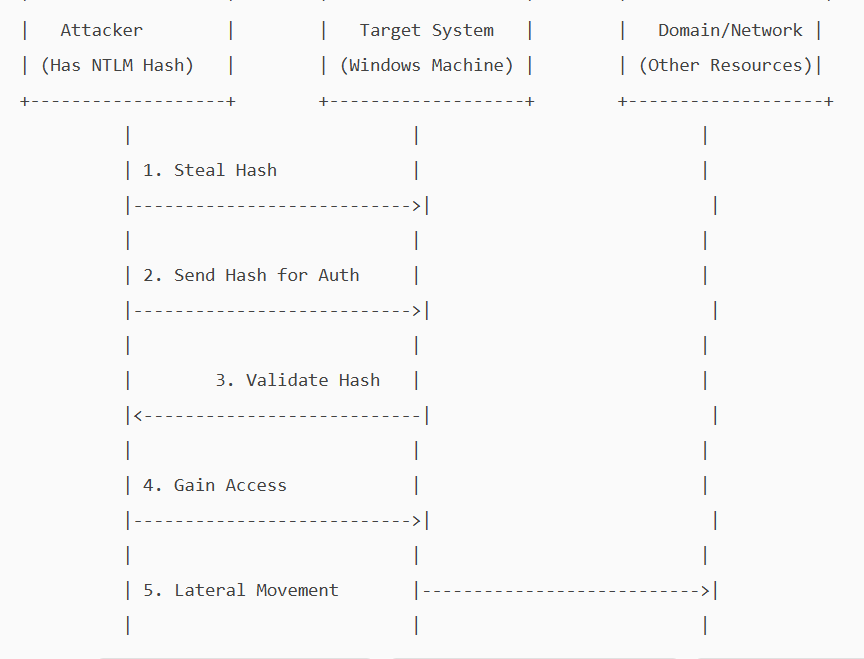
    A pass-the-hash attack is a cybersecurity attack in which a malicious user steals hashed credentials from a compromised system and uses them to log in as the original user.

    Hashing is an essential concept in cybersecurity and computer science. It involves using a mathematical algorithm, a hash function, to convert input data into a hash value. This process is deterministic and one-way, meaning it cannot be reversed to reveal the original data. i.e, It is not possible to get a clear-text password from a password hash.

    On local systems, Windows stores passwords in a hashed, encrypted format in the Security Accounts Manager (SAM) database and caches them in LSASS(Local Security Authority Subsystem Service) memory during logon. If a malicious user obtains a password hash, they can execute a pass-the-hash attack.

    NTLM (NT LAN Manager) is a Windows authentication protocol that uses a challenge-response mechanism. Instead of sending a password over the network, the client proves it knows the password by encrypting a server-issued challenge with the password’s hash (as a DES key)

    The server verifies this response using its stored hash.

    In a Pass-the-hash attack, the attacker exploits a vulnerability in the NTLM protocol to gain unauthorised access. The attacker does not need to know the clear-text password, as NTLM will accept the hash as proof of identity. He will pass the hash he obtained and will be allowed access as a legitimate user.

    . Attackers can steal these hashes through various methods

    1. Memory dumping: They can extract hashes from the LSASS process’s memory using Mimikatz and Procdump.\
    2. Stealing SAM database: If an attacker has access to SAM, they could dump the hash from it.
    3. Malware – key loggers, rootkits can give them access to hashes.
    4. Active directory compromise.
    5. Packet sniffing.

    NTLM is mainly kept for backward compatibility in Windows. Current versions of Windows primarily use Kerberos for domain authentication, but NTLM is still used where a system is not part of a domain.

    Because of its vulnerability, Microsoft recommends disabling NTLM wherever possible.

    Implementing a zero-trust architecture is the most effective way to prevent pass-the-hash attacks. Stick to the following to secure your Pc/network.

    1. Strong authentication and identity verification – implement MFA.
    2. Least privilege and Just-in-Time Access control.
    3. Continuous monitoring and anomaly detection
  • Prevent Screen Capture

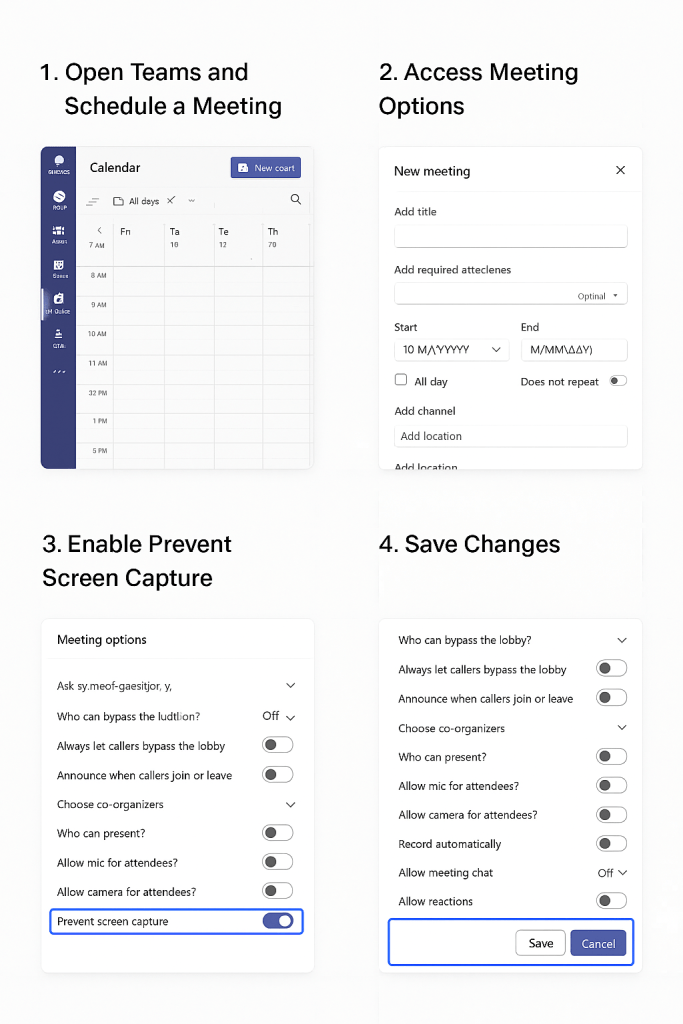
    Microsoft is actively rolling out a new security feature in Teams called “Prevent screen Capture”. This will block screenshots and recordings in sensitive meetings. Any screenshot attempts will show a black rectangle over the screen and will not record anything . On Android devices, it will pop up a message that says “Screen capture is disabled.” On unsupported platforms, users will be forced to use audio-only modes.

    This feature will be “off “ by default, and the user / organizer will have to manually enable it per meeting by selecting “meeting options.” However, to enforce “Prevent screen capture” effectively, the device should be enrolled in Intune, Microsoft’s cloud-based endpoint management solution.  This is a premium feature and requires a Teams Premium license.

    The Prevent Screen Capture feature in Teams protects sensitive or confidential information during virtual meetings. It benefits organizations in finance, healthcare, legal, and government by blocking screenshots and recordings. This feature helps protect intellectual property and client data, and supports regulatory compliance. It helps enforce strict security policies and Zero Trust frameworks by reducing insider threats and accidental leaks. For remote teams or those sharing proprietary information, this feature adds security and keeps critical information private.

  • Google updates Chrome — fixes around 20 vulnerabilities.

    The latest Chrome version, 142, released by Google on October 28th, includes patches to fix several documented vulnerabilities, some of which are high-severity. The update includes permission to block local network access from public/local websites. Chrome now blocks websites from sending requests to local network devices (like routers, printers, or software running on your machine) unless you explicitly grant permission. When a website tries to access your local network, it will ask you if it can “look for and connect to any device on your local network”. You can allow or deny. If you deny, the websites will not be able to connect to your local network.

    Why do websites need access to local networks?

    Smart home applications like Google Home require access to smart devices in your home, while streaming devices need to interact with smart TVs and speakers. Additionally, printing from websites necessitates communication with printers. However, granting access to your local network poses security risks, as malicious websites can potentially access, track, and exploit your devices.

    1. What is Local Network Access?

    Local Network Access (LNA) allows websites to communicate with devices on your home or office network (e.g., printers, smart TVs, routers). Chrome 142 now asks for permission before granting this access.

    2. Why Does Chrome Ask for Permission?
    • Security: Prevents malicious sites from probing your network or exploiting vulnerable devices.
    • Privacy: Stops websites from fingerprinting your network setup.
    3. When Should You Allow Access?

    Allow only if:

    • You trust the website (official vendor or service you use regularly).
    • You understand why it needs access, such as:
      • Smart home control (e.g., Philips Hue, Google Home).
      • Media streaming (e.g., Plex, Spotify Connect).
      • Enterprise tools (e.g., Box, Teams for printer integration).
      • Local development/testing (e.g., Selenium, TestCafe).
    4. When Should You Block Access?

    Block if:

    • The site is unknown or suspicious.
    • You are not using any local device integration.
    • The request seems unnecessary (e.g., a shopping site asking for local access).
    5. How to Manage Permissions
    • Check Current Settings:
    • Go to chrome://settings/content/localNetworkAccess.
    • Add Trusted Sites:
    • Under Allowed, add domains you trust.
    • Remove Sites:
    • Delete any site you do not recognise.
    6. Tips for Safe Usage
    • Always use HTTPS when granting access.
    • Avoid granting access on public Wi-Fi.
    • Review permissions periodically.

    To brief things , Chrome version 142, addresses over 20 security vulnerabilities, including 7 high-severity issues. Notably, Google awarded over $100,000 in bug bounties for two critical flaws in the V8 JavaScript engine.

    To stay protected and reduce the risk of exploitation:

    Update Chrome to the latest version immediately

    Restart your browser after updating.

  • Cyber Attack Vectors: What You Need to Know –

    This morning, I received a text from AIB asking me to confirm a money transfer via a link. Panic set in—until I remembered that I don’t even have an AIB account. Another day, another phishing attempt.

    Cybercriminals are increasingly targeting Irish individuals and businesses with sophisticated scams. These include:

    Phishing & Smishing

    Fake emails and texts often mimic trusted organisations, such as banks or An Post. Clicking links can lead to malware or credential theft. Watch for:

    • Poor grammar or odd phrasing
    • Suspicious sender addresses (e.g., support@aibbank-secure.com)
    • Urgent language pressuring quick action

    Vishing

    Scammers call pretending to be from banks or Gardaí, demanding sensitive info. Always hang up and call back using verified numbers.

    Spear Phishing

    Highly targeted attacks utilise personal details to craft convincing messages—such as fake invoices or job applications. Always verify unexpected requests through trusted channels.

    Social Media Scams

    Fake profiles and messages claim you’ve won a prize or violated copyright. These link to counterfeit login pages. If a friend sends an unusual request, confirm it directly with them.

    Credential Harvesting

    Scammers impersonate sites like Revenue.ie, luring victims with fake tax refund messages. These sites steal sensitive data, such as PPS numbers and bank details.

    Stay Safe with Zero Trust

    Adopt a “never trust, always verify” mindset. Don’t click links or share info without confirming through official channels. Cybercrime is rising—64% of Irish adults have faced phishing attacks, nearly double the global average.

    Pause. Verify. Protect. Share this knowledge with friends, family, and colleagues. Awareness is your best defence.