Category: Automation

  • ๐Ÿš€ How to Install Docker on Ubuntu Server (Step-by-Step Guide)

    Docker has become an essential tool for developers, system administrators, and DevOps engineers. It allows you to run applications in lightweight containers, making deployments faster, more consistent, and easier to manage.

    In this guide, youโ€™ll learn how to install Docker on an Ubuntu server and get started with your first container.

    ๐Ÿง  What is Docker?

    Docker is a containerization platform that enables you to package applications along with their dependencies into portable containers. These containers can run consistently across different environments.

    ๐Ÿ”ง Step 1: Update Your System

    Before installing Docker, update your system packages:

    sudo apt update && sudo apt upgrade -y

    ๐Ÿ”ง Step 2: Install Required Dependencies

    Install packages required to use HTTPS repositories:

    sudo apt install apt-transport-https ca-certificates curl software-properties-common -y

    ๐Ÿ” Step 3: Add Dockerโ€™s Official GPG Key

    curl -fsSL https://download.docker.com/linux/ubuntu/gpg | sudo gpg --dearmor

    ๐Ÿ“ฆ Step 4: Add Docker Repository

    echo "deb [arch=$(dpkg --print-architecture) signed-by=/usr/share/keyrings/docker.gpg] https://download.docker.com/linux/ubuntu $(lsb_release -cs) stable" | sudo tee /etc/apt/sources.list.d/docker.list > /dev/null

    โš™๏ธ Step 5: Install Docker Engine

    sudo apt update
    sudo apt install docker-ce docker-ce-cli containerd.io -y

    โœ… Step 6: Verify Docker Installation

    Run the following command to test Docker:

    sudo docker run hello-world

    If Docker is installed correctly, youโ€™ll see a confirmation message.

    ๐Ÿ”“ Step 7: Run Docker Without sudo (Optional)

    To run Docker commands without using sudo, add your user to the Docker group:

    sudo usermod -aG docker $USER

    Then log out and log back in for the changes to take effect.

    ๐Ÿงฉ Step 8: Install Docker Compose

    Docker Compose allows you to define and manage multi-container applications.

    sudo apt install docker-compose -y

    ๐ŸŒ Step 9: Run Your First Container

    Example: Run Nginx Web Server

    docker run -d -p 8080:80 nginx

    Now open your browser and visit:

    http://<your-server-ip>:8080

    You should see the Nginx welcome page.

    ๐Ÿงช Example: Run a Test Container

    docker run hello-world

    ๐Ÿ” Basic Security Tips

    This verifies that Docker is working correctly.

    • Avoid exposing Docker services directly to the internet without proper security controls
    • Keep your system updated regularly
    • Use official images from trusted sources
    • Limit container privileges when possible

    ๐Ÿ’ก Useful Docker Commands

    CommandDescription
    docker psList running containers
    docker ps -aList all containers
    docker imagesList images
    docker stop <id>Stop container
    docker rm <id>Remove container

    ๐ŸŽฏ Conclusion

    Docker simplifies application deployment by packaging everything into containers. With just a few commands, you can install Docker, run applications, and manage services efficiently.

    Whether you’re a developer, system administrator, or learner, Docker is a powerful tool worth mastering.
  • How to install OpenDaylight (ODL) on a Proxmox environment.

    ๐ŸŒ What is OpenDaylight (ODL)?

    OpenDaylight (ODL) is a modular, open-source Software-Defined Networking (SDN) controller developed under the Linux Foundation.
    It acts as the central brain of a software-defined network.

    Think of ODL as a network operating system that controls switches/routers from one place using programmable APIs.


    ๐Ÿง  What ODL Does

    ODL sits centrally and communicates with network devices through southbound protocols like:

    • NETCONF
    • OpenFlow
    • BGP-LS
    • PCEP
    • RESTCONF
    • gNMI

    Using these, ODL can:

    • Read device configuration
    • Push new configuration
    • Collect topology information
    • Automate network behavior
    • Build SDN applications on top

    โญ Why ODL Is Popular

    • 100% open source
    • Supports multi-vendor hardware (Cisco, Juniper, Arista, Nokia, etc.)
    • Deep support for NETCONF/YANG (used in modern Cisco IOS-XE)
    • Full automation capabilities (northbound REST APIs)
    • Strong community and carrier-grade framework

    Used by:

    • Cisco (old Cisco OSC was based on ODL)
    • Red Hat
    • Brocade
    • Ericsson
    • AT&T

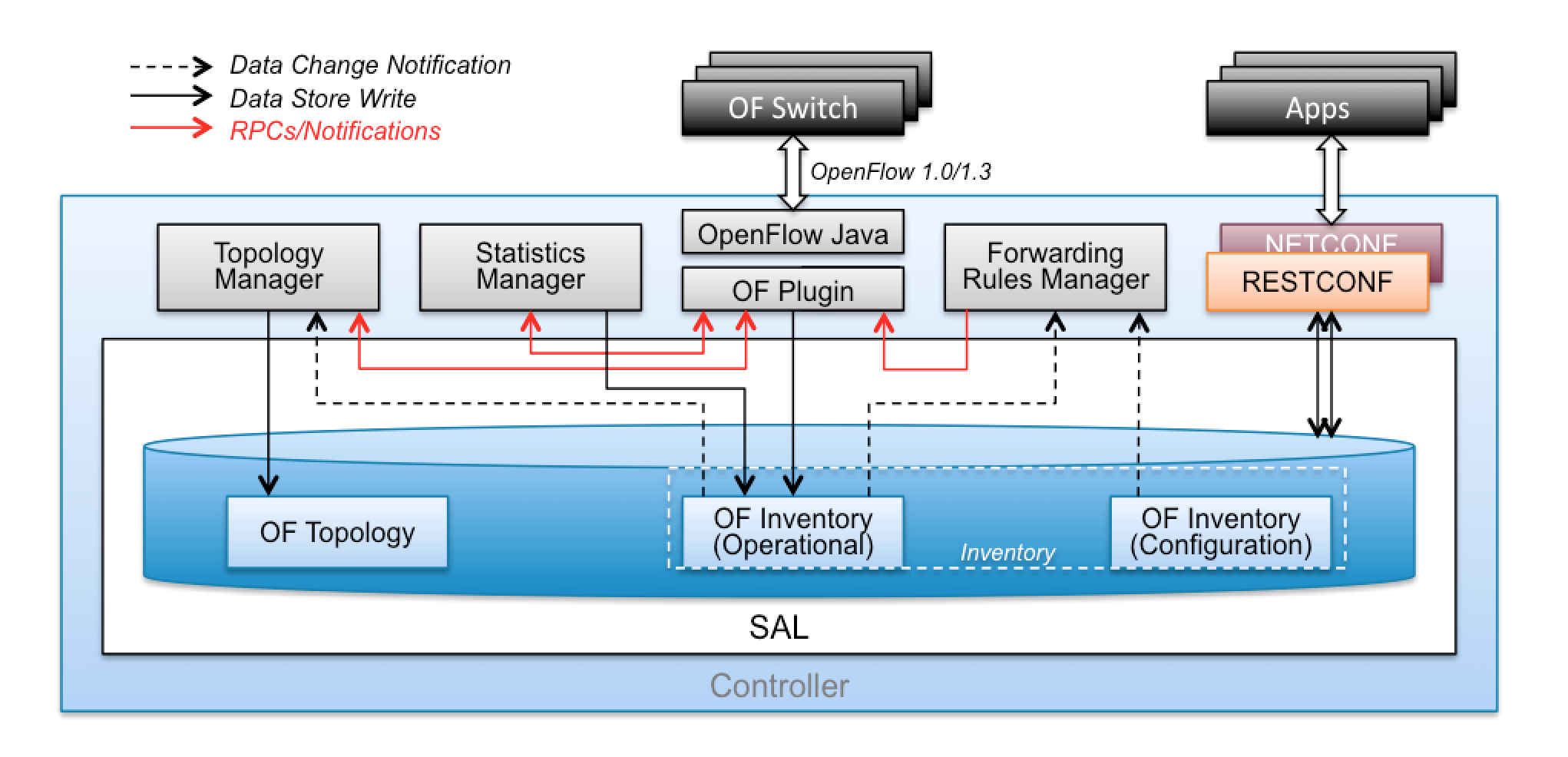
    ๐Ÿ—๏ธ ODL Architecture (Simple Explanation)

    https://docs.opendaylight.org/projects/openflowplugin/en/latest/_images/plugin_arch.png
    https://www.researchgate.net/publication/317057083/figure/fig2/AS%3A496926631763968%401495487949326/The-simplified-architectural-framework-of-OpenDaylight-13.png
    • Applications
      Custom or prebuilt apps that run on top of ODL (traffic engineering, path computation, network monitoring).
    • Northbound APIs
      RESTCONF/REST APIs used by automation tools (Python, Ansible, SDN apps).
    • Controller Platform (MD-SAL)
      The Model-Driven Service Abstraction Layer.
      This is the “brain” that stores models, state, topology, and configuration.
    • Southbound Plugins
      Protocols used to talk to network devices:
      • OpenFlow
      • NETCONF
      • OVSDB
      • BGP-LS
      • PCEP

    ๐Ÿ”ง What You Can Do With ODL

    โœ” Build full SDN topologies

    Example: OpenFlow-based switching labs.

    โœ” Automate Cisco devices using NETCONF/YANG

    ODL can act like an automation engine:

    • Push configs
    • Track device state
    • Collect data models

    โœ” Visualize network topology

    ODL automatically discovers and displays network nodes and links.

    โœ” Traffic engineering (TE) and segment routing

    Using BGP-LS and PCEP.

    โœ” Build your own SDN applications

    Example:

    • Auto-VLAN provisioning
    • Auto-QoS
    • Path optimization
    • ACL automation

    Here is the simplest and cleanest way to install OpenDaylight (ODL) on a Proxmox environment.
    You can install ODL inside a VM (Ubuntu/Debian is recommended).
    Iโ€™ll give you step-by-step commands, VM configuration, and post-installation access steps.


    โœ… 1. Create a VM on Proxmox

    Use the following recommended specs:

    Recommended VM Specs

    • OS: Ubuntu Server 20.04 / 22.04 (ODL works best on 20.04)
    • CPU: 2 vCPUs
    • RAM: 4โ€“6 GB
    • Disk: 20โ€“30 GB
    • Network: 1 Ethernet interface (bridged or VLAN)

    OpenDaylight is Java-heavy, so do not assign < 4 GB RAM.


    ๐Ÿ”ง 2. Update the OS

    SSH into the VM / Console:

    sudo apt update && sudo apt upgrade -y


    โš™๏ธ 3. Install Java (ODL requires Java 11)

    sudo apt install openjdk-11-jdk -y


    Check version:

    java -version


    ๐Ÿ“ฆ 4. Download OpenDaylight

    Download the latest stable version (Phosphorus, Sodium, or Aluminiumโ€”any works).

    cd /opt
    sudo wget https://nexus.opendaylight.org/content/groups/public/org/opendaylight/integration/distribution-karaf/0.14.4/distribution-karaf-0.14.4.tar.gz


    (Replace version if newer available.)


    ๐Ÿ“ 5. Extract the ODL package

    sudo tar -xvzf distribution-karaf-*.tar.gz
    sudo mv distribution-karaf-* opendaylight
    cd opendaylight


    โ–ถ๏ธ 6. Start OpenDaylight

    Run ODL:

    sudo ./bin/karaf


    This launches the Karaf console (ODL CLI).


    ๐Ÿงฉ 7. Install required ODL features

    Inside the Karaf console, install main modules:

    For OpenFlow:

    feature:install odl-restconf odl-l2switch-switch odl-openflow-plugin-all


    For NETCONF/YANG:

    feature:install odl-restconf odl-netconf-all odl-mdsal-all


    For BGP-LS / PCEP:

    feature:install odl-bgpcep-bgp odl-bgpcep-pcep


    ๐ŸŒ 8. Access Web UI (DLUX)

    Enable DLUX:

    feature:install odl-dlux-all


    Open your browser:

    http://<VM-IP>:8181/index.html#/login


    Default credentials:

    username: admin
    password: admin


    ๐Ÿ”„ 9. Run ODL as a service (recommended)

    Exit Karaf (Ctrl + D)

    Create a systemd service:

    sudo nano /etc/systemd/system/opendaylight.service


    Paste:

    [Unit]
    Description=OpenDaylight SDN Controller
    After=network.target
    
    [Service]
    User=root
    ExecStart=/opt/opendaylight/bin/karaf
    Restart=on-abort
    
    [Install]
    WantedBy=multi-user.target


    Enable + start:

    sudo systemctl daemon-reload
    sudo systemctl enable opendaylight
    sudo systemctl start opendaylight
    sudo systemctl status opendaylight


    ๐ŸŽ‰ ODL is now running on Proxmox!


    ๐Ÿ“Œ Bonus: Integrate ODL with Cisco Devices

    If using NETCONF:

    feature:install odl-restconf odl-netconf-all


    Then add your Cisco device:

    PUT http://<ODL-IP>:8181/restconf/config/network-topology:network-topology/topology/topology-netconf/node/<device-name>


    If using OpenFlow, make sure the switch points to ODL:

    openflow controller x.x.x.x port 6633 vrf <name>
    
  • The Silent Cost: Underutilization of Assets and Tools in Organizations

    In todayโ€™s cloud-first world, organizations spend millions on security, compliance, and infrastructure tools โ€” yet most use less than 50% of their potential.
    This underutilization isnโ€™t just wasted investment โ€” itโ€™s a missed opportunity to optimize, automate, and secure the digital ecosystem.

    ๐Ÿšจ The Reality of Tool Sprawl
    From CSPM, SPM, and Infrastructure Security to BUA , tech stacks are growing faster than adoption.

    Many enterprises:

    • Keep buying new tools instead of optimizing existing ones,
    • Overlook built-in features in Microsoft, AWS, or Azure,
    • Ignore capable open-source alternatives, and
    • Struggle with low tool adoption in operations due to lack of integration or enablement.

    The result? Expensive tools delivering minimal outcomes.


    ๐Ÿ” Hidden Potential Across Key Areas

    • CSPM: Used mainly for visibility, while automation, remediation, and multi-cloud correlation stay idle.
    • SPM: Focused on dashboards, rarely integrated with ITSM or DevOps to catch compliance drifts early.
    • Infrastructure Security: Tools like Tufin, Skybox, or Lacework offer strong analytics but are seldom linked to CI/CD or workflow automation.


    ๐Ÿงฉ The Open-Source Gap
    Many organizations purchase costly solutions when powerful open-source options like Terrascan,Trivy, Terrascan, Falco, OSQuery, Rsyslog,Prometheus, or OpenVAS already exist.
    These tools offer:

    • Deep configurability,
    • Smooth CI/CD integration, and
    • Strong community support.

    Yet, theyโ€™re often ignored or only partially adopted โ€” leaving huge value untapped.


    ๐Ÿ’ก Shifting the Mindset

    Instead of expanding toolsets, focus on maximizing existing capabilities:

    • Conduct Tool Utilization Audits.
    • Evaluate open-source before buying new tools.
    • Train teams to use advanced features.
    • Automate posture insights within DevSecOps pipelines.

    The goal isnโ€™t to have more tools โ€” itโ€™s to make existing ones work smarter together.


    โš™๏ธ The Way Forward
    Before investing in another platform, ask:
    โ€œAre we fully using what we already have โ€” or paying twice for the same capability?โ€
    Optimizing assets and leveraging open-source innovation can reduce costs, improve visibility, and strengthen cloud security posture.
    In cybersecurity today, optimization is the new innovation โ€” and efficiency is the new defense.


    ๐Ÿ’ฌ Whatโ€™s your view?
    ย Have you seen costly tools purchased while open-source alternatives sit idle? How can organizations empower operations teams to bridge this gap?


    #CloudSecurity #CSPM hashtag#SPM #InfraSecurity #DevSecOps #CloudGovernance #OpenSource #Freeware #ToolOptimization #SecurityPosture #Azure hashtag#AWS #CostOptimization #SecurityAutomation


    hashtag#CloudSecurity hashtag#CSPM hashtag#SPM hashtag#InfraSecurity hashtag#DevSecOps hashtag#CloudGovernance hashtag#OpenSource hashtag#Freeware hashtag#ToolOptimization hashtag#SecurityPosture hashtag#Azure hashtag#AWS hashtag#CostOptimization hashtag#SecurityAutomation

  • ๐Ÿง  What is AI and ML in Networking?

    Artificial Intelligence (AI) and Machine Learning (ML) in networking refer to the use of data-driven algorithms and automation to make networks smarter, self-learning, and self-optimizing.

    In simple terms โ€”
    ๐Ÿ‘‰ AI/ML help networks think, learn, and act on their own instead of relying only on human intervention.

    For example:

    • The network can detect anomalies, predict failures, or optimize routing automatically โ€” based on continuous data analysis.

    โš™๏ธ Why AI/ML Are Needed in Networking

    Modern networks are:

    • Massive (thousands of devices, millions of connections)
    • Dynamic (cloud, IoT, 5G, SDN)
    • Complex (virtual + physical + security layers)

    Traditional manual management canโ€™t keep up.
    AI and ML provide automation, intelligence, and adaptability to handle this complexity efficiently.


    ๐Ÿงฉ Key Applications of AI/ML in Networking

    1. Network Automation

    • AI helps in automatically configuring, optimizing, and healing networks.
    • ML models learn from network data and predict optimal configurations.

    Example:
    Automatically adjusting QoS or bandwidth based on traffic patterns.


    2. Predictive Maintenance

    • ML algorithms analyze device logs, performance metrics, and temperature data to predict failures before they happen.

    Example:
    AI predicts a switch port failure based on rising CRC errors and triggers proactive replacement.


    3. Anomaly Detection and Security

    • AI detects unusual traffic patterns that may indicate cyberattacks, malware, or misconfigurations.
    • ML models can learn what โ€œnormalโ€ behavior looks like and alert when deviations occur.

    Example:
    Detecting a DDoS attack based on sudden traffic spikes.


    4. Traffic Analysis and Optimization

    • ML helps to analyze traffic flows and dynamically reroute data for better performance.
    • Can optimize latency, throughput, and load balancing.

    Example:
    AI-driven SD-WAN controllers automatically select the best WAN link per application.


    5. Quality of Experience (QoE) Enhancement

    • AI monitors user experience (e.g., video call quality) and adjusts parameters like jitter, latency, and bandwidth in real time.

    6. Network Planning and Capacity Forecasting

    • ML models analyze growth trends and predict future capacity needs.
    • Useful for ISP and data center planning.

    7. Intent-Based Networking (IBN)

    • The network understands high-level intent (โ€œensure low latency for voice trafficโ€) and uses AI/ML to translate it into actual configurations and policies automatically.

    ๐Ÿงฑ AI/ML in Networking Architecture

    LayerFunctionExample
    Data CollectionCollect telemetry, logs, SNMP, NetFlow, SyslogNetwork devices, sensors
    Data ProcessingClean, normalize, and store dataStreaming analytics platforms
    Machine Learning EngineTrain models, detect patterns, make predictionsTensorFlow, Scikit-learn
    Automation LayerTake actions (config updates, alerts, rerouting)Ansible, SDN controller
    Visualization LayerDisplay analytics and decisionsDashboards, reports

    ๐Ÿง  AI Techniques Used in Networking

    TechniquePurposeExample
    Supervised LearningPredict outcomes from labeled dataPredict link failures
    Unsupervised LearningDetect patterns or anomaliesNetwork anomaly detection
    Reinforcement LearningLearn best actions via trial and feedbackAdaptive routing
    Deep Learning (Neural Networks)Handle large and complex dataVideo QoS optimization
    Natural Language Processing (NLP)Understand text/voice inputChatbots for network operations (NetOps assistants)

    ๐Ÿงฐ Real-World AI-Driven Networking Tools

    VendorPlatformAI/ML Capability
    Cisco DNA CenterAI Network AnalyticsClient health, anomaly detection, insights
    Juniper Mist AIAI-driven WLANPredictive Wi-Fi troubleshooting
    Arista CloudVisionAI TelemetryNetwork state analysis
    VMware vRealize Network InsightNetwork analyticsFlow visibility and optimization
    Fortinet FortiAISecurity AIMalware detection and behavioral analysis

    ๐ŸŒ Benefits of AI/ML in Networking

    • Self-Healing Networks: Automatically detect and fix issues
    • Proactive Maintenance: Prevent outages before they occur
    • Reduced Downtime: Faster troubleshooting and resolution
    • Better Security: Identify new attack patterns
    • Improved Performance: Optimize bandwidth and routing
    • Cost Efficiency: Reduce manual work and operational overhead

    ๐Ÿšง Challenges

    • Data Quality: Inaccurate or incomplete data leads to wrong predictions
    • Integration: Legacy systems may not support modern APIs
    • Explainability: Hard to understand ML model decisions
    • Security: AI systems themselves must be protected

    ๐Ÿ—๏ธ Example Use Case

    Scenario: Enterprise WAN Optimization

    1. Routers and switches send telemetry to a central AI engine.
    2. The ML model analyzes traffic latency, loss, and jitter.
    3. AI identifies congestion and predicts peak hours.
    4. The SDN controller reroutes traffic proactively to maintain SLA.

    Result โ†’ Better performance, fewer complaints, and automated control.


    ๐Ÿงญ Summary

    ConceptDescription
    AI in NetworkingSystems that make intelligent decisions automatically
    ML in NetworkingAlgorithms that learn patterns from network data
    Use CasesFault prediction, anomaly detection, optimization
    BenefitsAutomation, efficiency, reliability, cost reduction
    Key ToolsCisco DNA Center, Juniper Mist AI, VMware NSX, FortiAI
  • ๐Ÿง  What is a REST API?

    REST API stands for Representational State Transfer Application Programming Interface.
    Itโ€™s a standard way for two systems to communicate over the web (HTTP/HTTPS) โ€” often between a client (like Python script or Ansible) and a server (like a network device or SDN controller).

    In simple terms:
    ๐Ÿ‘‰ A REST API allows you to interact with a system (get data, configure, update, or delete something) using HTTP requests โ€” just like how your browser communicates with websites.


    โš™๏ธ Why REST APIs Matter in Networking

    In modern networks:

    • Devices (Cisco, Juniper, Fortinet, etc.) and controllers (like OpenDaylight, Cisco DNA Center, VMware NSX) expose REST APIs.
    • Engineers can automate tasks (like getting interface status, pushing configurations, or monitoring health) using API calls instead of manual CLI.

    Example:
    Instead of logging into 50 routers to check interface status,
    you can run one Python script that uses REST APIs to fetch all interface data.


    ๐Ÿงฉ Key Concepts of REST API

    ConceptDescription
    ClientThe system or application making the API request (e.g., Python script, Postman, Ansible)
    ServerThe system that provides the API (e.g., router, firewall, controller)
    ResourceThe object youโ€™re working with (e.g., interface, VLAN, route, policy)
    URI (Uniform Resource Identifier)The address to access a resource (e.g., /api/v1/interfaces)
    HTTP MethodsDefine what action to perform on a resource

    ๐Ÿ”  Common HTTP Methods

    MethodPurposeExample
    GETRetrieve informationGet interface status
    POSTCreate new data/configurationAdd a new VLAN
    PUTUpdate/replace dataChange an interface IP
    PATCHModify part of a resourceUpdate interface description
    DELETERemove data/configurationDelete a VLAN

    ๐Ÿงพ Typical REST API Request Structure

    A REST API request looks like this:

    Method: GET
    URL: https://192.168.1.1/api/v1/interfaces
    Headers:
        Content-Type: application/json
        Authorization: Bearer <token>


    Response (from device or server):

    {
      "interfaces": [
        {"name": "GigabitEthernet0/0", "status": "up"},
        {"name": "GigabitEthernet0/1", "status": "down"}
      ]
    }


    ๐Ÿ’ก Key Characteristics of REST APIs

    • Stateless: Each request is independent; the server doesnโ€™t remember previous ones.
    • Uses HTTP verbs: GET, POST, PUT, DELETE, etc.
    • Uses URIs to identify resources.
    • Supports multiple data formats: Commonly JSON, sometimes XML.
    • Client-Server separation: Clear boundary between what requests and what responds.
    • Cacheable: Responses can be cached for performance.

    ๐Ÿงฐ Common Tools to Work with REST APIs

    ToolUse
    PostmanGUI-based tool to test and visualize API calls
    cURLCommand-line tool for sending HTTP requests
    Python (Requests library)Programmatically interact with APIs
    Ansible / TerraformUse APIs for automation/infrastructure as code

    ๐Ÿ Example: Python Script Using REST API

    import requests
    import json
    
    url = "https://192.168.1.1/api/v1/interfaces"
    headers = {
        "Content-Type": "application/json",
        "Authorization": "Bearer your_token_here"
    }
    
    response = requests.get(url, headers=headers, verify=False)
    data = response.json()
    
    for interface in data["interfaces"]:
        print(interface["name"], "-", interface["status"])


    โœ… This script retrieves interface status from a network device that supports REST APIs.


    ๐ŸŒ Example REST API Endpoints (Networking)

    VendorAPI ExampleDescription
    Cisco DNA Center/dna/intent/api/v1/network-deviceGet all devices
    Fortinet FortiGate/api/v2/monitor/system/interface/Get interface list
    Juniper Junos/rpc/get-interface-informationGet interface info
    OpenDaylight/restconf/operational/network-topology:network-topologyGet network topology
    Arista eAPI/command-apiSend CLI commands via JSON-RPC

    โœ… Benefits of Using REST APIs

    • Automation: Eliminate manual configuration
    • Integration: Connect network, cloud, and monitoring systems
    • Speed: Fast configuration and data collection
    • Consistency: Apply uniform settings across devices
    • Scalability: Manage hundreds of devices easily

    ๐Ÿงญ Summary

    ConceptDescription
    Full FormRepresentational State Transfer API
    PurposeCommunication between client and server using HTTP
    Data FormatJSON / XML
    Common MethodsGET, POST, PUT, DELETE
    Use in NetworkingAutomate configuration, monitoring, and integration
    ToolsPostman, Python Requests, Ansible
  • ๐Ÿค– Bridging Manual AWS Infrastructure to Terraform: Automating Security Group Imports with Python

    In modern cloud engineering, Infrastructure as Code (IaC) is more than a best practiceโ€”it’s a necessity. But what happens when your AWS infrastructure already exists, created manually through the console or scripts, long before Terraform entered the picture?

    This blog post walks through a hybrid solution: using Python and Boto3 to detect and import existing AWS Security Groups into Terraform, then converting them into reproducible, editable .tf files. It’s fast, scalable, and minimizes human error.


    ๐Ÿšฉ Problem Statement

    Many teams start their cloud journey without IaC. As the environment grows, managing resources manually becomes error-prone and unscalable. Transitioning to Terraform becomes inevitableโ€”but re-creating everything manually in .tf files is:

    • Time-consuming
    • Risky
    • Hard to validate

    ๐Ÿ’ก Solution:

    Use Python to automate the Terraform import process and dynamically generate configuration files per AWS Security Group.


    โš™๏ธ Tech Stack

    ToolRole
    TerraformInfrastructure provisioning
    Python (Boto3)AWS resource discovery
    AWS CLI / IAM RoleCredentials & API access
    Shell CommandsAutomating imports

    ๐Ÿ”„ Workflow Overview

    • Discover all Security Groups in a region
    • Create Terraform directories per group
    • Write provider.tf and main.tf
    • Run terraform import to sync state
    • Output the state into HCL format via terraform show
    • Format and validate using terraform fmt

      ๐Ÿ“œ Python Script Breakdown

      Hereโ€™s the key automation script: securitygroupimporter.py

      import boto3
      import os

      region = "us-west-1"
      client = boto3.client('ec2', region_name=region)

      for group in client.describe_security_groups()['SecurityGroups']:
      dir_name = group['GroupId']
      os.system("mkdir " + dir_name)

      with open(os.path.join(dir_name, "provider.tf"), "w") as file:
      file.write(f"""provider "aws" {{
      region = "{region}"
      }}""")

      with open(os.path.join(dir_name, "main.tf"), "w") as file:
      file.write(f"""resource "aws_security_group" "imported_sg_tf" {{
      name = "{group['GroupName']}"
      description = "{group['Description']}"
      vpc_id = "{group['VpcId']}"
      }}""")

      os.system(f"cd {dir_name} && terraform init && terraform fmt && terraform import aws_security_group.imported_sg_tf {group['GroupId']} && terraform show -no-color > main.tf")

      ๐Ÿงพ Example Output

      The script generates a clean folder structure like:

      bashCopyEditsg-0a1b2c3d4e5f67890/
      โ”œโ”€โ”€ provider.tf  # AWS provider config
      โ”œโ”€โ”€ main.tf      # Full resource definition (after import)
      

      This makes it easy to commit, audit, and manage each security group individually.


      ๐Ÿ“ฆ Terraform Usage

      Once the .tf files are created:

      cd sg-0a1b2c3d4e5f67890
      terraform plan
      terraform apply

      You can now modify the SG rules as code and re-apply them safely!


      ๐Ÿ“ˆ Benefits of This Approach

      โœ… No Manual Rewrites: Automates tedious .tf file generation
      โœ… Version Control: All SGs under Git with Terraform
      โœ… Audit-Friendly: Clear, editable .tf source
      โœ… Repeatable: Works in any region with any account
      โœ… Safe Migration: No downtime or resource recreation


      ๐Ÿ’ก Possible Enhancements

      Hereโ€™s how we can take this further:

      • โœณ๏ธ Add user prompts for selective SG import
      • ๐Ÿ” Extract individual ingress/egress rules instead of full state dump
      • ๐Ÿ“ฆ Refactor into reusable Terraform modules
      • ๐Ÿ“Š Add CloudWatch alerts for drift detection
      • โš™๏ธ Integrate into CI/CD pipeline

      ๐ŸŒ Real-World Use Case

      Imagine you’re handed an AWS account with 100+ resources but no existing Terraform config. This script gives you a jumpstart, extracting current state and turning it into a fully manageable codebase โ€” all without starting from scratch.


      ๐Ÿ” Security Considerations

      • Use IAM roles with read-only EC2 access
      • Validate the Terraform plan before applying changes
      • Consider sanitizing or encrypting sensitive outputs if saved

      ๐Ÿ“ธ Architecture Diagram

      This tool can be a part of a larger provisioning pipeline (e.g., VPCs, EC2, Load Balancers, etc.).


      ๐Ÿงช Try It Yourself

      pip install boto3
      export AWS_ACCESS_KEY_ID=...
      export AWS_SECRET_ACCESS_KEY=...
      python securitygroupimporter.py

      Each SG is imported and converted into Terraform-ready format in its own folder. You can version it, tweak rules, and manage it from here on out like any other .tf module.


      ๐Ÿงฉ Final Thoughts

      Cloud infrastructure is not always born as code โ€” but it should evolve that way. With this approach, we take a real-world AWS environment and transform it into Terraform IaC with minimal friction.

      This saves hours of repetitive work and brings undocumented infrastructure under the umbrella of security, compliance, and automation.


      ๐Ÿค Letโ€™s Connect

      If you found this useful or have ideas to improve it, letโ€™s talk!
      Iโ€™d love to collaborate with other DevOps engineers and cloud enthusiasts.

      ๐Ÿ“ฌ DM me on LinkedIn or drop a comment below.


      #Terraform #AWS #Python #Boto3 #DevOps #InfrastructureAsCode #IaC #CloudMigration #Security #Automation

    1. Python script to check if VDB databases are updated in Cisco FMC

      To check if VDB databases are updated in Cisco FMC and print the results to an Excel file using Python, you can use the following approach:

      1.Access Cisco FMC through API: Use the Cisco FMC API to retrieve the VDB database information. You can find more details about the API in the Cisco FMC API documentation.

      import requests
      import json

      fmc_feeds_url = “https://10.10.10.10/api/fmc_feeds/access&#8221;
      fmc_headers = {‘content-type’: ‘application/json’}
      fmc_auth = (‘admin’, ‘YourPassword’) # replace ‘YourPassword’ with your actual password

      response = requests.get(fmc_feeds_url, headers=fmc_headers, auth=fmc_auth, verify=False)
      feeds = json.loads(response.text)

      2.Parse the API response: Extract the VDB database information from the API response.

      vdb_databases = [feed for feed in feeds[‘items’] if feed[‘name’].startswith(‘VDB’)]

      3.Create an Excel file and print the results: Use a library like pandas to create an Excel file and print the results.

      import pandas as pd

      df = pd.DataFrame(vdb_databases)
      df.to_excel(‘VDB_databases.xlsx’, index=False)

    2. Migrate APs from Old WLC to 9800

      Migrate APs from Old WLC to 9800

      Python script to move access points from an old WLC (Wireless LAN Controller) to a new Cisco Catalyst 9800 WLC:

      Example Code Snippets

      1. Collecting configuration data from the old WLC (AireOS):

      import netmiko

      old_wlc_ip = ‘192.168.1.100’
      old_wlc_username = ‘admin’
      old_wlc_password = ‘password’

      ssh_conn = netmiko.Netmiko(
      hostname=old_wlc_ip,
      username=old_wlc_username,
      password=old_wlc_password
      )

      config_data = ssh_conn.send_command(‘show running-config’)

      2.Processing data to extract AP information:

      import csv

      ap_info = []
      for line in config_data.splitlines():
      if ‘ap-name’ in line:
      ap_name = line.split()[1]
      ap_info.append({‘ap_name’: ap_name, ‘wlc_ip’: old_wlc_ip})

      with open(‘ap_config.csv’, ‘w’, newline=”) as csvfile:
      writer = csv.DictWriter(csvfile, fieldnames=[‘ap_name’, ‘wlc_ip’])
      writer.writeheader()
      writer.writerows(ap_info)

      1. Sending configuration commands to the new 9800 WLC:
      new_wlc_ip = '192.168.1.200'
      new_wlc_username = 'admin'
      new_wlc_password = 'password'

      ssh_conn = netmiko.Netmiko(
      hostname=new_wlc_ip,
      username=new_wlc_username,
      password=new_wlc_password
      )

      with open('ap_config.csv', 'r') as csvfile:
      reader = csv.DictReader(csvfile)
      for row in reader:
      ap_name = row['ap_name']
      wlc_ip = row['wlc_ip']
      config_cmd = f'config ap primary-base {wlc_ip} {ap_name}'
      ssh_conn.send_command(config_cmd)
    3. Python Script to Configure Multiple Cisco Devices

      This script to configure multiple cisco devices , we need to put all IP addresses in the IPAdrresslist.txt file and change cmd1 and cmd2 of the script with required config commands

      from future import print_function
      from netmiko import ConnectHandler

      import sys
      import time
      import select
      import paramiko
      import re
      platform = ‘cisco_ios’
      username = ‘XXXX’
      password = ‘XXXX’

      ip_add_file = open(‘ips.txt’,’r’)

      for host in ip_add_file:
      try:
      device = ConnectHandler(device_type=platform, ip=host, username=username, password=password)
      output = device.send_config_set([cmd1′,’cmd2′])
      print(output)

      except Exception:
      print(“Unable to connect”)


    4. Python Script to Execute Show Commands in Multiple Devices and Save the Output to a Text File

      The script requires two text files, put your device IP addresses in IPAddressList.txt and create another blank file named Command_Output.txt in the application directory .

      Prerequisites

      • Python 3
      • Paramiko

      from future import print_function
      from netmiko import ConnectHandler
      import os
      import sys
      import time
      import select
      import paramiko
      import re

      fd = open(‘r’\home\user\Command_Output.txt’,’w’)
      old_stdout = sys.stdout
      sys.stdout = fd
      platform = ‘cisco_ios’
      username = ‘XXXX’
      password = ‘XXXX’
      ip_add_file = open(r’\home\user\IPAddressList.txt’,’r’)

      for host in ip_add_file:
      #host = host.strip()
      device = ConnectHandler(device_type=platform, ip=host, username=username, password=password)
      output = device.send_command(‘sh int trunk’)
      print(output)

      fd.close()