Category: Networking

  • EVE-NG Installation on VMware Workstation

    Installing EVE-NG on VMware Workstation involves several steps. Here’s a step-by-step guide:

    Prerequisites

    1. VMware Workstation Pro or VMware Workstation Player installed.
    2. EVE-NG ISO or OVA downloaded from EVE-NG website.
    3. Adequate System Requirements:
      • At least 4 CPU cores (8+ recommended).
      • 16GB RAM (More for large labs).
      • 100GB+ SSD storage.
      • Intel VT-x/EPT or AMD-V/RVI enabled in BIOS.
      • VMware installed with nested virtualization support enabled.

    Method 1: Install EVE-NG using OVA (Recommended)

    Step 1: Download the EVE-NG OVA File

    • Download the EVE-NG Community OVA or EVE-NG Professional OVA from EVE-NG.net.

    Step 2: Import the OVA in VMware

    1. Open VMware Workstation.
    2. Click FileOpen.
    3. Select the EVE-NG OVA file.
    4. Click Import and wait for the process to complete.

    Step 3: Adjust VM Settings

    • Increase CPU Cores (Recommended: 4 or more).
    • Increase RAM (Recommended: 8GB or more).
    • Set Network Adapter to Bridged (for external access).
    • Enable Nested Virtualization:
      • Go to Processors → Enable “Virtualize Intel VT-x/EPT or AMD-V/RVI”.

    Step 4: Start the VM & Configure EVE-NG

    1. Power on the VM.
    2. Login using default credentials:
      • Username: root
      • Password: eve
    3. Change the root password when prompted.
    4. Configure network settings using the CLI or DHCP.
    5. Access the web GUI via **http://<EVE-NG-IP>/`.

    Method 2: Install EVE-NG from ISO (Manual Installation)

    Step 1: Create a New VM

    1. Open VMware Workstation and click Create a New Virtual Machine.
    2. Select “Custom (Advanced)” and click Next.
    3. Choose “I will install the operating system later” and click Next.
    4. Select LinuxUbuntu 64-bit.
    5. Name the VM (e.g., EVE-NG) and choose the storage location.

    Step 2: Configure VM Settings

    • CPU: At least 4 cores (More recommended).
    • RAM: At least 8GB (More recommended).
    • Hard Disk: 100GB or more.
    • Network Adapter: Set to Bridged or NAT.
    • Enable Virtualization: Go to Processors and enable VT-x/EPT.

    Step 3: Mount & Install EVE-NG

    1. Attach the EVE-NG ISO:
      • Go to CD/DVD (IDE) settings.
      • Select “Use ISO Image File” and browse for the EVE-NG ISO.
    2. Power on the VM.
    3. Follow the installation wizard:
      • Choose Install EVE-NG.
      • Select disk and proceed with the installation.
      • Set up a root password.
      • Configure network settings.
    4. After installation, reboot the VM.

    Step 4: Access EVE-NG

    • Login via CLI using:makefileCopyEditUsername: root Password: (your password)
    • Find the IP address of the VM (ifconfig or ip a).
    • Open a web browser and go to http://<EVE-NG-IP>/.

    Post-Installation Steps

    1. Enable SSH & Web GUI Access

    • Ensure EVE-NG is reachable from your network.
    • Use a browser to access the Web GUI at http://<EVE-NG-IP>/.

    2. Upload & Install Network Images

    • Upload images (Cisco, Juniper, Fortinet, etc.) to /opt/unetlab/addons/qemu/.
    • Fix permissions using:bashCopyEdit/opt/unetlab/wrappers/unl_wrapper -a fixpermissions

    3. Connect to the Lab

    • Use SecureCRT, Putty, or the built-in console to connect to network devices.

    Troubleshooting

    1. Web GUI Not Accessible?
      • Check network settings and ensure Bridged Adapter is selected.
      • Try systemctl restart networking inside EVE-NG.
    2. VM Won’t Boot?
      • Enable VT-x/EPT in BIOS.
      • Ensure Nested Virtualization is enabled in VMware.
    3. Slow Performance?
      • Allocate more CPU cores and RAM.
      • Ensure SSD storage is used.
  • MAC address learning process

    A switch learns MAC addresses using a process called MAC address learning or learning and forwarding. Here’s how it works:

    1. Receives a Frame: When a switch receives an Ethernet frame on a port, it examines the frame’s source MAC address.
    2. Updates the MAC Table (CAM Table):
      • The switch stores the source MAC address and the port number in its MAC address table (also called the Content Addressable Memory (CAM) table).
      • This way, the switch knows which device is connected to which port.
    3. Forwards the Frame:
      • If the destination MAC address is already in the MAC table, the switch forwards the frame only to the corresponding port.
      • If the destination MAC address is not in the table, the switch floods the frame to all ports except the one it was received from. This is called unknown unicast flooding.
    4. Refreshes Entries:
      • MAC address entries have a timeout (typically 5 minutes by default).
      • If a device doesn’t send traffic for a while, its MAC entry is removed from the table to free up space.

    Example Scenario:

    • A device with MAC AA:BB:CC:DD:EE:01 sends a frame through Port 1.
    • The switch records AA:BB:CC:DD:EE:01 → Port 1 in its MAC table.
    • If the destination MAC is unknown, the switch floods the frame.
    • When the destination device responds, the switch learns its MAC and updates the table.

    This process helps switches efficiently forward traffic and reduce unnecessary network congestion.

  • Connecting OSPF Areas without Virtual Links

    To connect two OSPF regular areas without a virtual link, you can use a GRE (Generic Routing Encapsulation) tunnel. Here’s a step-by-step guide:

    Why GRE Tunnel?

    A GRE tunnel allows you to encapsulate OSPF packets within a GRE header, which can be routed through a non-OSPF area. This approach eliminates the need for a virtual link.

    Configuration Steps:

    1. Create a GRE Tunnel:
      • Configure a GRE tunnel between the two routers that connect the two OSPF regular areas.
      • Use the tunnel mode gre ip command to create a GRE tunnel interface.
    2. Configure OSPF on the GRE Tunnel:
      • Configure OSPF on the GRE tunnel interface, specifying the area ID and network type.
      • Use the router ospf command to enable OSPF on the GRE tunnel interface.
    3. Configure OSPF on the Physical Interfaces:
      • Configure OSPF on the physical interfaces that connect to the GRE tunnel, specifying the area ID and network type.
      • Use the router ospf command to enable OSPF on the physical interfaces.

    Example Configuration:

    Suppose we have two routers, R1 and R2, that connect two OSPF regular areas, Area 1 and Area 2.

    R1 Configuration:

    interface Tunnel0 

    tunnel mode gre 

    ip tunnel source FastEthernet0/0 tunnel destination 192.168.2.2 

    ip address 10.1.1.1 255.255.255.0 

    router ospf 1 

    network 10.1.1.0 0.0.0.255 area 1 interface FastEthernet0/0 

    ip address 192.168.1.1 255.255.255.0 router ospf 1 

    network 192.168.1.0 0.0.0.255 area 1

    R2 Configuration:

    interface Tunnel0
    tunnel mode gre ip
    tunnel source FastEthernet0/0
    tunnel destination 192.168.1.1
    ip address 10.2.2.1 255.255.255.0
    router ospf 1
    network 10.2.2.0 0.0.0.255 area 2

    interface FastEthernet0/0
    ip address 192.168.2.2 255.255.255.0
    router ospf 1
    network 192.168.2.0 0.0.0.255 area 2

    By using a GRE tunnel, you can connect two OSPF regular areas without a virtual link. This approach provides a flexible and scalable solution for connecting multiple OSPF areas.

  • Introduction To Cisco ASA Firewall

    Introduction

    • In computer networking, Cisco ASA 5500 Series Adaptive Security Appliances, or simply Cisco ASA, is Cisco’s line of network security devices introduced in May 2005, that succeeded three existing lines of popular Cisco products:
    • Cisco PIX, which provided firewall and network address translation (NAT) functions ended sale on 28 July 2008.
    • Cisco IPS 4200 Series, which worked as intrusion prevention systems (IPS).
    • Cisco VPN 3000 Series Concentrators, which provided virtual private networking (VPN).
    • The Cisco ASA is a unified threat management device, combining several network security functions in one box.

    Cisco ASA Features

    • antivirus
    • antispam
    • IDS/IPS engine
    • VPN Device
    • SSL Device
    • content inspection

    ASA Models and their throughputs

    • Cisco ASA 5505
    • Cisco ASA 5510
    • Cisco ASA 5520
    • Cisco ASA 5525-X
    • Cisco ASA 5540
    • Cisco ASA 5550
    • Cisco ASA 5580-20
    • Cisco ASA 5580-40
    Model5506-X5506W-X5506H-X5508-X5512-X5515-X5516-X5525-X5545-X5555-X5585-X
    Throughput Gb/s0.250.250.250.450.30.50.851.11.51.754-40
    GB ports88486688886-8
    Ten GB ports00000000002-4
    Form factordesktopdesktopdesktop1 RU1 RU1 RU1 RU1RU1RU1RU2RU


    ASA Architecture

    • ASA is an application-aware stateful packet filtering firewall
    • Inspects all the packets which are passing through the firewall
    • Each and every interface on ASA requires configuration of following parameters

    ASA Architecture

    • ASA is an application-aware stateful packet filtering firewall
    • Inspects all the packets which are passing through the firewall
    • Each and every interface on ASA requires configuration of following parameters

    1.Interfaces with name and IP Address Add block

    2.Security Level

    ASA security levels

    • By default ,the security level is automatically set to the interface once name is configured §ASA uses security level 100 for trusted or internal networks and 0 for un-trusted or public networks
    • We can configure security levels to other interfaces also like DMZ 50
    • By default, traffic from higher traffic level to lower are allowed or inspected, all other traffic is blocked
    This image has an empty alt attribute; its file name is image.png
  • How To Configure Reflexive ACL in Cisco Router .

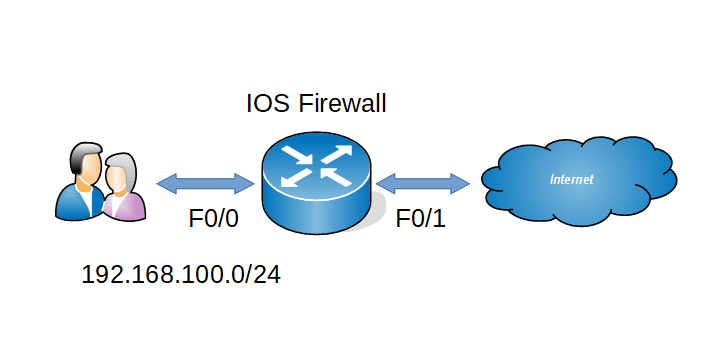
    RACL is a type of ACL which will permit only the external traffic which is originated from inside and it will block all other external traffic . RACL will keep the session table of the outgoing traffic and it will check the external traffic with that particular session table .

    Find below for the configurations

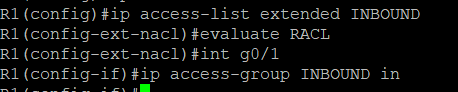
    Step 1 : Create outbound ACL to reflect outgoing traffic

    Step 2 : Create inbound ACL to evaluate the RACL

    Verification

    Thus router will block all outside traffic and permit only return traffic of the inside network.

  • Traffic Engineering in EIGRP using Delay

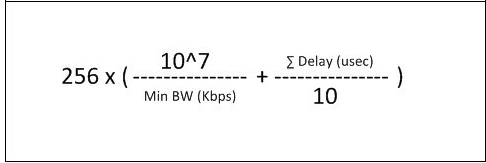
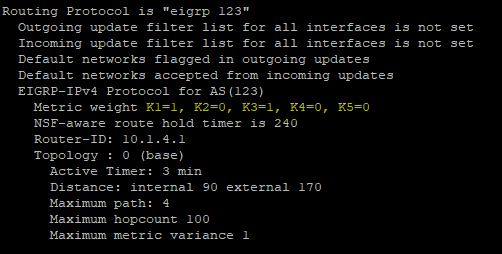
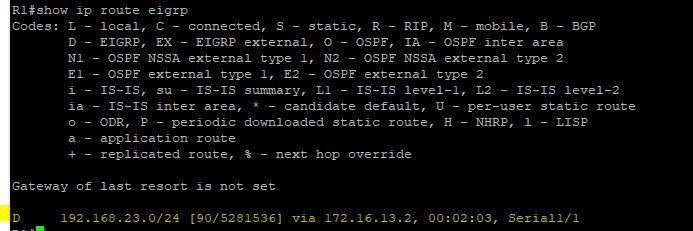
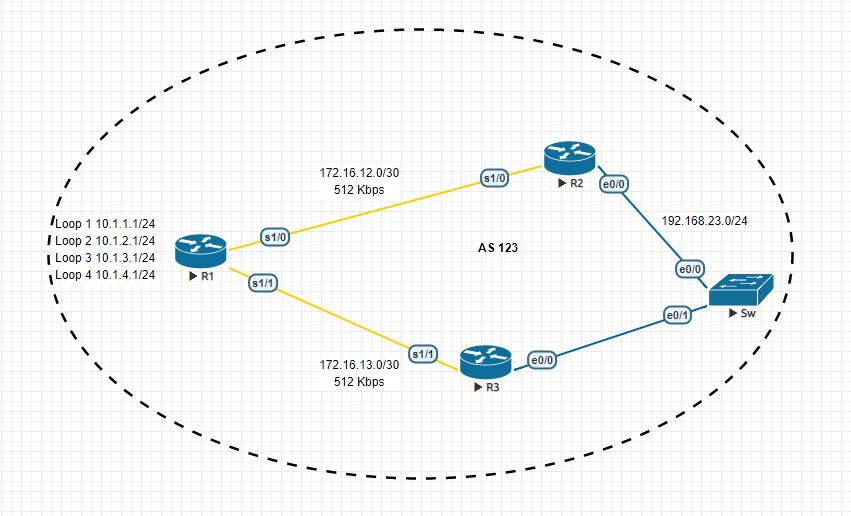
    Here i am going to explain how to change paths using delay in EIGRP, We already know that EIGRP uses Bandwidth and Delay for metric calculation but we cant change bandwidth of links in production network . The path with lesser delay will be the desired path.

    EIGRP-Composite-Metric-Formula

    EIGRP_1


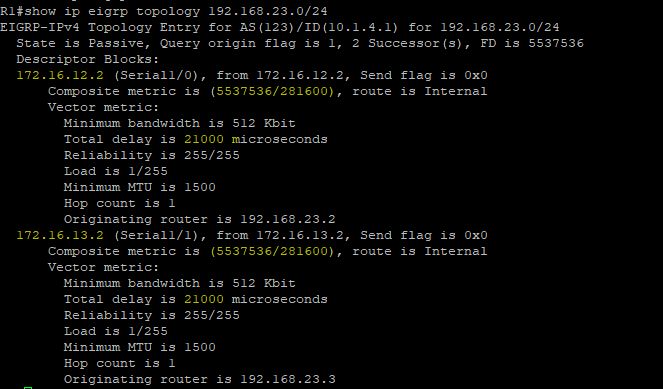
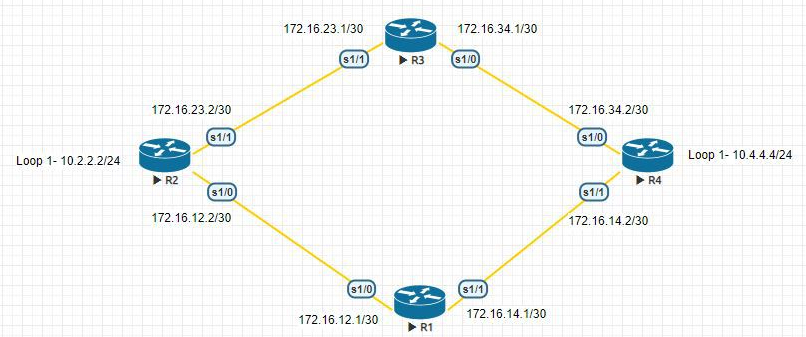
    In the above topology there are two paths to reach 192.168.23.0/24 network from R1  and right now R1 uses both links for load balancing because both having same metric.But i want to use only path to reach that destination and i going to do that with the help of delay.

    EIGRP_delayEIGRP_delay_1EIGRP_delay_2

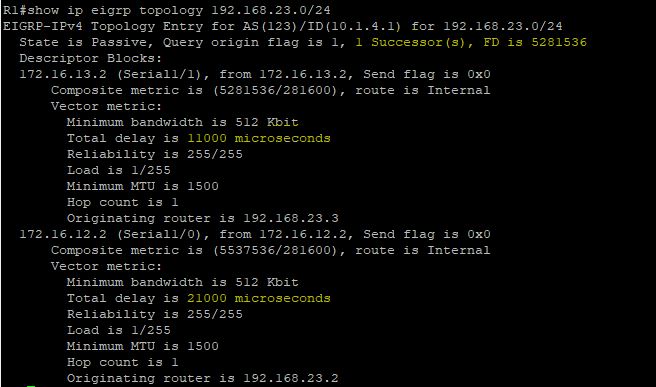
    I am going to decrease  the delay in R1->R3 by that metric will also decrease and R1 prefer that path to reach 192.168.23.0/24.

    R1

    interface Serial1/1
    bandwidth 512
    ip address 172.16.13.1 255.255.255.252
    delay 1000
    serial restart-delay 0
    end

    EIGRP_delay_3EIGRP_delay_4

    Now there is only one path to reach that network 🙂

  • Update Tuning in RIPv2

    In RIPv2 we can tune its updates there are so many ways , Lets see some of them

    Default

    RIPv2 Broadcast updates

    Normally RIPv2 uses 224.0.0.9 as the multicast address but we can change it to global broadcast address.

    debug ip rip of R1 is given below

    *Sep 25 14:38:38.069: RIP: sending v2 update to 224.0.0.9 via Serial1/1 (172.16.14.1)
    *Sep 25 14:38:38.069: RIP: build update entries
    *Sep 25 14:38:38.069: 10.2.2.0/24 via 0.0.0.0, metric 2, tag 0
    *Sep 25 14:38:38.069: 172.16.12.0/30 via 0.0.0.0, metric 1, tag 0
    *Sep 25 14:38:38.069: 172.16.23.0/30 via 0.0.0.0, metric 2, tag 0

    I am going to change this
    interface Serial1/1
    ip rip v2-broadcast

    Now RIPv2 is using 255.255.255.255 for its updates
    *Sep 25 15:21:33.899: RIP: sending v2 update to 255.255.255.255 via Serial1/1 (172.16.14.1)
    *Sep 25 15:21:33.899: RIP: build update entries
    *Sep 25 15:21:33.899: 10.2.2.0/24 via 0.0.0.0, metric 2, tag 0
    *Sep 25 15:21:33.899: 172.16.12.0/30 via 0.0.0.0, metric 1, tag 0
    *Sep 25 15:21:33.899: 172.16.23.0/30 via 0.0.0.0, metric 2, tag 0

    RIPv2 Unicast Updates

    To change to uni cast updates follow these mentioned commands
    router rip
    version 2
    passive-interface Serial1/0
    passive-interface Serial1/1
    network 172.16.0.0
    neighbor 172.16.12.1
    neighbor 172.16.23.1
    no auto-summary

    Now RIP is sending updates to those neighbors only
    *Sep 25 15:26:54.423: RIP: sending v2 update to 172.16.12.1 via Serial1/0 (172.16.12.1)
    *Sep 25 15:26:54.423: RIP: build update entries
    *Sep 25 15:26:54.423: 10.4.4.0/24 via 0.0.0.0, metric 2, tag 0
    *Sep 25 15:26:54.423: 172.16.14.0/30 via 0.0.0.0, metric 1, tag 0
    *Sep 25 15:26:54.423: 172.16.34.0/30 via 0.0.0.0, metric 2, tag 0
    *Sep 25 15:26:54.423: RIP: sending v2 update to 172.16.23.1 via Serial1/0 (172.16.12.1)
    *Sep 25 15:26:54.423: RIP: build update entries
    *Sep 25 15:26:54.423: 10.4.4.0/24 via 0.0.0.0, metric 2, tag 0
    *Sep 25 15:26:54.423: 172.16.14.0/30 via 0.0.0.0, metric 1, tag 0
    *Sep 25 15:26:54.423: 172.16.34.0/30 via 0.0.0.0, metric 2, tag 0
    R1#
    *Sep 25 15:26:54.434: RIP: ignored v2 packet from 172.16.12.1 (sourced from one of our addresses)
    *Sep 25 15:26:54.738: RIP: received v2 update from 172.16.14.2 on Serial1/1
    *Sep 25 15:26:54.738: 10.4.4.0/24 via 0.0.0.0 in 1 hops
    *Sep 25 15:26:54.738: 172.16.23.0/30 via 0.0.0.0 in 2 hops
    *Sep 25 15:26:54.738: 172.16.34.0/30 via 0.0.0.0 in 1 hops


  • Rapid Ring Protection Protocol (RRPP) STP alternative from HP Networking

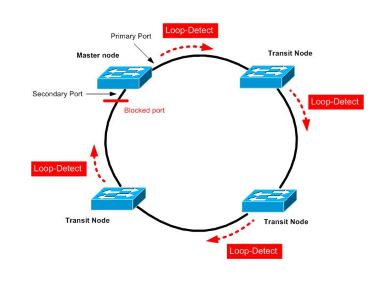
    RRPP is a protocol designed for the HP switch as a ring architecture. This article only describes the setting of a single ring. The concept is to set a switch as the main node in the ring architecture, and the rest switches as transmitting nodes. Each switch A primary port and a secondary port will be set.
    After the setting is completed, the primary node will periodically send a detection packet from the primary port. When the primary node receives the detected packet from the secondary port, it will determine that the ring architecture is normal and logically block the secondary port. Sends from the master port. When no detected packet is received (the ring is broken), the secondary port is enabled to transmit data.
    –> The advantage is faster convergence than STP

    rrrp1rrrp2

    Lets see how to configure RRPP in hp switches

    Master Mode Switch

    1.Create rrpp domain
    [S1]rrpp domain 1 (Create rrpp domain 1 and enter)
    [S1-rrpp-domain1]control-vlan 4092 (Set the main control vlan to 4092 (4093 will be automatically generated as the sub-control vlan)
    ( it is not possible to use the default vlan as a control vlan)

    2. Assign protection vlan to instance, and then assign instance to rrpp domain

    [S1]stp region-configuration( Enter mstp settings)
    [S1-mst-region]instance 0 vlan 1 (Add vlan1 to mstp)
    [S1-mst-region]active region-configuration (Enable mstp domain)
    [S1]rrpp domain 1 (enters rrpp domain 1)
    [S1-rrpp-domain1]protected-vlan reference-instance 0 (Set vlan in mstp 0 to protect vlan)

    3. Set rrpp port

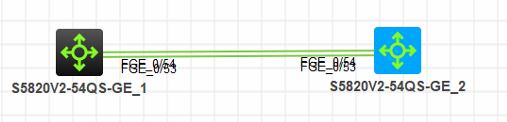
    Interface FGE1/0/53
    link-delay 0
    port link-type trunk
    port trunk permit vlan all
    undo stp enable

    Interface FGE1/0/54
    link-delay 0
    port link-type trunk
    port trunk permit vlan all
    undo stp enable

    4. Set the master node

    [S1]rrpp domain 1
    [S1-rrpp-domain1]ring 1 node-mode master primary-port FGE1/0/53 secondary-port FGE1/0/54 level 0
    This switch is the master node,

    5. Enable rrpp
    [S1]rrpp enable Enable rrpp
    [S1]rrpp domain 1
    [S1-rrpp-domain1]ring 1 enable Enable rrpp ring1

    Transmission Mode Switch
    1.Create rrpp domain
    [S2]rrpp domain 1 (Create rrpp domain 1 and enter)
    [S2-rrpp-domain1]control-vlan 4092 (Set the main control vlan to 4092 (4093 will be automatically generated as the sub-control vlan)
    ( it is not possible to use the default vlan as a control vlan)

    2. Assign protection vlan to instance, and then assign instance to rrpp domain

    [S2]stp region-configuration( Enter mstp settings)
    [S2-mst-region]instance 0 vlan 1 (Add vlan1 to mstp)
    [S2-mst-region]active region-configuration (Enable mstp domain)
    [S2]rrpp domain 1 (enters rrpp domain 1)
    [S2-rrpp-domain1]protected-vlan reference-instance 0 (Set vlan in mstp 0 to protect vlan)

    3. Set rrpp port
    Interface FGE1/0/53
    link-delay 0
    port link-type trunk
    port trunk permit vlan all
    undo stp enable

    Interface FGE1/0/54
    link-delay 0
    port link-type trunk
    port trunk permit vlan all
    undo stp enable
    4.Set the transmission node

    [S2]rrpp domain 1
    [S2-rrpp-domain1]ring 1 node-mode transit primary-port FGE1/0/53 secondary-port FGE1/0/54 level 0

    5. Enable rrpp
    [S2]rrpp enable Enable rrpp
    [S2]rrpp domain 1
    [S2-rrpp-domain1]ring 1 enable Enable rrpp ring1

    For verification

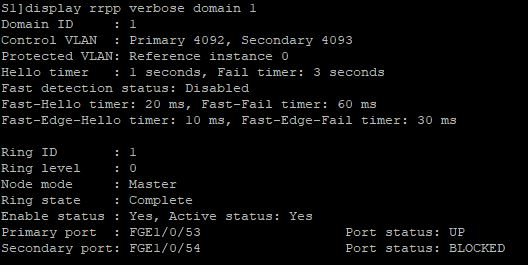
    [S1]display rrpp verbose domain 1

    rrrp3

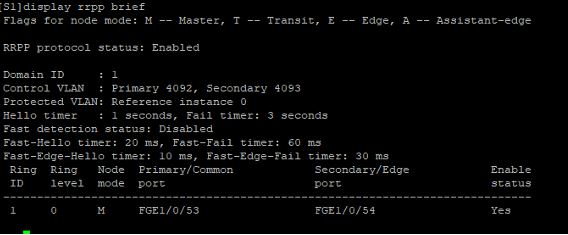
    [S1]display rrpp brief

    rrrp4

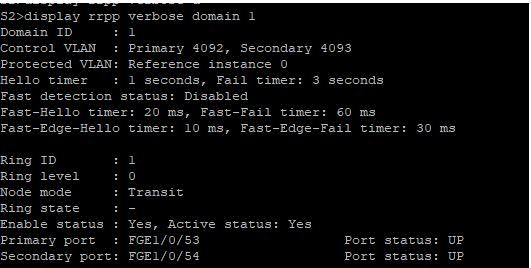
    <S2>display rrpp verbose domain 1

    rrrp5

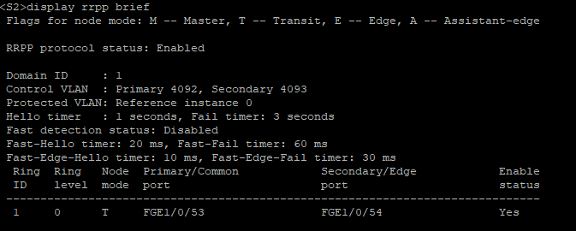
    <S2>display rrpp brief

    rrrp6

  • Route Manipulation in RIPv2 using AD Value

    In this article i am going to explain how to manipulate route with AD value in RIP. For this i am using the same old topology.

    Default
    10.0.0.0/8 is variably subnetted, 3 subnets, 2 masks
    R 10.4.4.0/24 [120/2] via 172.16.23.1, 00:00:19, Serial1/1
                            [120/2] via 172.16.12.1, 00:00:27, Serial1/0
    172.16.0.0/16 is variably subnetted, 6 subnets, 2 masks
    R 172.16.14.0/30 [120/1] via 172.16.12.1, 00:00:27, Serial1/0
    R 172.16.34.0/30 [120/1] via 172.16.23.1, 00:00:19, Serial1/1

    In here i want use R2 to reach 10.4.4.0/24 network for that i am going to use AD value manipulation.

    !
    access-list 1 permit 10.4.4.0
    !
    router rip
    version 2
    network 10.0.0.0
    network 172.16.0.0
    distance 255 172.16.23.1 0.0.0.0 1
    no auto-summary

    If you verify the routing table after this you can see only path .

    10.0.0.0/8 is variably subnetted, 3 subnets, 2 masks
    R 10.4.4.0/24 [120/2] via 172.16.12.1, 00:00:07, Serial1/0
    172.16.0.0/16 is variably subnetted, 6 subnets, 2 masks
    R 172.16.14.0/30 [120/1] via 172.16.12.1, 00:00:07, Serial1/0
    R 172.16.34.0/30 [120/1] via 172.16.23.1, 00:00:07, Serial1/1

  • Route manipulation in RIPv2 using Offset-List

    Default

    In this topology we are using RIPv2 and R2 is getting route information about 10.4.4.0/24 from R3 and R1. But i don’t want to install two routes in the table. I want to use R3 to reach that network for that  i am using Offset-List.

    Lets check the present routing table of R2

    10.0.0.0/8 is variably subnetted, 3 subnets, 2 masks
    R 10.4.4.0/24 [120/2] via 172.16.23.1, 00:00:20, Serial1/1
                            [120/2] via 172.16.12.1, 00:00:28, Serial1/0
    172.16.0.0/16 is variably subnetted, 6 subnets, 2 masks
    R 172.16.14.0/30 [120/1] via 172.16.12.1, 00:00:28, Serial1/0
    R 172.16.34.0/30 [120/1] via 172.16.23.1, 00:00:20, Serial1/1

    R2#show ip route 10.4.4.0
    Routing entry for 10.4.4.0/24
    Known via “rip”, distance 120, metric 2
    Redistributing via rip
    Last update from 172.16.12.1 on Serial1/0, 00:00:00 ago
    Routing Descriptor Blocks:
    * 172.16.23.1, from 172.16.23.1, 00:00:20 ago, via Serial1/1
    Route metric is 2, traffic share count is 1
    172.16.12.1, from 172.16.12.1, 00:00:00 ago, via Serial1/0
    Route metric is 2, traffic share count is 1

    Offset-List Configuration
    !
    access-list 1 permit 10.4.4.0
    !
    router rip
    version 2
    offset-list 1 in 14 Serial1/0
    network 10.0.0.0
    network 172.16.0.0
    no auto-summary
    !

    Now we can see that only one route is present in routing table

    10.0.0.0/8 is variably subnetted, 3 subnets, 2 masks
    R 10.4.4.0/24 [120/2] via 172.16.23.1, 00:00:07, Serial1/1
    172.16.0.0/16 is variably subnetted, 6 subnets, 2 masks
    R 172.16.14.0/30 [120/1] via 172.16.12.1, 00:00:09, Serial1/0
    R 172.16.34.0/30 [120/1] via 172.16.23.1, 00:00:07, Serial1/1

    If we debug RIP updates we can see that one route is inaccessible because of maximum hop count rule in RIP.

    *Sep 21 18:06:49.248: RIP: received v2 update from 172.16.12.1 on Serial1/0
    *Sep 21 18:06:49.248: 10.4.4.0/24 via 0.0.0.0 in 16 hops (inaccessible)
    *Sep 21 18:06:49.248: 172.16.14.0/30 via 0.0.0.0 in 1 hops
    *Sep 21 18:06:49.248: 172.16.34.0/30 via 0.0.0.0 in 2 hops