Tag: cyber-security

  • Pass the Hash attack

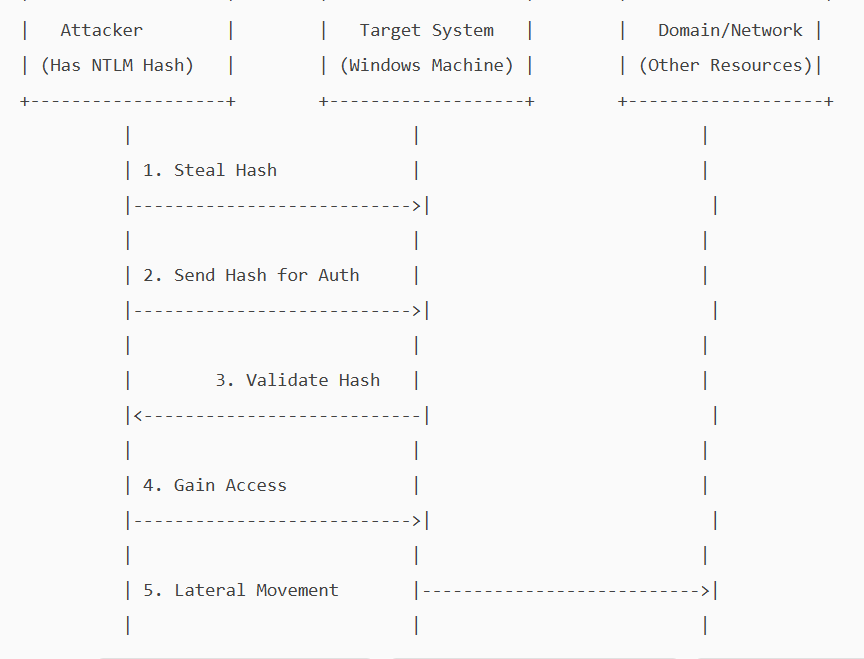
    A pass-the-hash attack is a cybersecurity attack in which a malicious user steals hashed credentials from a compromised system and uses them to log in as the original user.

    Hashing is an essential concept in cybersecurity and computer science. It involves using a mathematical algorithm, a hash function, to convert input data into a hash value. This process is deterministic and one-way, meaning it cannot be reversed to reveal the original data. i.e, It is not possible to get a clear-text password from a password hash.

    On local systems, Windows stores passwords in a hashed, encrypted format in the Security Accounts Manager (SAM) database and caches them in LSASS(Local Security Authority Subsystem Service) memory during logon. If a malicious user obtains a password hash, they can execute a pass-the-hash attack.

    NTLM (NT LAN Manager) is a Windows authentication protocol that uses a challenge-response mechanism. Instead of sending a password over the network, the client proves it knows the password by encrypting a server-issued challenge with the password’s hash (as a DES key)

    The server verifies this response using its stored hash.

    In a Pass-the-hash attack, the attacker exploits a vulnerability in the NTLM protocol to gain unauthorised access. The attacker does not need to know the clear-text password, as NTLM will accept the hash as proof of identity. He will pass the hash he obtained and will be allowed access as a legitimate user.

    . Attackers can steal these hashes through various methods

    1. Memory dumping: They can extract hashes from the LSASS process’s memory using Mimikatz and Procdump.\
    2. Stealing SAM database: If an attacker has access to SAM, they could dump the hash from it.
    3. Malware – key loggers, rootkits can give them access to hashes.
    4. Active directory compromise.
    5. Packet sniffing.

    NTLM is mainly kept for backward compatibility in Windows. Current versions of Windows primarily use Kerberos for domain authentication, but NTLM is still used where a system is not part of a domain.

    Because of its vulnerability, Microsoft recommends disabling NTLM wherever possible.

    Implementing a zero-trust architecture is the most effective way to prevent pass-the-hash attacks. Stick to the following to secure your Pc/network.

    1. Strong authentication and identity verification – implement MFA.
    2. Least privilege and Just-in-Time Access control.
    3. Continuous monitoring and anomaly detection
  • Google updates Chrome — fixes around 20 vulnerabilities.

    The latest Chrome version, 142, released by Google on October 28th, includes patches to fix several documented vulnerabilities, some of which are high-severity. The update includes permission to block local network access from public/local websites. Chrome now blocks websites from sending requests to local network devices (like routers, printers, or software running on your machine) unless you explicitly grant permission. When a website tries to access your local network, it will ask you if it can “look for and connect to any device on your local network”. You can allow or deny. If you deny, the websites will not be able to connect to your local network.

    Why do websites need access to local networks?

    Smart home applications like Google Home require access to smart devices in your home, while streaming devices need to interact with smart TVs and speakers. Additionally, printing from websites necessitates communication with printers. However, granting access to your local network poses security risks, as malicious websites can potentially access, track, and exploit your devices.

    1. What is Local Network Access?

    Local Network Access (LNA) allows websites to communicate with devices on your home or office network (e.g., printers, smart TVs, routers). Chrome 142 now asks for permission before granting this access.

    2. Why Does Chrome Ask for Permission?
    • Security: Prevents malicious sites from probing your network or exploiting vulnerable devices.
    • Privacy: Stops websites from fingerprinting your network setup.
    3. When Should You Allow Access?

    Allow only if:

    • You trust the website (official vendor or service you use regularly).
    • You understand why it needs access, such as:
      • Smart home control (e.g., Philips Hue, Google Home).
      • Media streaming (e.g., Plex, Spotify Connect).
      • Enterprise tools (e.g., Box, Teams for printer integration).
      • Local development/testing (e.g., Selenium, TestCafe).
    4. When Should You Block Access?

    Block if:

    • The site is unknown or suspicious.
    • You are not using any local device integration.
    • The request seems unnecessary (e.g., a shopping site asking for local access).
    5. How to Manage Permissions
    • Check Current Settings:
    • Go to chrome://settings/content/localNetworkAccess.
    • Add Trusted Sites:
    • Under Allowed, add domains you trust.
    • Remove Sites:
    • Delete any site you do not recognise.
    6. Tips for Safe Usage
    • Always use HTTPS when granting access.
    • Avoid granting access on public Wi-Fi.
    • Review permissions periodically.

    To brief things , Chrome version 142, addresses over 20 security vulnerabilities, including 7 high-severity issues. Notably, Google awarded over $100,000 in bug bounties for two critical flaws in the V8 JavaScript engine.

    To stay protected and reduce the risk of exploitation:

    Update Chrome to the latest version immediately

    Restart your browser after updating.

  • Wireless Encryption: Ensuring Secure Communication

    Wireless encryption is essential for securing data transmitted over Wi-Fi networks, preventing unauthorized access and eavesdropping. Different encryption protocols have been developed over time, each with varying levels of security.

    1. Types of Wireless Encryption Protocols

    Encryption ProtocolDescriptionSecurity Level
    WEP (Wired Equivalent Privacy)The first encryption standard for Wi-Fi. Uses 64-bit or 128-bit encryption but has major security flaws.Weak (Easily hacked)
    WPA (Wi-Fi Protected Access)Introduced as an improvement over WEP. Uses TKIP (Temporal Key Integrity Protocol) but is still vulnerable.Moderate (Better than WEP, but outdated)
    WPA2 (Wi-Fi Protected Access 2)Uses AES (Advanced Encryption Standard) encryption for strong security. Most commonly used today.Strong
    WPA3 (Wi-Fi Protected Access 3)Latest standard with enhanced security, including Simultaneous Authentication of Equals (SAE) for better password protection.Very Strong

    2. Detailed Overview of Wireless Encryption Methods

    a. WEP (Wired Equivalent Privacy) – Insecure

    • Uses RC4 stream cipher for encryption.
    • Weak static key (40-bit or 104-bit), making it easy to crack.
    • Vulnerable to IV (Initialization Vector) attacks.
    • Deprecated and should not be used.

    b. WPA (Wi-Fi Protected Access) – Transitional Security

    • Introduced TKIP (Temporal Key Integrity Protocol) to improve security.
    • Still based on RC4, making it vulnerable to attacks.
    • No longer recommended for secure networks.

    c. WPA2 (Wi-Fi Protected Access 2) – Strong Security

    • Uses AES (Advanced Encryption Standard) with CCMP (Counter Mode Cipher Block Chaining Message Authentication Code Protocol) for encryption.
    • Supports two modes:
      • WPA2-Personal (PSK) – Uses a shared password.
      • WPA2-Enterprise – Uses 802.1X authentication with a RADIUS server.
    • Still widely used but susceptible to brute-force attacks if weak passwords are used.

    d. WPA3 (Wi-Fi Protected Access 3) – Next-Generation Security

    • Stronger encryption with 192-bit security (for WPA3-Enterprise).
    • Uses Simultaneous Authentication of Equals (SAE) to prevent dictionary attacks.
    • Forward Secrecy ensures past communications remain secure even if a password is compromised.
    • Mandatory encryption for open Wi-Fi networks (OWE – Opportunistic Wireless Encryption).
    • Recommended for future-proof wireless security.

    3. Best Practices for Wireless Encryption

    • Always use WPA2 or WPA3 for the best security.
    • Avoid WEP and WPA, as they are easily compromised.
    • Use strong, complex passwords for WPA2-PSK and WPA3-SAE.
    • Enable WPA2-Enterprise for business networks to use authentication servers.
    • Regularly update firmware on routers to protect against vulnerabilities.
  • Ways to avoid social engineering attacks

    Assess Requests Realistically: Take the time to assess if a request is realistic and legitimate. Be cautious of requests that seem too good (or bad) to be true.

    Stay Informed: Familiarize yourself with common types of social engineering attacks and how attackers behave. This will help you identify attempts that get past your initial defenses, such as spam filters.

    Secure Devices: Ensure your Anti-Malware and Anti-Virus software is up-to-date to defend your computer against malware from phishing attacks. Patch your security regularly, including software and firmware updates.

    Verify Email Requests: If an email request seems suspicious, verify it by contacting the company directly. Do not use contact information provided on a website connected to the request; instead, check previous statements for contact information.

    Use Complex Passwords: Train employees to use complex passwords and avoid logging into third-party websites with corporate email addresses to avoid malicious or fraudulent websites.

    Regular Staff Training: Provide regular staff training, including social engineering awareness training, to educate employees on social engineering attack techniques and ensure they follow security best practices.

    Simulation: Conduct simulation exercises to test employees’ ability to recognize and respond to social engineering attempts. This can help identify areas for improvement and enhance overall security.

    Email Gateways: Implement email gateways to flag socially engineered emails as spam in employees’ inboxes. This can prevent up to 99.9% of spam and reduce the risk of social engineering attacks.

    Multifactor Authentication: Enforce multifactor authentication (MFA) to add an extra layer of security and make it more difficult for attackers to gain access to systems.

    Social Media Awareness: Be cautious of social media platforms, as cybercriminals often collect intelligence on victims via these platforms. Limit personal and professional information shared on social media.

    Phishing Detection: Teach employees to identify phishing attempts by looking for red flags such as:

    Spoofed email addresses
    Hyperlinks that don’t match the expected URL
    Urgent or threatening language
    Requests for sensitive information


    Vishing and Smishing Prevention: Be aware of vishing (voice phishing) and smishing (SMS phishing) attacks, and teach employees to verify requests and be cautious of suspicious calls and texts.

    Continuous Monitoring: Continuously monitor your organization’s defenses and employee awareness to stay ahead of evolving social engineering tactics.

    Remember, social engineering attacks rely on human interaction, so educating and training employees is crucial in preventing these types of attacks.

    Photo by Pixabay on Pexels.com
  • 25 Basic Linux Commands For Beginners

    25 Basic Linux Commands For Beginners

    Basic Linux Terminal Commands
    S.No.Linux CommandsFunctions
    1IsDisplays information about files in the current directory.
    2pwdDisplays the current working directory.
    3mkdirCreates a directory.
    4cdTo navigate between different folders.
    5rmdirRemoves empty directories from the directory lists.
    6cpMoves files from one directory to another.
    7mvRename and Replace the files
    8rmDelete files
    9unameCommand to get basic information about the OS
    10locateFind a file in the database.
    11touchCreate empty files
    12lnCreate shortcuts to other files
    13catDisplay file contents on terminal
    14clearClear terminal 
    15psDisplay the processes in terminal
    16manAccess manual for all Linux commands
    17grepSearch for a specific string in an output
    18echoDisplay active processes on the terminal
    19wgetdownload files from the internet.
    20whoamiCreate or update passwords for existing users
    21sortsort the file content
    22calView Calendar in terminal
    23whereisView the exact location of any command typed after this command
    24dfCheck the details of the file system
    25wcCheck the lines, word count, and characters in a file using different options