Tag: cybersecurity

  • Hashing & Data integrity

    Hashing is the process of using a hash function in computing and cryptography that converts data into a fixed-sized string of characters, typically a sequence of letters and numbers.  For example, the operating system on your pc stores passwords as hashes. The operating system uses a hashing function to hash your password and stores it in a database. Whenever you log in, the OS hashes your entered password, compares it with the hash stored in the password database, and logs you in if they match. For added security, the operating system salts the hashes. Salting is the process of adding a random string to the password before hashing it. Hashing is a one-way process. That means you cannot take a hash and recover the original data.

    Hashing is also used for keeping data integrity. Data integrity means that the data has not been altered or corrupted during storage or transmission. Before you send or copy data to a removable medium, the hash value is computed using a hash function. Later, when the data is received, the hash value is recomputed. If the hash values match, the data is intact. If it does not match, the data is altered or corrupted.

    For example, if you are sending video footage as evidence on a flash drive, you can hash it and save the hash value. Once it reaches the target, it can be hashed again and compared with the original hash value to check whether the file has been tampered with. If the hash value differs, the file is evidently corrupted in transit.

    Functions used for hashing.

    There are different functions operating systems use for hashing.

    MD5 (fast, but not secure for cryptographic purposes)

    SHA-256 (secure and widely used)- By defalut , windows uses SHA-256

    SHA-512 (even stronger)

    Hashing is one of the best ways to keep data integrity. It is irreversible, deterministic ( same input always give same hash), and Fast.

  • 🌐 NAT Types & PAT Configuration in Cisco Routers

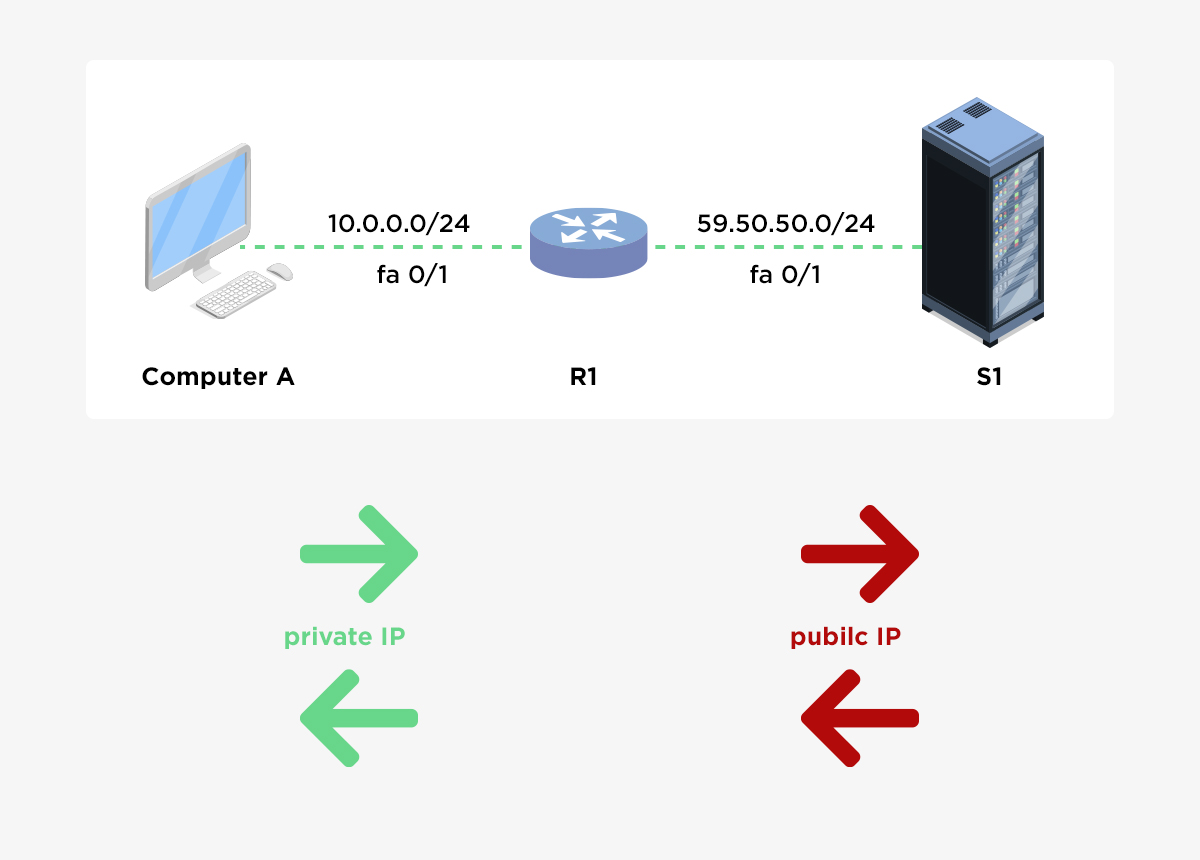
    NAT (Network Address Translation) allows private IP addresses to communicate with public networks like the Internet. PAT (Port Address Translation) is a form of NAT that uses port numbers to map multiple private IPs to a single public IP.

    🔁 Types of NAT in Cisco


    1️⃣ Static NAT (One-to-One)

    • One private IP ↔ One public IP
    • Used for servers (web, mail, VPN)
    https://media.geeksforgeeks.org/wp-content/uploads/20221015171237/1NATTopology.jpg
    https://www.manageengine.com/network-configuration-manager/images/static-NAT.jpg

    Configuration Example

    interface g0/0
     ip address 203.0.113.2 255.255.255.252
     ip nat outside
    
    interface g0/1
     ip address 192.168.1.1 255.255.255.0
     ip nat inside
    
    ip nat inside source static 192.168.1.10 203.0.113.10


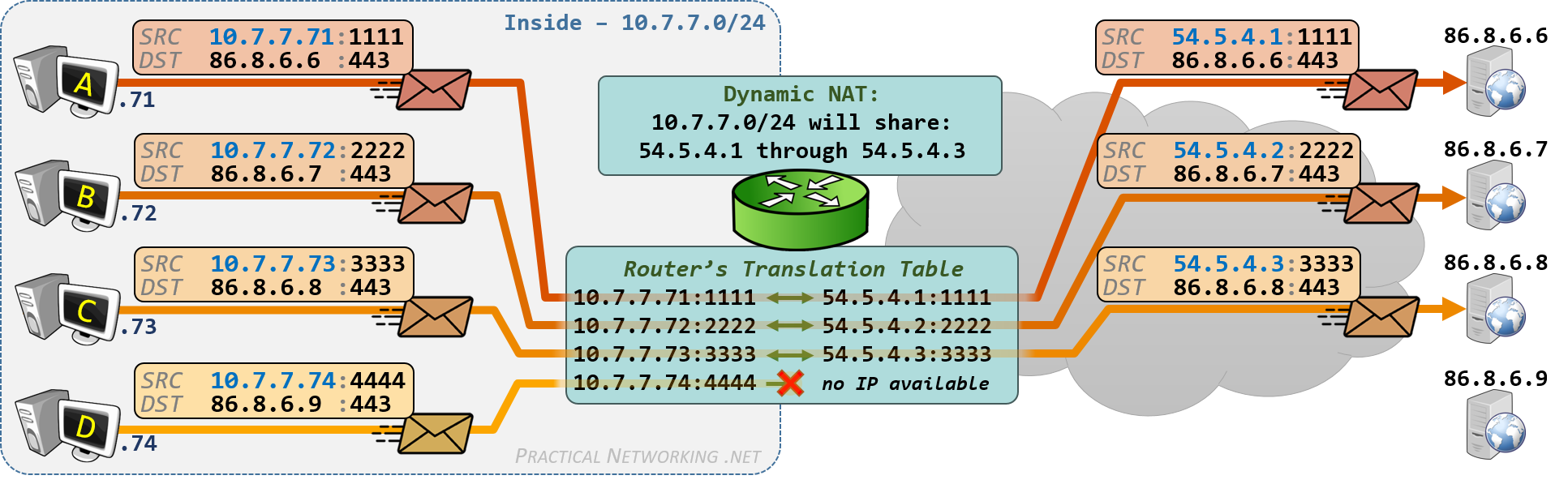
    2️⃣ Dynamic NAT (Many-to-Many)

    • Private IPs mapped to a pool of public IPs
    • No port translation
    https://www.practicalnetworking.net/wp-content/uploads/2017/10/dynamic-nat-outbound.png
    https://media.geeksforgeeks.org/wp-content/uploads/20221015171237/1NATTopology.jpg

    Configuration Example

    access-list 1 permit 192.168.1.0 0.0.0.255
    
    ip nat pool PUBLIC_POOL 203.0.113.10 203.0.113.20 netmask 255.255.255.0
    
    ip nat inside source list 1 pool PUBLIC_POOL


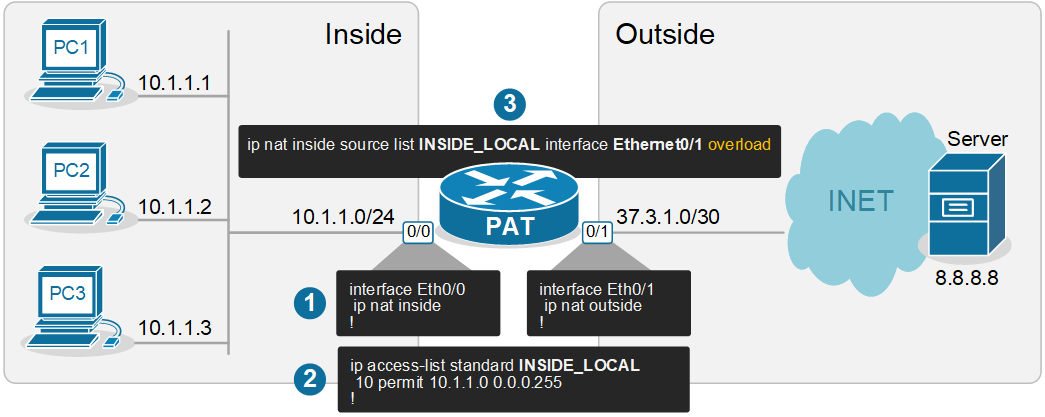
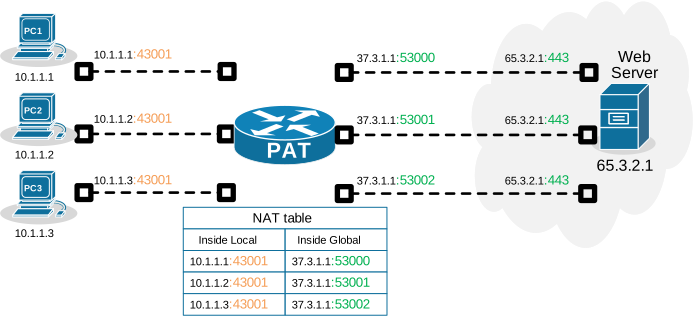
    3️⃣ PAT (NAT Overload) – Many-to-One

    • Multiple private IPs share one public IP
    • Uses TCP/UDP port numbers
    • Most common for Internet access
    https://www.networkacademy.io/sites/default/files/2024-10/nat-overload-pat.png
    https://cdn.networkacademy.io/sites/default/files/2024-10/nat-overload-pat-example.svg

    ⚙️ PAT Configuration (Most Common)

    🔹 Using Interface IP (Recommended)

    access-list 1 permit 192.168.1.0 0.0.0.255
    
    ip nat inside source list 1 interface g0/0 overload


    🔹 Using Public IP Pool

    ip nat pool PAT_POOL 203.0.113.50 203.0.113.50 netmask 255.255.255.0
    
    ip nat inside source list 1 pool PAT_POOL overload


    🔄 Inside vs Outside Interfaces (Mandatory)

    interface g0/0
     ip nat outside
    
    interface g0/1
     ip nat inside


    📌 NAT Terms (Quick Reference)

    TermMeaning
    Inside LocalPrivate IP (192.168.x.x)
    Inside GlobalPublic IP assigned by NAT
    Outside LocalPublic IP as seen inside
    Outside GlobalActual Internet IP

    🧪 Verification & Troubleshooting

    show ip nat translations
    show ip nat statistics
    clear ip nat translation *
    debug ip nat


    🚦 Real-World Scenario (Home / Lab)

    • LAN: 192.168.1.0/24
    • ISP IP on g0/0
    • Goal: Internet access for all LAN users
    access-list 1 permit 192.168.1.0 0.0.0.255
    ip nat inside source list 1 interface g0/0 overload


    ✔ This single command enables Internet for the entire LAN.


    ⚠️ Common Mistakes

    ❌ Forgetting ip nat inside / outside
    ❌ ACL mismatch (wrong subnet)
    ❌ NAT applied on wrong interface
    ❌ Missing overload keyword for PAT


    🧠 CCNA / CCNP Exam Tips

    • Static NAT → servers
    • Dynamic NAT → limited public IPs
    • PAT (Overload) → Internet access
    • Order matters: Static NAT > Dynamic NAT > PAT
  • Pass the Hash attack

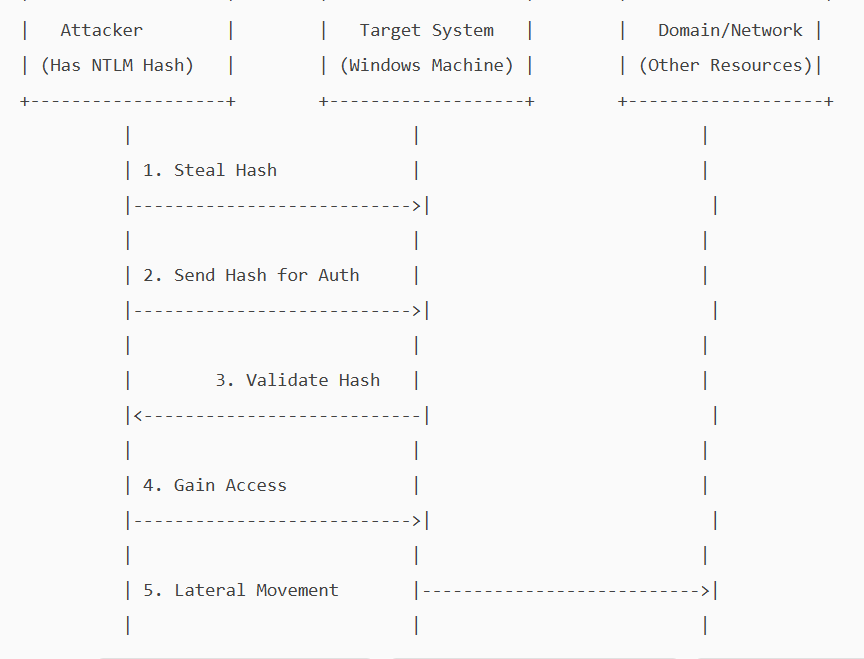
    A pass-the-hash attack is a cybersecurity attack in which a malicious user steals hashed credentials from a compromised system and uses them to log in as the original user.

    Hashing is an essential concept in cybersecurity and computer science. It involves using a mathematical algorithm, a hash function, to convert input data into a hash value. This process is deterministic and one-way, meaning it cannot be reversed to reveal the original data. i.e, It is not possible to get a clear-text password from a password hash.

    On local systems, Windows stores passwords in a hashed, encrypted format in the Security Accounts Manager (SAM) database and caches them in LSASS(Local Security Authority Subsystem Service) memory during logon. If a malicious user obtains a password hash, they can execute a pass-the-hash attack.

    NTLM (NT LAN Manager) is a Windows authentication protocol that uses a challenge-response mechanism. Instead of sending a password over the network, the client proves it knows the password by encrypting a server-issued challenge with the password’s hash (as a DES key)

    The server verifies this response using its stored hash.

    In a Pass-the-hash attack, the attacker exploits a vulnerability in the NTLM protocol to gain unauthorised access. The attacker does not need to know the clear-text password, as NTLM will accept the hash as proof of identity. He will pass the hash he obtained and will be allowed access as a legitimate user.

    . Attackers can steal these hashes through various methods

    1. Memory dumping: They can extract hashes from the LSASS process’s memory using Mimikatz and Procdump.\
    2. Stealing SAM database: If an attacker has access to SAM, they could dump the hash from it.
    3. Malware – key loggers, rootkits can give them access to hashes.
    4. Active directory compromise.
    5. Packet sniffing.

    NTLM is mainly kept for backward compatibility in Windows. Current versions of Windows primarily use Kerberos for domain authentication, but NTLM is still used where a system is not part of a domain.

    Because of its vulnerability, Microsoft recommends disabling NTLM wherever possible.

    Implementing a zero-trust architecture is the most effective way to prevent pass-the-hash attacks. Stick to the following to secure your Pc/network.

    1. Strong authentication and identity verification – implement MFA.
    2. Least privilege and Just-in-Time Access control.
    3. Continuous monitoring and anomaly detection
  • Google updates Chrome — fixes around 20 vulnerabilities.

    The latest Chrome version, 142, released by Google on October 28th, includes patches to fix several documented vulnerabilities, some of which are high-severity. The update includes permission to block local network access from public/local websites. Chrome now blocks websites from sending requests to local network devices (like routers, printers, or software running on your machine) unless you explicitly grant permission. When a website tries to access your local network, it will ask you if it can “look for and connect to any device on your local network”. You can allow or deny. If you deny, the websites will not be able to connect to your local network.

    Why do websites need access to local networks?

    Smart home applications like Google Home require access to smart devices in your home, while streaming devices need to interact with smart TVs and speakers. Additionally, printing from websites necessitates communication with printers. However, granting access to your local network poses security risks, as malicious websites can potentially access, track, and exploit your devices.

    1. What is Local Network Access?

    Local Network Access (LNA) allows websites to communicate with devices on your home or office network (e.g., printers, smart TVs, routers). Chrome 142 now asks for permission before granting this access.

    2. Why Does Chrome Ask for Permission?
    • Security: Prevents malicious sites from probing your network or exploiting vulnerable devices.
    • Privacy: Stops websites from fingerprinting your network setup.
    3. When Should You Allow Access?

    Allow only if:

    • You trust the website (official vendor or service you use regularly).
    • You understand why it needs access, such as:
      • Smart home control (e.g., Philips Hue, Google Home).
      • Media streaming (e.g., Plex, Spotify Connect).
      • Enterprise tools (e.g., Box, Teams for printer integration).
      • Local development/testing (e.g., Selenium, TestCafe).
    4. When Should You Block Access?

    Block if:

    • The site is unknown or suspicious.
    • You are not using any local device integration.
    • The request seems unnecessary (e.g., a shopping site asking for local access).
    5. How to Manage Permissions
    • Check Current Settings:
    • Go to chrome://settings/content/localNetworkAccess.
    • Add Trusted Sites:
    • Under Allowed, add domains you trust.
    • Remove Sites:
    • Delete any site you do not recognise.
    6. Tips for Safe Usage
    • Always use HTTPS when granting access.
    • Avoid granting access on public Wi-Fi.
    • Review permissions periodically.

    To brief things , Chrome version 142, addresses over 20 security vulnerabilities, including 7 high-severity issues. Notably, Google awarded over $100,000 in bug bounties for two critical flaws in the V8 JavaScript engine.

    To stay protected and reduce the risk of exploitation:

    Update Chrome to the latest version immediately

    Restart your browser after updating.

  • Wireless Encryption: Ensuring Secure Communication

    Wireless encryption is essential for securing data transmitted over Wi-Fi networks, preventing unauthorized access and eavesdropping. Different encryption protocols have been developed over time, each with varying levels of security.

    1. Types of Wireless Encryption Protocols

    Encryption ProtocolDescriptionSecurity Level
    WEP (Wired Equivalent Privacy)The first encryption standard for Wi-Fi. Uses 64-bit or 128-bit encryption but has major security flaws.Weak (Easily hacked)
    WPA (Wi-Fi Protected Access)Introduced as an improvement over WEP. Uses TKIP (Temporal Key Integrity Protocol) but is still vulnerable.Moderate (Better than WEP, but outdated)
    WPA2 (Wi-Fi Protected Access 2)Uses AES (Advanced Encryption Standard) encryption for strong security. Most commonly used today.Strong
    WPA3 (Wi-Fi Protected Access 3)Latest standard with enhanced security, including Simultaneous Authentication of Equals (SAE) for better password protection.Very Strong

    2. Detailed Overview of Wireless Encryption Methods

    a. WEP (Wired Equivalent Privacy) – Insecure

    • Uses RC4 stream cipher for encryption.
    • Weak static key (40-bit or 104-bit), making it easy to crack.
    • Vulnerable to IV (Initialization Vector) attacks.
    • Deprecated and should not be used.

    b. WPA (Wi-Fi Protected Access) – Transitional Security

    • Introduced TKIP (Temporal Key Integrity Protocol) to improve security.
    • Still based on RC4, making it vulnerable to attacks.
    • No longer recommended for secure networks.

    c. WPA2 (Wi-Fi Protected Access 2) – Strong Security

    • Uses AES (Advanced Encryption Standard) with CCMP (Counter Mode Cipher Block Chaining Message Authentication Code Protocol) for encryption.
    • Supports two modes:
      • WPA2-Personal (PSK) – Uses a shared password.
      • WPA2-Enterprise – Uses 802.1X authentication with a RADIUS server.
    • Still widely used but susceptible to brute-force attacks if weak passwords are used.

    d. WPA3 (Wi-Fi Protected Access 3) – Next-Generation Security

    • Stronger encryption with 192-bit security (for WPA3-Enterprise).
    • Uses Simultaneous Authentication of Equals (SAE) to prevent dictionary attacks.
    • Forward Secrecy ensures past communications remain secure even if a password is compromised.
    • Mandatory encryption for open Wi-Fi networks (OWE – Opportunistic Wireless Encryption).
    • Recommended for future-proof wireless security.

    3. Best Practices for Wireless Encryption

    • Always use WPA2 or WPA3 for the best security.
    • Avoid WEP and WPA, as they are easily compromised.
    • Use strong, complex passwords for WPA2-PSK and WPA3-SAE.
    • Enable WPA2-Enterprise for business networks to use authentication servers.
    • Regularly update firmware on routers to protect against vulnerabilities.
  • What is the Dark Web?

    The dark web is a part of the internet that is not indexed by search engines and requires specific software to access. It is designed to provide anonymity and privacy to its users, allowing them to communicate and conduct business without revealing their identifying information.

    Key Features of the Dark Web:

    • Not indexed by search engines
    • Requires specific software to access (e.g. Tor browser)
    • Provides anonymity and privacy to users
    • Often associated with illegal activities and selling stolen personal information

    How to Access the Dark Web:

    1. Install Tor Browser: Download and install the Tor browser from the official website.
    2. Use Special Search Engines: The dark web uses special search engines designed to help you find hidden sites.
    3. Navigate .onion Domains: Websites on the dark web end with the “.onion” domain extension.
    4. Stay Safe: Be cautious when accessing the dark web as it can be a dangerous place. Use security measures like antivirus software and avoid downloading files from untrusted sources.
  • What is SD-WAN ?

    SD-WAN, or Software-Defined Wide Area Network, is a virtual WAN architecture that uses software-defined networking (SDN) principles to manage and optimize the performance of wide area networks. It allows organizations to securely connect users, applications, and data across multiple locations, providing improved performance, reliability, and scalability. SD-WAN simplifies network management by providing centralized control and visibility over the entire network, enabling businesses to use lower-cost Internet access to build higher-performance WANs, often replacing more expensive private WAN connection technologies like MPLS.

    SD-WAN vs MPLS

    The main difference between SD-WAN and MPLS is that SD-WAN is a virtualized network overlay that can combine multiple types of connections, whereas MPLS is a dedicated, hardware-based private network. SD-WAN creates encrypted tunnels over the internet, while MPLS doesn’t directly support encryption but is partitioned from the internet.

    • SD-WAN: A software-defined wide area network that uses virtualization and overlay tunnels to connect users to workloads across multiple transport services and types of existing infrastructure, offering improved bandwidth availability, WAN redundancy, and cost-effectiveness.
    • MPLS: A multiprotocol label switching protocol that improves performance and efficiency of data transmission in a wide area network, operating between Layer 2 and Layer 3 of the OSI model, but with higher per-megabit costs and limited flexibility.

    SD-WAN is generally considered more cost-effective, flexible, and secure than MPLS, with the ability to cost-effectively mix and match network links according to content type or priority. However, MPLS is still in demand, particularly for organizations with specific connectivity and security requirements, due to its lower packet loss and dedicated leased lines. Ultimately, the choice between SD-WAN and MPLS depends on the organization’s specific needs and priorities.

    SD-WAN implementation

    Implementing SD-WAN involves several best practices to ensure a successful and efficient transition. Here are key steps and considerations:

    1. Assess Your Network: Evaluate your current network infrastructure to identify strengths, weaknesses, and areas that require improvement. This includes understanding your network traffic patterns, application requirements, and performance goals. Assess compatibility issues with legacy systems and ensure your SD-WAN solution aligns with your business objectives.
    2. Define Objectives and Strategy: Clearly define what you want to achieve with SD-WAN, such as cost savings, improved performance, or enhanced security. Align stakeholders and decision-makers on the strategic goals of the SD-WAN implementation.
    3. Choose Deployment Model: Decide whether to deploy SD-WAN in-house, use a managed service provider (MSP), or a hybrid approach. Consider factors like in-house expertise, management and monitoring needs, and budget constraints.
    4. Select the Right Vendor: Choose a vendor that offers robust SD-WAN solutions, including advanced security features, flexible deployment options, and strong customer support. Ensure the vendor can meet industry, country, or region-specific regulations.
    5. Plan for Scalability and Flexibility: Design your SD-WAN solution to handle future growth and changing business demands. This includes considering the number of locations, size, and complexity of your network. Use modular methodologies and configuration templates to streamline deployment and management.
    6. Implement Security Measures: Secure SD-WAN solutions should include advanced security features like Zero Trust Network Access (ZTNA), Intrusion Prevention System (IPS), and application-aware firewall capabilities. Ensure the SD-WAN solution can dynamically scale and adapt to different cloud environments.
    7. Monitor and Troubleshoot: Implement robust monitoring tools to proactively identify and resolve performance issues. Regularly review performance metrics and network logs to ensure optimal performance and address any potential bottlenecks or security threats.
    8. Ongoing Maintenance: After deployment, continue to maintain the SD-WAN network to ensure it operates efficiently. This includes regular updates, monitoring, and troubleshooting.

    FortiGate SD-WAN Configuration Steps

    To configure SD-WAN on a FortiGate device, follow these step-by-step instructions:

    1. Enable SD-WAN Feature: Navigate to System > Feature visibility and ensure the SD-WAN option is selected.
    2. Remove WAN Interfaces from Policies: Go to Policy & Objects > Firewall Policy and remove WAN interfaces from any existing policies to avoid losing internet connection.
    3. Create SD-WAN Interface: Navigate to Network > SD-WAN and create a new SD-WAN interface. Click “Create New SD-WAN Member” on all ports used in SD-WAN.
    4. Configure SD-WAN Members: For each WAN interface, assign the correct network gateway address. For example, set the wan1 interface Addressing mode to DHCP and Distance to 10, and set the wan2 interface IP/Netmask to 10.100.20.1 255.255.255.0.
    5. Enable SD-WAN: In the SD-WAN Interface Members table, click “Create New,” select the interface, and set the appropriate gateway and cost. Set the status to Enable and click OK.
    6. Configure SD-WAN Rules: Define SD-WAN rules to steer traffic based on business applications. These rules are matched in order, and the first match applies to the traffic.
    7. Install Device Settings: Use FortiManager to install device settings, including creating interfaces, building VPN tunnels, and setting up BGP adjacencies. Preview the changes before installation to ensure accuracy.
    8. Map Interfaces: Map your interfaces to Normalized Interfaces so that Policy Packages will install correctly.
    9. Install Policy Packages: Go to Policy & Objects and click Install on the top blue bar. Preview the install before proceeding to ensure all settings are correct.
    Photo by Vladimir Srajber on Pexels.com
  • Ways to avoid social engineering attacks

    Assess Requests Realistically: Take the time to assess if a request is realistic and legitimate. Be cautious of requests that seem too good (or bad) to be true.

    Stay Informed: Familiarize yourself with common types of social engineering attacks and how attackers behave. This will help you identify attempts that get past your initial defenses, such as spam filters.

    Secure Devices: Ensure your Anti-Malware and Anti-Virus software is up-to-date to defend your computer against malware from phishing attacks. Patch your security regularly, including software and firmware updates.

    Verify Email Requests: If an email request seems suspicious, verify it by contacting the company directly. Do not use contact information provided on a website connected to the request; instead, check previous statements for contact information.

    Use Complex Passwords: Train employees to use complex passwords and avoid logging into third-party websites with corporate email addresses to avoid malicious or fraudulent websites.

    Regular Staff Training: Provide regular staff training, including social engineering awareness training, to educate employees on social engineering attack techniques and ensure they follow security best practices.

    Simulation: Conduct simulation exercises to test employees’ ability to recognize and respond to social engineering attempts. This can help identify areas for improvement and enhance overall security.

    Email Gateways: Implement email gateways to flag socially engineered emails as spam in employees’ inboxes. This can prevent up to 99.9% of spam and reduce the risk of social engineering attacks.

    Multifactor Authentication: Enforce multifactor authentication (MFA) to add an extra layer of security and make it more difficult for attackers to gain access to systems.

    Social Media Awareness: Be cautious of social media platforms, as cybercriminals often collect intelligence on victims via these platforms. Limit personal and professional information shared on social media.

    Phishing Detection: Teach employees to identify phishing attempts by looking for red flags such as:

    Spoofed email addresses
    Hyperlinks that don’t match the expected URL
    Urgent or threatening language
    Requests for sensitive information


    Vishing and Smishing Prevention: Be aware of vishing (voice phishing) and smishing (SMS phishing) attacks, and teach employees to verify requests and be cautious of suspicious calls and texts.

    Continuous Monitoring: Continuously monitor your organization’s defenses and employee awareness to stay ahead of evolving social engineering tactics.

    Remember, social engineering attacks rely on human interaction, so educating and training employees is crucial in preventing these types of attacks.

    Photo by Pixabay on Pexels.com
  • What is Identity Theft

    Engage in online harassment or bullying.

    Steal sensitive information, such as login credentials or financial data.

    Scams:
    Fake profiles may be used to promote phishing schemes, investment scams, or other fraudulent activities.
    Common Tactics

    Profile Cloning:
    Criminals create exact replicas of a victim’s profile, often using stolen photos and biographical information.

    Social Engineering:
    Scammers use psychological manipulation to trick victims into revealing sensitive information or performing certain actions.

    Malware and Ransomware:
    Fake profiles may distribute malware or ransomware, compromising victims’ devices and data.
    Consequences

    Financial Loss:
    Identity theft on social media can result in financial losses due to fraudulent transactions, stolen identities, or compromised accounts.

    Emotional Distress: Victims may experience emotional trauma, anxiety, and stress from being impersonated or harassed online.

    Reputation Damage: Fake profiles can tarnish a person’s online reputation, causing harm to their personal and professional relationships.

    Protection Measures

    Verify Profiles: Be cautious when accepting friend requests or connections from unknown individuals.
    Use Strong Passwords: Implement robust password practices and keep them confidential.
    Limit Personal Information: Avoid sharing sensitive data, such as full names, dates of birth, and addresses.
    Monitor Accounts: Regularly check your social media profiles for suspicious activity and report any fraudulent accounts.
    Enable Two-Factor Authentication: Use 2FA to add an extra layer of security to your accounts.
    Reporting and Recovery
    Report Suspicious Activity:
    Inform the social media platform’s support team about any fraudulent profiles or suspicious behavior.
    Contact Authorities:
    Report identity theft to local law enforcement and file a complaint with the Cyber Cell.
    Seek Professional Help:
    Consider consulting with an identity theft resource center or a cybersecurity expert for guidance on recovery and prevention.

    Photo by Pixabay on Pexels.com
  • How to check network latency using Wireshark

    To test network latency using Wireshark, follow these steps to effectively capture and analyze packet data:Setting Up Wireshark

    Install Wireshark: Download and install the latest version of Wireshark from the official website.
    Select the Network Interface: Open Wireshark and choose the appropriate network interface to capture packets. This is typically your Ethernet or Wi-Fi connection.

    Capturing Packets
    Start Packet Capture:Click on the “Capture” menu and select “Start” or simply click the shark fin icon.
    Allow Wireshark to run for a sufficient duration to capture relevant traffic.
    Stop Packet Capture:Click on the red square button to stop capturing once you have enough data.

    Analyzing Latency
    Use TCP Stream Graphs:Go to “Statistics” in the menu.
    Select “TCP Stream Graph” and then choose “Round Trip Time” (RTT) graph.
    This graph will display the round-trip time for packets, allowing you to visualize latency over time1.

    Inspect Individual Packets: Click on a specific packet in the capture window.
    In the packet details pane, look for timestamps which indicate when packets were sent and received. You can calculate latency by subtracting these timestamps4.

    Filter for Specific Protocols: Use display filters (e.g., tcp, icmp) to isolate specific types of traffic that may be contributing to latency issues.


    Calculate Latency Using Timestamps: If you have access to both client and server captures, you can compare timestamps from both ends to measure latency more accurately by subtracting the client’s send time from the server’s receive time4.

    Additional Analysis
    Identify Potential Issues: Look for signs of congestion, such as packet loss or retransmissions, which can contribute to increased latency.
    Use other statistics tools within Wireshark, such as “IO Graphs,” to visualize overall network performance.
    By following these steps, you can effectively use Wireshark to measure and analyze network latency, helping you identify bottlenecks and optimize your network performance