Tag: Routing

  • What is SD-WAN ?

    SD-WAN, or Software-Defined Wide Area Network, is a virtual WAN architecture that uses software-defined networking (SDN) principles to manage and optimize the performance of wide area networks. It allows organizations to securely connect users, applications, and data across multiple locations, providing improved performance, reliability, and scalability. SD-WAN simplifies network management by providing centralized control and visibility over the entire network, enabling businesses to use lower-cost Internet access to build higher-performance WANs, often replacing more expensive private WAN connection technologies like MPLS.

    SD-WAN vs MPLS

    The main difference between SD-WAN and MPLS is that SD-WAN is a virtualized network overlay that can combine multiple types of connections, whereas MPLS is a dedicated, hardware-based private network. SD-WAN creates encrypted tunnels over the internet, while MPLS doesn’t directly support encryption but is partitioned from the internet.

    • SD-WAN: A software-defined wide area network that uses virtualization and overlay tunnels to connect users to workloads across multiple transport services and types of existing infrastructure, offering improved bandwidth availability, WAN redundancy, and cost-effectiveness.
    • MPLS: A multiprotocol label switching protocol that improves performance and efficiency of data transmission in a wide area network, operating between Layer 2 and Layer 3 of the OSI model, but with higher per-megabit costs and limited flexibility.

    SD-WAN is generally considered more cost-effective, flexible, and secure than MPLS, with the ability to cost-effectively mix and match network links according to content type or priority. However, MPLS is still in demand, particularly for organizations with specific connectivity and security requirements, due to its lower packet loss and dedicated leased lines. Ultimately, the choice between SD-WAN and MPLS depends on the organization’s specific needs and priorities.

    SD-WAN implementation

    Implementing SD-WAN involves several best practices to ensure a successful and efficient transition. Here are key steps and considerations:

    1. Assess Your Network: Evaluate your current network infrastructure to identify strengths, weaknesses, and areas that require improvement. This includes understanding your network traffic patterns, application requirements, and performance goals. Assess compatibility issues with legacy systems and ensure your SD-WAN solution aligns with your business objectives.
    2. Define Objectives and Strategy: Clearly define what you want to achieve with SD-WAN, such as cost savings, improved performance, or enhanced security. Align stakeholders and decision-makers on the strategic goals of the SD-WAN implementation.
    3. Choose Deployment Model: Decide whether to deploy SD-WAN in-house, use a managed service provider (MSP), or a hybrid approach. Consider factors like in-house expertise, management and monitoring needs, and budget constraints.
    4. Select the Right Vendor: Choose a vendor that offers robust SD-WAN solutions, including advanced security features, flexible deployment options, and strong customer support. Ensure the vendor can meet industry, country, or region-specific regulations.
    5. Plan for Scalability and Flexibility: Design your SD-WAN solution to handle future growth and changing business demands. This includes considering the number of locations, size, and complexity of your network. Use modular methodologies and configuration templates to streamline deployment and management.
    6. Implement Security Measures: Secure SD-WAN solutions should include advanced security features like Zero Trust Network Access (ZTNA), Intrusion Prevention System (IPS), and application-aware firewall capabilities. Ensure the SD-WAN solution can dynamically scale and adapt to different cloud environments.
    7. Monitor and Troubleshoot: Implement robust monitoring tools to proactively identify and resolve performance issues. Regularly review performance metrics and network logs to ensure optimal performance and address any potential bottlenecks or security threats.
    8. Ongoing Maintenance: After deployment, continue to maintain the SD-WAN network to ensure it operates efficiently. This includes regular updates, monitoring, and troubleshooting.

    FortiGate SD-WAN Configuration Steps

    To configure SD-WAN on a FortiGate device, follow these step-by-step instructions:

    1. Enable SD-WAN Feature: Navigate to System > Feature visibility and ensure the SD-WAN option is selected.
    2. Remove WAN Interfaces from Policies: Go to Policy & Objects > Firewall Policy and remove WAN interfaces from any existing policies to avoid losing internet connection.
    3. Create SD-WAN Interface: Navigate to Network > SD-WAN and create a new SD-WAN interface. Click “Create New SD-WAN Member” on all ports used in SD-WAN.
    4. Configure SD-WAN Members: For each WAN interface, assign the correct network gateway address. For example, set the wan1 interface Addressing mode to DHCP and Distance to 10, and set the wan2 interface IP/Netmask to 10.100.20.1 255.255.255.0.
    5. Enable SD-WAN: In the SD-WAN Interface Members table, click “Create New,” select the interface, and set the appropriate gateway and cost. Set the status to Enable and click OK.
    6. Configure SD-WAN Rules: Define SD-WAN rules to steer traffic based on business applications. These rules are matched in order, and the first match applies to the traffic.
    7. Install Device Settings: Use FortiManager to install device settings, including creating interfaces, building VPN tunnels, and setting up BGP adjacencies. Preview the changes before installation to ensure accuracy.
    8. Map Interfaces: Map your interfaces to Normalized Interfaces so that Policy Packages will install correctly.
    9. Install Policy Packages: Go to Policy & Objects and click Install on the top blue bar. Preview the install before proceeding to ensure all settings are correct.
    Photo by Vladimir Srajber on Pexels.com
  • Connecting OSPF Areas without Virtual Links

    To connect two OSPF regular areas without a virtual link, you can use a GRE (Generic Routing Encapsulation) tunnel. Here’s a step-by-step guide:

    Why GRE Tunnel?

    A GRE tunnel allows you to encapsulate OSPF packets within a GRE header, which can be routed through a non-OSPF area. This approach eliminates the need for a virtual link.

    Configuration Steps:

    1. Create a GRE Tunnel:
      • Configure a GRE tunnel between the two routers that connect the two OSPF regular areas.
      • Use the tunnel mode gre ip command to create a GRE tunnel interface.
    2. Configure OSPF on the GRE Tunnel:
      • Configure OSPF on the GRE tunnel interface, specifying the area ID and network type.
      • Use the router ospf command to enable OSPF on the GRE tunnel interface.
    3. Configure OSPF on the Physical Interfaces:
      • Configure OSPF on the physical interfaces that connect to the GRE tunnel, specifying the area ID and network type.
      • Use the router ospf command to enable OSPF on the physical interfaces.

    Example Configuration:

    Suppose we have two routers, R1 and R2, that connect two OSPF regular areas, Area 1 and Area 2.

    R1 Configuration:

    interface Tunnel0 

    tunnel mode gre 

    ip tunnel source FastEthernet0/0 tunnel destination 192.168.2.2 

    ip address 10.1.1.1 255.255.255.0 

    router ospf 1 

    network 10.1.1.0 0.0.0.255 area 1 interface FastEthernet0/0 

    ip address 192.168.1.1 255.255.255.0 router ospf 1 

    network 192.168.1.0 0.0.0.255 area 1

    R2 Configuration:

    interface Tunnel0
    tunnel mode gre ip
    tunnel source FastEthernet0/0
    tunnel destination 192.168.1.1
    ip address 10.2.2.1 255.255.255.0
    router ospf 1
    network 10.2.2.0 0.0.0.255 area 2

    interface FastEthernet0/0
    ip address 192.168.2.2 255.255.255.0
    router ospf 1
    network 192.168.2.0 0.0.0.255 area 2

    By using a GRE tunnel, you can connect two OSPF regular areas without a virtual link. This approach provides a flexible and scalable solution for connecting multiple OSPF areas.

  • Traffic Engineering in EIGRP using Delay

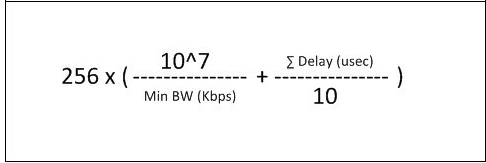
    Here i am going to explain how to change paths using delay in EIGRP, We already know that EIGRP uses Bandwidth and Delay for metric calculation but we cant change bandwidth of links in production network . The path with lesser delay will be the desired path.

    EIGRP-Composite-Metric-Formula

    EIGRP_1


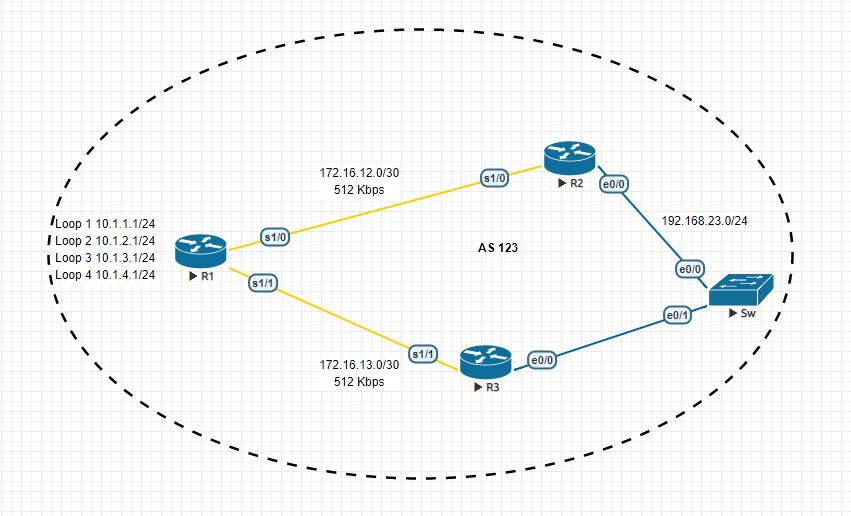
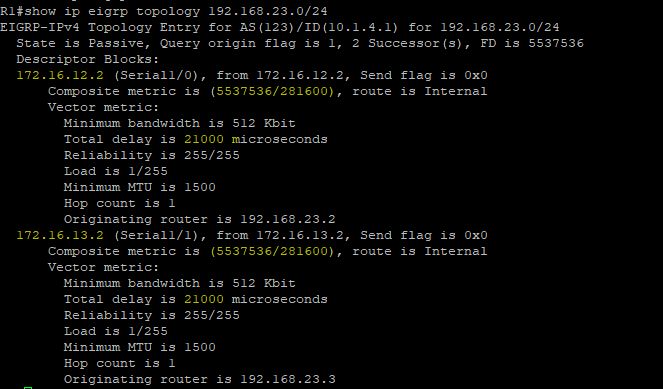
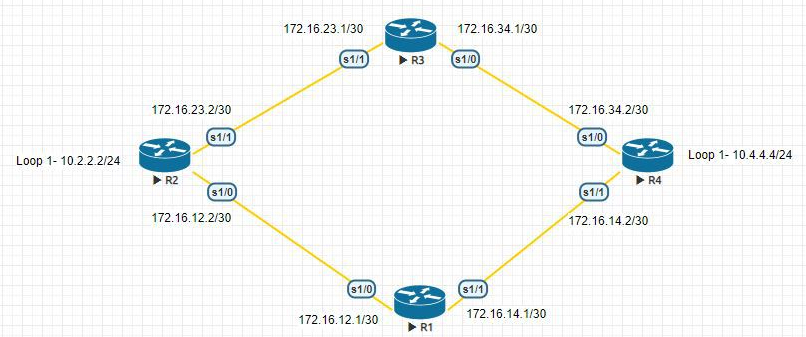
    In the above topology there are two paths to reach 192.168.23.0/24 network from R1  and right now R1 uses both links for load balancing because both having same metric.But i want to use only path to reach that destination and i going to do that with the help of delay.

    EIGRP_delayEIGRP_delay_1EIGRP_delay_2

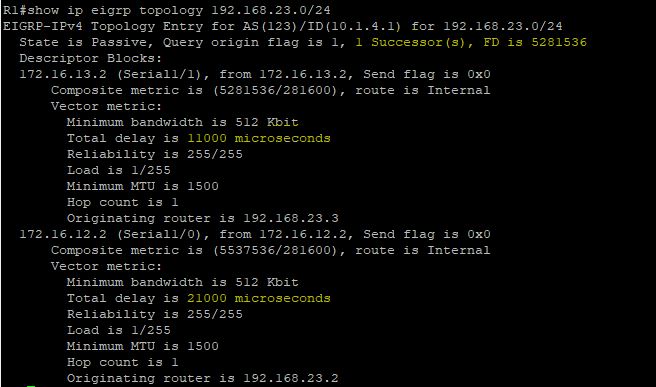
    I am going to decrease  the delay in R1->R3 by that metric will also decrease and R1 prefer that path to reach 192.168.23.0/24.

    R1

    interface Serial1/1
    bandwidth 512
    ip address 172.16.13.1 255.255.255.252
    delay 1000
    serial restart-delay 0
    end

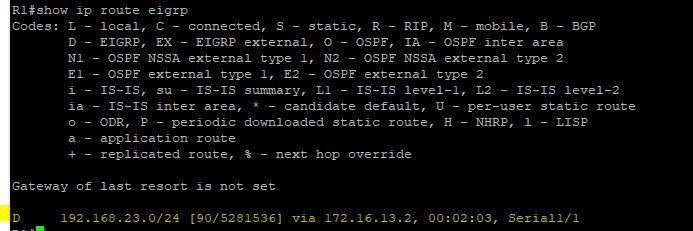
    EIGRP_delay_3EIGRP_delay_4

    Now there is only one path to reach that network 🙂

  • Update Tuning in RIPv2

    In RIPv2 we can tune its updates there are so many ways , Lets see some of them

    Default

    RIPv2 Broadcast updates

    Normally RIPv2 uses 224.0.0.9 as the multicast address but we can change it to global broadcast address.

    debug ip rip of R1 is given below

    *Sep 25 14:38:38.069: RIP: sending v2 update to 224.0.0.9 via Serial1/1 (172.16.14.1)
    *Sep 25 14:38:38.069: RIP: build update entries
    *Sep 25 14:38:38.069: 10.2.2.0/24 via 0.0.0.0, metric 2, tag 0
    *Sep 25 14:38:38.069: 172.16.12.0/30 via 0.0.0.0, metric 1, tag 0
    *Sep 25 14:38:38.069: 172.16.23.0/30 via 0.0.0.0, metric 2, tag 0

    I am going to change this
    interface Serial1/1
    ip rip v2-broadcast

    Now RIPv2 is using 255.255.255.255 for its updates
    *Sep 25 15:21:33.899: RIP: sending v2 update to 255.255.255.255 via Serial1/1 (172.16.14.1)
    *Sep 25 15:21:33.899: RIP: build update entries
    *Sep 25 15:21:33.899: 10.2.2.0/24 via 0.0.0.0, metric 2, tag 0
    *Sep 25 15:21:33.899: 172.16.12.0/30 via 0.0.0.0, metric 1, tag 0
    *Sep 25 15:21:33.899: 172.16.23.0/30 via 0.0.0.0, metric 2, tag 0

    RIPv2 Unicast Updates

    To change to uni cast updates follow these mentioned commands
    router rip
    version 2
    passive-interface Serial1/0
    passive-interface Serial1/1
    network 172.16.0.0
    neighbor 172.16.12.1
    neighbor 172.16.23.1
    no auto-summary

    Now RIP is sending updates to those neighbors only
    *Sep 25 15:26:54.423: RIP: sending v2 update to 172.16.12.1 via Serial1/0 (172.16.12.1)
    *Sep 25 15:26:54.423: RIP: build update entries
    *Sep 25 15:26:54.423: 10.4.4.0/24 via 0.0.0.0, metric 2, tag 0
    *Sep 25 15:26:54.423: 172.16.14.0/30 via 0.0.0.0, metric 1, tag 0
    *Sep 25 15:26:54.423: 172.16.34.0/30 via 0.0.0.0, metric 2, tag 0
    *Sep 25 15:26:54.423: RIP: sending v2 update to 172.16.23.1 via Serial1/0 (172.16.12.1)
    *Sep 25 15:26:54.423: RIP: build update entries
    *Sep 25 15:26:54.423: 10.4.4.0/24 via 0.0.0.0, metric 2, tag 0
    *Sep 25 15:26:54.423: 172.16.14.0/30 via 0.0.0.0, metric 1, tag 0
    *Sep 25 15:26:54.423: 172.16.34.0/30 via 0.0.0.0, metric 2, tag 0
    R1#
    *Sep 25 15:26:54.434: RIP: ignored v2 packet from 172.16.12.1 (sourced from one of our addresses)
    *Sep 25 15:26:54.738: RIP: received v2 update from 172.16.14.2 on Serial1/1
    *Sep 25 15:26:54.738: 10.4.4.0/24 via 0.0.0.0 in 1 hops
    *Sep 25 15:26:54.738: 172.16.23.0/30 via 0.0.0.0 in 2 hops
    *Sep 25 15:26:54.738: 172.16.34.0/30 via 0.0.0.0 in 1 hops


  • Route Manipulation in RIPv2 using AD Value

    In this article i am going to explain how to manipulate route with AD value in RIP. For this i am using the same old topology.

    Default
    10.0.0.0/8 is variably subnetted, 3 subnets, 2 masks
    R 10.4.4.0/24 [120/2] via 172.16.23.1, 00:00:19, Serial1/1
                            [120/2] via 172.16.12.1, 00:00:27, Serial1/0
    172.16.0.0/16 is variably subnetted, 6 subnets, 2 masks
    R 172.16.14.0/30 [120/1] via 172.16.12.1, 00:00:27, Serial1/0
    R 172.16.34.0/30 [120/1] via 172.16.23.1, 00:00:19, Serial1/1

    In here i want use R2 to reach 10.4.4.0/24 network for that i am going to use AD value manipulation.

    !
    access-list 1 permit 10.4.4.0
    !
    router rip
    version 2
    network 10.0.0.0
    network 172.16.0.0
    distance 255 172.16.23.1 0.0.0.0 1
    no auto-summary

    If you verify the routing table after this you can see only path .

    10.0.0.0/8 is variably subnetted, 3 subnets, 2 masks
    R 10.4.4.0/24 [120/2] via 172.16.12.1, 00:00:07, Serial1/0
    172.16.0.0/16 is variably subnetted, 6 subnets, 2 masks
    R 172.16.14.0/30 [120/1] via 172.16.12.1, 00:00:07, Serial1/0
    R 172.16.34.0/30 [120/1] via 172.16.23.1, 00:00:07, Serial1/1

  • Route manipulation in RIPv2 using Offset-List

    Default

    In this topology we are using RIPv2 and R2 is getting route information about 10.4.4.0/24 from R3 and R1. But i don’t want to install two routes in the table. I want to use R3 to reach that network for that  i am using Offset-List.

    Lets check the present routing table of R2

    10.0.0.0/8 is variably subnetted, 3 subnets, 2 masks
    R 10.4.4.0/24 [120/2] via 172.16.23.1, 00:00:20, Serial1/1
                            [120/2] via 172.16.12.1, 00:00:28, Serial1/0
    172.16.0.0/16 is variably subnetted, 6 subnets, 2 masks
    R 172.16.14.0/30 [120/1] via 172.16.12.1, 00:00:28, Serial1/0
    R 172.16.34.0/30 [120/1] via 172.16.23.1, 00:00:20, Serial1/1

    R2#show ip route 10.4.4.0
    Routing entry for 10.4.4.0/24
    Known via “rip”, distance 120, metric 2
    Redistributing via rip
    Last update from 172.16.12.1 on Serial1/0, 00:00:00 ago
    Routing Descriptor Blocks:
    * 172.16.23.1, from 172.16.23.1, 00:00:20 ago, via Serial1/1
    Route metric is 2, traffic share count is 1
    172.16.12.1, from 172.16.12.1, 00:00:00 ago, via Serial1/0
    Route metric is 2, traffic share count is 1

    Offset-List Configuration
    !
    access-list 1 permit 10.4.4.0
    !
    router rip
    version 2
    offset-list 1 in 14 Serial1/0
    network 10.0.0.0
    network 172.16.0.0
    no auto-summary
    !

    Now we can see that only one route is present in routing table

    10.0.0.0/8 is variably subnetted, 3 subnets, 2 masks
    R 10.4.4.0/24 [120/2] via 172.16.23.1, 00:00:07, Serial1/1
    172.16.0.0/16 is variably subnetted, 6 subnets, 2 masks
    R 172.16.14.0/30 [120/1] via 172.16.12.1, 00:00:09, Serial1/0
    R 172.16.34.0/30 [120/1] via 172.16.23.1, 00:00:07, Serial1/1

    If we debug RIP updates we can see that one route is inaccessible because of maximum hop count rule in RIP.

    *Sep 21 18:06:49.248: RIP: received v2 update from 172.16.12.1 on Serial1/0
    *Sep 21 18:06:49.248: 10.4.4.0/24 via 0.0.0.0 in 16 hops (inaccessible)
    *Sep 21 18:06:49.248: 172.16.14.0/30 via 0.0.0.0 in 1 hops
    *Sep 21 18:06:49.248: 172.16.34.0/30 via 0.0.0.0 in 2 hops

  • Why did it choose this path ?

    Lets check path selection in routing ,

    Find the longest match:- We want to go to 1.2.3.4 and in the routing table there are three entries like

    1.0.0.0/8 is variably subnetted, 3 subnets, 3 masks
    S 1.0.0.0/8 [1/0] via 172.16.12.1
    S 1.2.0.0/16 [1/0] via 172.16.12.2
    S 1.2.3.0/24 [1/0] via 172.16.12.3

    Then it will choose 1.2.3.0/24 because it is more accurate than the other routes.

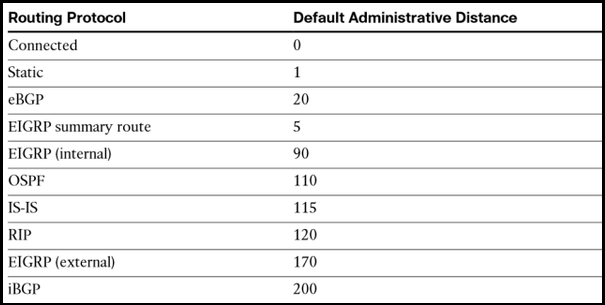
    If there are multiple longest matches then it will check whether they are coming from different protocols or same protocols. If they are coming from different protocols then it will check the AD value of each routes and will choose the path which has lowest AD value.

    IP-Routing-Cisco


    If they are coming from same protocols then it will check the metric and will choose the path which has lowest metric.