Tag: Meraki

  • High Availability (HA) configuration for Cisco Meraki MX67

    βš™οΈ About HA in Meraki MX67

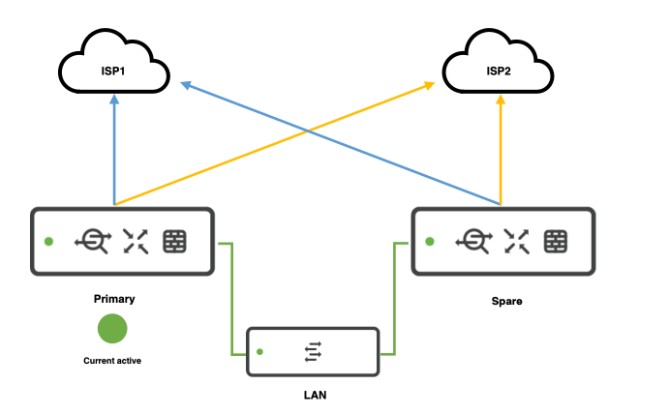
    • Meraki MX67 supports Warm Spare / High Availability (HA) in Active–Passive mode.
    • You need two MX67 appliances (same model) and Advanced Security license for each (or a single shared license if you have Meraki’s per-network licensing).
    • The HA works by monitoring uplinks and LAN, and failing over automatically if the primary fails.

    πŸ›  How to configure HA in Meraki MX67

    βœ… 1. Physical setup

    • Place both MX67 units on the same LAN segment.
    • Connect:
      • Each MX to the Internet (same or different uplinks).
      • The LAN ports of both MXs to the same switch or switches.
    • Connect the dedicated HA/Spare port (Port 4 on MX67) from the primary to the secondary (this is the Heartbeat connection).

    Tip: Make sure the heartbeat cable is direct or via switch but must be in the same VLAN/subnet.


    βœ… 2. Configure in Meraki Dashboard

    1. Go to: Security & SD-WAN > Monitor > Appliance status
    2. Add the secondary MX:
      • Go to Security & SD-WAN > Configure > Addressing & VLANs.
      • Enable Warm Spare.
    3. Enter the serial number of the secondary MX in the Warm Spare field.
    4. Dashboard automatically creates:
      • Shared Virtual IP (VIP) for WAN.
      • Shared Virtual IP for LAN.

    ⚠ Both MXs must be in the same network in the Meraki Dashboard.


    βœ… 3. WAN configuration

    • If you have multiple WAN uplinks, configure WAN1 and WAN2 on both MXs identically.
    • Ensure the ISP allows the use of a Virtual IP (VIP).

    βœ… 4. LAN configuration

    • LAN interfaces should be identical.
    • Enable Use MX uplink IPs or configure Virtual IPs:
      • WAN VIP: shared IP that moves between MXs.
      • MX uplink IPs: individual IPs on each MX.

    πŸ“Š Failover

    • Heartbeat checks happen over the dedicated HA port.
    • Failover typically occurs in seconds (about 30 seconds or less).

    βœ… Verify HA status

    • In Dashboard: Security & SD-WAN > Appliance status β†’ Warm Spare status shows which is active.
    • You can simulate failover by disconnecting the primary MX uplink.

    πŸ”’ Important notes:

    • Meraki MX HA is Active-Passive; no Active-Active.
    • Both MXs must be the same model and firmware.
    • Heartbeat connection is essential for proper failover detection.
    • Use Virtual IP for seamless failover.
  • Enhanced Python script for Meraki Switch with VLAN deletion or port monitoring

    • βœ… VLAN creation
    • ❌ VLAN deletion
    • πŸ”§ Switch port config
    • πŸ‘€ Port monitoring (get port status like usage, errors)

    🧰 Full Python Script – Meraki Switch Automation

    import requests

    # Config
    API_KEY = "YOUR_MERAKI_API_KEY"
    ORG_ID = "YOUR_ORG_ID"
    NETWORK_ID = "YOUR_TEMPLATE_BOUND_NETWORK_ID"
    DEVICE_SERIAL = "YOUR_SWITCH_SERIAL" # Example: Q2XX-XXXX-XXXX

    BASE_URL = "https://api.meraki.com/api/v1"

    HEADERS = {
    "X-Cisco-Meraki-API-Key": API_KEY,
    "Content-Type": "application/json"
    }

    # --- VLAN FUNCTIONS ---

    # βœ… Create VLAN
    def create_vlan(vlan_id, name, subnet, appliance_ip):
    url = f"{BASE_URL}/networks/{NETWORK_ID}/vlans"
    payload = {
    "id": vlan_id,
    "name": name,
    "subnet": subnet,
    "applianceIp": appliance_ip
    }
    response = requests.post(url, headers=HEADERS, json=payload)
    print(f"[CREATE VLAN {vlan_id}] Status: {response.status_code} - {response.text}")

    # ❌ Delete VLAN
    def delete_vlan(vlan_id):
    url = f"{BASE_URL}/networks/{NETWORK_ID}/vlans/{vlan_id}"
    response = requests.delete(url, headers=HEADERS)
    print(f"[DELETE VLAN {vlan_id}] Status: {response.status_code} - {response.text}")

    # --- PORT FUNCTIONS ---

    # πŸ”§ Configure Switch Port
    def configure_switch_port(port_number, port_name="Trunk Port", allowed_vlans="1,10,20"):
    url = f"{BASE_URL}/devices/{DEVICE_SERIAL}/switch/ports/{port_number}"
    payload = {
    "name": port_name,
    "type": "trunk",
    "vlan": 1,
    "allowedVlans": allowed_vlans,
    "poeEnabled": True,
    "rstpEnabled": True,
    "stpGuard": "disabled"
    }
    response = requests.put(url, headers=HEADERS, json=payload)
    print(f"[CONFIGURE PORT {port_number}] Status: {response.status_code} - {response.text}")

    # πŸ‘€ Get Port Status
    def get_port_status():
    url = f"{BASE_URL}/devices/{DEVICE_SERIAL}/switch/ports"
    response = requests.get(url, headers=HEADERS)
    if response.status_code == 200:
    ports = response.json()
    for port in ports:
    print(f"Port {port['portId']}: {port.get('enabled', 'N/A')} | "
    f"Type: {port.get('type')} | VLAN: {port.get('vlan')} | "
    f"Usage: {port.get('usageInKb', 'N/A')} Kbps")
    else:
    print(f"[GET PORT STATUS] Error: {response.status_code} - {response.text}")

    # --- EXECUTION ---

    # VLAN Management
    create_vlan(10, "Staff", "192.168.10.0/24", "192.168.10.1")
    create_vlan(20, "IoT", "192.168.20.0/24", "192.168.20.1")
    # delete_vlan(20) # Uncomment to delete VLAN 20

    # Port Configurations
    configure_switch_port(1)
    configure_switch_port(2, port_name="Uplink to Router")

    # Port Monitoring
    get_port_status()


    βœ… Output Example:

    [CREATE VLAN 10] Status: 201 - {"id":"10",...}
    [CONFIGURE PORT 1] Status: 200 - { ... }
    Port 1: True | Type: trunk | VLAN: 1 | Usage: 120 Kbps


    πŸ›‘οΈ Recommendations:

    • Use environment variables or config files for sensitive info (API keys).
    • Add retry logic or logging for production scripts.
    • Use the Meraki Python SDK (meraki package) if you prefer an abstracted interface.
  • Python script using the Meraki Dashboard API to automate switch port configuration and VLAN creation in a template-bound network.

    πŸ” Step 1: Setup

    Make sure you have:

    • API key from Meraki Dashboard (keep it secret!)
    • Template-bound Network ID
    • requests library installed (pip install requests)

    🧠 Step 2: Python Script

    import requests

    # Replace with your Meraki API key
    API_KEY = "YOUR_MERAKI_API_KEY"
    ORG_ID = "YOUR_ORG_ID"
    NETWORK_ID = "YOUR_TEMPLATE_BOUND_NETWORK_ID"
    DEVICE_SERIAL = "YOUR_SWITCH_SERIAL" # e.g., Q2XX-XXXX-XXXX

    # Meraki base URL
    BASE_URL = "https://api.meraki.com/api/v1"

    # Headers
    HEADERS = {
    "X-Cisco-Meraki-API-Key": API_KEY,
    "Content-Type": "application/json"
    }

    # Step 1: Create VLAN
    def create_vlan(vlan_id, name, subnet, appliance_ip):
    url = f"{BASE_URL}/networks/{NETWORK_ID}/vlans"
    payload = {
    "id": vlan_id,
    "name": name,
    "subnet": subnet,
    "applianceIp": appliance_ip
    }
    response = requests.post(url, headers=HEADERS, json=payload)
    print(f"VLAN Creation ({vlan_id}):", response.status_code, response.text)

    # Step 2: Configure a switch port
    def configure_switch_port(port_number):
    url = f"{BASE_URL}/devices/{DEVICE_SERIAL}/switch/ports/{port_number}"
    payload = {
    "name": "Uplink Port",
    "type": "trunk",
    "vlan": 1,
    "allowedVlans": "1,10,20",
    "poeEnabled": True,
    "rstpEnabled": True,
    "stpGuard": "disabled"
    }
    response = requests.put(url, headers=HEADERS, json=payload)
    print(f"Port {port_number} Config:", response.status_code, response.text)

    # --- Execution ---
    # Create VLANs
    create_vlan(10, "Staff", "192.168.10.0/24", "192.168.10.1")
    create_vlan(20, "IoT", "192.168.20.0/24", "192.168.20.1")

    # Configure ports 1 and 2 as trunk ports
    configure_switch_port(1)
    configure_switch_port(2)


    πŸ“ Customize As Needed

    • Change NETWORK_ID and DEVICE_SERIAL to match your environment.
    • You can loop through multiple ports/VLANs for bulk updates.
    • Add error handling for production use.
  • How to Create and Modify Meraki Switch Templates

    🧩 1. What is a Meraki Switch Template?

    In Cisco Meraki, templates are configurations that can be applied across multiple networks, especially useful in large-scale deployments to ensure consistency.

    • A switch template allows you to configure:
      • VLANs
      • Port settings
      • STP settings
      • QoS policies
      • Link aggregation
      • Access policies (802.1X)
      • Voice VLANs
      • PoE settings

    πŸ–₯️ 2. Creating a Switch Template (via GUI)

    • Login to the Meraki Dashboard
    • Go to:
      Organization > Configuration templates
    • Click β€œCreate a new template”
    • Name your template (e.g., Branch-Switch-Template)
    • Click Create
    • Click on the template name β†’ Switch tab
    • Configure:
      • VLANs under Switch settings > Routing and DHCP
      • Per-port settings via Switch ports
      • QoS, STP, etc. under Switch settings
    • Bind networks to this template under:
      Organization > Configuration templates > Template > Bind networks

    βš™οΈ 3. Modifying a Switch Template (via GUI)

    • Go to:
      Organization > Configuration templates > [Your Template]
    • Under the Switch tab, modify:
      • VLANs
      • Switch port configs
      • Layer 3 interfaces
      • Access policies
    • Changes auto-apply to all bound networks

    πŸ”§ 4. Creating/Modifying Switch Templates (via API)

    πŸ“Œ Prerequisites:

    • Dashboard API key
    • Network ID or template ID
    • API base URL: https://api.meraki.com/api/v1

    βœ… Create a Configuration Template:

    POST /organizations/{organizationId}/configTemplates

    {
    "name": "Branch Switch Template"
    }

    βœ… Modify VLAN Settings in a Template:

    PUT /networks/{networkId}/switch/settings

    {
    "vlan": 20,
    "useCombinedPower": true,
    "voiceVlanId": 100
    }

    βœ… Update Switch Port:

    PUT /devices/{serial}/switch/ports/{portId}

    {
    "name": "Uplink Port",
    "type": "trunk",
    "vlan": 1,
    "allowedVlans": "1,10,20",
    "poeEnabled": true
    }

    πŸ“š Extra Notes:

    • Templates can be bound to multiple networks. Once bound, you cannot configure those networks individually, unless you unbind them.
    • Best Practice: Create staging/testing networks to validate templates before applying widely.