Tag: Networking

  • Introduction to OSPF (Open Shortest Path First)

    OSPF (Open Shortest Path First) is a link-state routing protocol used to efficiently route IP packets within large and complex networks. It’s widely used in enterprise environments due to its scalability, fast convergence, and flexibility.


    Key Features of OSPF

    Link-State Protocol → Builds a complete map (topology) of the network.
    Fast Convergence → Detects network changes quickly and recalculates optimal routes.
    Scalable → Uses areas to segment large networks for better efficiency.
    Cost-Based Metric → Uses cost (based on bandwidth) as the path selection metric.
    Classless → Supports VLSM (Variable Length Subnet Mask) and CIDR (Classless Inter-Domain Routing).
    Multicast Updates → Uses 224.0.0.5 (All OSPF routers) and 224.0.0.6 (Designated Routers).


    OSPF Terminology

    • Router ID (RID): A unique 32-bit identifier for each OSPF router. Chosen based on the highest IP on a loopback interface or highest active IP address.
    • Area: Logical grouping of routers to control the size of the link-state database (LSDB).
      • Area 0 (Backbone Area) is mandatory for OSPF to function.
    • Designated Router (DR): Handles updates in multi-access networks (e.g., Ethernet).
    • Backup Designated Router (BDR): Assumes DR’s role if it fails.
    • Cost (Metric): Determined by 100 ÷ Bandwidth (e.g., Fast Ethernet = 1, Gigabit Ethernet = 1).

    OSPF Router Types

    1. Internal Router (IR): All interfaces in the same area.
    2. Backbone Router: Located in Area 0.
    3. Area Border Router (ABR): Connects one or more OSPF areas to Area 0.
    4. Autonomous System Boundary Router (ASBR): Connects OSPF to external networks.

    OSPF Configuration (Cisco Router)


    Step 1: Enable OSPF Process

    Syntax:

    Router(config)# router ospf <process_id>
    • The process ID is locally significant (doesn’t need to match on other routers).

    Example:

    Router(config)# router ospf 1

    Step 2: Configure Network Statements

    Syntax:

    Router(config-router)# network <network_address> <wildcard_mask> area <area_id>
    • Network Address: The network to advertise.
    • Wildcard Mask: Inverse of the subnet mask.
    • Area ID: Area number (Area 0 for backbone).

    Example:

    Router(config-router)# network 192.168.1.0 0.0.0.255 area 0
    Router(config-router)# network 10.0.0.0 0.0.0.3 area 1

    Step 3: Set Router ID (Optional but Recommended)

    If not set manually, the router chooses the highest active IP address or loopback IP.

    Syntax:

    Router(config-router)# router-id <router_id>

    Example:

    Router(config-router)# router-id 1.1.1.1

    Step 4: Configure Passive Interfaces (Optional for Security)

    Prevents sending OSPF updates on unused interfaces.

    Syntax:

    Router(config-router)# passive-interface <interface>

    Example:

    Router(config-router)# passive-interface GigabitEthernet0/1

    Step 5: Verify OSPF Configuration

    show ip ospf neighbor → Displays OSPF neighbor relationships.
    show ip route ospf → Lists OSPF-learned routes.
    show ip ospf interface → Shows OSPF details for interfaces.


    Step 6: Testing Connectivity

    To ensure routes are propagating correctly:

    Router# ping <destination_ip>
    Router# traceroute <destination_ip>

    Example Topology

    [R1]-----[R2]-----[R3]
    | | |
    192.168.1.0 10.0.0.0 172.16.0.0

    R1 Configuration:

    Router(config)# router ospf 1
    Router(config-router)# network 192.168.1.0 0.0.0.255 area 0
    Router(config-router)# network 10.0.0.0 0.0.0.3 area 0

    R2 Configuration:

    Router(config)# router ospf 1
    Router(config-router)# network 10.0.0.0 0.0.0.3 area 0
    Router(config-router)# network 172.16.0.0 0.0.0.255 area 1

    Best Practices for OSPF

    ✅ Always configure Area 0 as the backbone.
    ✅ Use loopback interfaces for stable Router IDs.
    ✅ Minimize OSPF overhead by configuring passive interfaces.
    ✅ For large networks, segment areas to improve performance.

  • Static Routing Concepts

    Static Routing is a manual method of defining routes in a router’s routing table. Unlike dynamic routing protocols, static routes don’t change unless manually updated by the network administrator.


    Key Features of Static Routing

    Manually Configured → Requires manual input of destination network, subnet mask, and next-hop IP.
    Fixed Paths → Ideal for simple or small networks with predictable routes.
    Fast and Efficient → Less overhead compared to dynamic routing.
    No Automatic Failover → Requires additional configuration for redundancy.


    Administrative Distance (AD)

    The Administrative Distance (AD) is a value that ranks the trustworthiness of different routing sources. Lower AD values are preferred.

    Route TypeAD Value
    Connected Route0
    Static Route1
    EIGRP (Internal)90
    OSPF110
    RIP120
    Unknown Route255 (Unreachable)

    Example: If a router has both a static route (AD=1) and an OSPF route (AD=110) for the same destination, the static route is chosen because of its lower AD.


    Floating Static Route

    A Floating Static Route is a backup route with a higher AD value than the primary route. It remains inactive unless the primary route fails.

    • Example:
      • Primary Route: Static Route with AD = 1
      • Backup Route: Floating Static Route with AD = 200

    If the primary route fails, the router activates the floating static route as a fallback.


    Static Route Configuration (Cisco Router Example)

    Command Syntax:

    Router(config)# ip route <destination_network> <subnet_mask> <next_hop_ip> [administrative_distance]

    Example 1: Basic Static Route

    Scenario: Route traffic to network 192.168.2.0/24 via next-hop 10.0.0.2.

    Router(config)# ip route 192.168.2.0 255.255.255.0 10.0.0.2

    Example 2: Floating Static Route

    Scenario: Primary route uses 10.0.0.2 (AD = 1).
    Backup route (floating static) uses 10.0.0.3 (AD = 200).

    Router(config)# ip route 192.168.2.0 255.255.255.0 10.0.0.2
    Router(config)# ip route 192.168.2.0 255.255.255.0 10.0.0.3 200

    ➡️ The router will prioritize the route through 10.0.0.2 unless it fails, in which case it switches to 10.0.0.3.


    Example 3: Static Route to Exit Interface

    Instead of specifying a next-hop IP, you can specify the exit interface:

    Router(config)# ip route 192.168.3.0 255.255.255.0 Serial0/0

    Verifying Routes

    To check routing configurations and active routes:

    show ip route — Displays the routing table.
    show running-config — Displays configured static routes.


    Best Practices for Static Routing

    ✔️ Use static routes for small networks or stable paths.
    ✔️ Combine static routes with dynamic protocols for optimal performance.
    ✔️ Implement floating static routes for backup paths.
    ✔️ Regularly review and update routes to avoid stale paths.

  • IP Routing explained

    IP Routing is the process of forwarding data packets from one network to another using IP addresses. It determines the best path for data to travel across interconnected networks, ensuring information reaches its intended destination efficiently.


    Key Concepts in IP Routing

    1. IP Address
      • Every device on a network has a unique IP address (e.g., 192.168.1.10).
    2. Subnet Mask
      • Divides the IP address into network and host portions, helping devices identify if a destination is within the same network.
    3. Default Gateway
      • Acts as the exit point for packets destined for other networks.
    4. Routing Table
      • A table maintained by routers that contains rules and paths to different networks.

    How IP Routing Works

    1. Source Device: Sends data with a destination IP address.
    2. Subnet Check: The device checks if the destination IP is in its local network.
      • If yes: Sends data directly.
      • If no: Forwards data to the default gateway.
    3. Router’s Role:
      • The router examines the destination IP and consults its routing table.
      • The router forwards the packet to the next router (or directly to the destination if it knows the route).
    4. Final Delivery: This process continues until the packet reaches its destination.

    Types of Routing

    1. Static Routing
      • Manually configured routes by network admins.
      • Suitable for small networks or stable paths.
    2. Dynamic Routing
      • Routers automatically discover and maintain routes using protocols like:
      • RIP (Routing Information Protocol)
      • OSPF (Open Shortest Path First)
      • BGP (Border Gateway Protocol) — Common for internet routing.
    3. Default Routing
      • Used when there’s no specific route in the table; data is sent via the default gateway.

    Example of a Routing Table

    Destination NetworkSubnet MaskGatewayInterface
    192.168.1.0255.255.255.00.0.0.0LAN1
    10.0.0.0255.0.0.0192.168.1.1WAN1
    0.0.0.00.0.0.0192.168.1.1WAN1
    • 0.0.0.0 → The default route, used when no specific match is found.

    Analogy

    Think of IP routing as a postal system:

    • The IP address is like a home address.
    • The router is the post office.
    • The routing table is the map that guides letters to the right location.

    Steps Involved in IP Routing

    IP routing is a multi-step process that ensures data packets are delivered to the correct destination. Here’s a step-by-step breakdown of how it works:


    Step 1: Data Creation

    • A device (e.g., your computer) generates data to be sent to a specific IP address.
    • This data is divided into packets, each containing:
      • Source IP address (e.g., 192.168.1.10)
      • Destination IP address (e.g., 8.8.8.8 for Google DNS)

    Step 2: Subnet Check

    • The source device checks its own IP address and subnet mask to determine if the destination is on the same network.
    • If YES → The packet is sent directly to the destination.
    • If NO → The packet is sent to the default gateway (router).

    Step 3: Packet Forwarding to Router

    • The packet reaches the router (default gateway).
    • The router reads the destination IP address and checks its routing table.

    Step 4: Routing Table Lookup

    • The router compares the destination IP against its routing table to find the best path.
    • Possible outcomes:
      • Match Found → The packet is forwarded to the corresponding interface or next-hop router.
      • No Match → The router uses the default route (if configured) or drops the packet.

    Step 5: Packet Forwarding to Next Router

    • If the router forwards the packet to another router, this process repeats at each hop.
    • Each router examines the destination IP, consults its routing table, and forwards the packet accordingly.

    Step 6: Final Delivery

    • When the packet reaches the router responsible for the destination network, it’s delivered directly to the target device.
    • The receiving device sends an acknowledgment (ACK) back to confirm successful delivery.

    Example Scenario

    Imagine your computer (192.168.1.10) wants to visit 8.8.8.8.

    1. Your PC checks if 8.8.8.8 is on the local network (it’s not).
    2. It sends the packet to the router (192.168.1.1).
    3. The router checks its routing table and forwards the packet to the next router.
    4. This continues until the packet reaches Google’s DNS server at 8.8.8.8.
    5. Google’s server responds with the requested data, following the reverse path.

    Key Concepts During Routing

    TTL (Time to Live): Prevents packets from looping indefinitely by decreasing at each hop.
    MTU (Maximum Transmission Unit): Ensures packets are fragmented if they exceed size limits.
    NAT (Network Address Translation): Translates private IPs (like 192.168.x.x) into public IPs for internet access.

  • What is Default Gateway

    The default gateway is a network device, usually a router, that acts as an access point for devices on a local network to communicate with other networks, such as the internet. It serves as the “default” path that data packets take when no specific route is defined for a destination.

    Example

    • Imagine your home network has devices like a laptop, phone, and smart TV. When one of these devices tries to access a website, the request is first sent to the default gateway, which then forwards it to the internet.

    How to Find Your Default Gateway

    On Windows:

    1. Open Command Prompt (Win + R, then type cmd).
    2. Type ipconfig and press Enter.
    3. Look for Default Gateway under your active network connection.

    On Linux/Mac:

    1. Open the terminal.
    2. Type ip route or netstat -rn.
    3. The Gateway column shows your default gateway.

    Typical Default Gateway IPs

    • 192.168.0.1
    • 192.168.1.1
    • 10.0.0.1
  • Wireless Encryption: Ensuring Secure Communication

    Wireless encryption is essential for securing data transmitted over Wi-Fi networks, preventing unauthorized access and eavesdropping. Different encryption protocols have been developed over time, each with varying levels of security.

    1. Types of Wireless Encryption Protocols

    Encryption ProtocolDescriptionSecurity Level
    WEP (Wired Equivalent Privacy)The first encryption standard for Wi-Fi. Uses 64-bit or 128-bit encryption but has major security flaws.Weak (Easily hacked)
    WPA (Wi-Fi Protected Access)Introduced as an improvement over WEP. Uses TKIP (Temporal Key Integrity Protocol) but is still vulnerable.Moderate (Better than WEP, but outdated)
    WPA2 (Wi-Fi Protected Access 2)Uses AES (Advanced Encryption Standard) encryption for strong security. Most commonly used today.Strong
    WPA3 (Wi-Fi Protected Access 3)Latest standard with enhanced security, including Simultaneous Authentication of Equals (SAE) for better password protection.Very Strong

    2. Detailed Overview of Wireless Encryption Methods

    a. WEP (Wired Equivalent Privacy) – Insecure

    • Uses RC4 stream cipher for encryption.
    • Weak static key (40-bit or 104-bit), making it easy to crack.
    • Vulnerable to IV (Initialization Vector) attacks.
    • Deprecated and should not be used.

    b. WPA (Wi-Fi Protected Access) – Transitional Security

    • Introduced TKIP (Temporal Key Integrity Protocol) to improve security.
    • Still based on RC4, making it vulnerable to attacks.
    • No longer recommended for secure networks.

    c. WPA2 (Wi-Fi Protected Access 2) – Strong Security

    • Uses AES (Advanced Encryption Standard) with CCMP (Counter Mode Cipher Block Chaining Message Authentication Code Protocol) for encryption.
    • Supports two modes:
      • WPA2-Personal (PSK) – Uses a shared password.
      • WPA2-Enterprise – Uses 802.1X authentication with a RADIUS server.
    • Still widely used but susceptible to brute-force attacks if weak passwords are used.

    d. WPA3 (Wi-Fi Protected Access 3) – Next-Generation Security

    • Stronger encryption with 192-bit security (for WPA3-Enterprise).
    • Uses Simultaneous Authentication of Equals (SAE) to prevent dictionary attacks.
    • Forward Secrecy ensures past communications remain secure even if a password is compromised.
    • Mandatory encryption for open Wi-Fi networks (OWE – Opportunistic Wireless Encryption).
    • Recommended for future-proof wireless security.

    3. Best Practices for Wireless Encryption

    • Always use WPA2 or WPA3 for the best security.
    • Avoid WEP and WPA, as they are easily compromised.
    • Use strong, complex passwords for WPA2-PSK and WPA3-SAE.
    • Enable WPA2-Enterprise for business networks to use authentication servers.
    • Regularly update firmware on routers to protect against vulnerabilities.
  • Introduction to VTP (VLAN Trunking Protocol) and Configuration

    1. What is VTP?

    VTP (VLAN Trunking Protocol) is a Cisco-proprietary protocol that helps manage VLAN configurations across multiple switches within a network. It allows switches to automatically propagate VLAN changes from a central switch to others, reducing manual configuration and ensuring consistency.

    Key Features of VTP:

    Simplifies VLAN management – No need to manually configure VLANs on each switch.
    Ensures VLAN consistency – VLANs are updated across the network.
    Reduces configuration errors – Prevents mismatches in VLAN settings.


    2. VTP Modes

    VTP operates in three modes:

    ModeDescription
    ServerThe default mode; can create, modify, and delete VLANs. Sends VLAN updates to other switches.
    ClientCannot create or modify VLANs; only receives updates from the server.
    TransparentDoes not participate in VTP; VLANs are managed locally but forwards VTP messages.

    3. Configuring VTP (Step-by-Step)

    Step 1: Configure the VTP Server

    Enter global configuration mode:bashCopyEditconfigure terminal

    Set the VTP domain name (must match on all switches in the domain):vtp domain MyNetwork

    Set the switch to VTP server mode:tvtp mode server

    (Optional) Set a VTP password for security:vtp password Cisco123

    Verify VTP configuration:show vtp status


    Step 2: Configure VTP Clients

    Enter global configuration mode:bashCopyEditconfigure terminal

    Set the same VTP domain name as the server:bashCopyEditvtp domain MyNetwork

    Set the switch to client mode:bashCopyEditvtp mode client

    (Optional) Set the same VTP password as the server:bashCopyEditvtp password Cisco123

    Verify the client is receiving VLANs:bashCopyEditshow vlan brief


    Step 3: Configure a Transparent Switch (Optional)

    Enter global configuration mode:configure terminal

    Set the VTP mode to transparent:vtp mode transparent

    (Optional) Set the VTP domain (even though it doesn’t participate):vtp domain MyNetwork

    Verify transparent mode:show vtp status


    4. Verifying VTP Configuration

    CommandDescription
    show vtp statusDisplays VTP mode, domain, revision number, etc.
    show vtp passwordDisplays the configured VTP password.
    show vlan briefDisplays VLANs received from the VTP server.

    5. Important Notes & Best Practices

    🚀 Use VTP version 2 or 3 for better performance and security.
    🔒 Be cautious with VTP mode changes – Adding a new switch with a higher revision number can overwrite VLANs.
    🛑 Prefer using VTP transparent mode in critical networks to prevent unintended VLAN deletions.

  • What is Power over Ethernet (PoE)?

    Power over Ethernet (PoE) allows network cables to carry both data and electrical power to devices like IP phones, wireless access points, and security cameras, eliminating the need for separate power adapters.

    PoE Standards

    StandardMax Power per PortDevices Supported
    802.3af (PoE)15.4WPhones, small APs
    802.3at (PoE+)30WHigh-power APs, cameras
    802.3bt (PoE++)60-100WLED lights, laptops

    How to Enable PoE on a Cisco Switch

    Most Cisco switches support PoE by default, but you can manually enable or configure it.

    1. Check if the Switch Supports PoE

    Run:

    Switch#show power inline

    If you see available power and usage stats, the switch supports PoE.


    2. Enable PoE on an Interface

    Run:

    Switch#conf t
    interface <interface_id>
    power inline auto
    exit
    • <interface_id> → Example: GigabitEthernet1/0/1
    • auto → Enables PoE when a powered device (PD) is detected.

    To disable PoE on a port:

    Switch#conf t
    interface <interface_id>
    power inline never
    exit

    3. Set Power Limits for Devices

    By default, the switch assigns power dynamically. You can manually set power limits:

    Switch#conf t
    interface <interface_id>
    power inline static max 20000
    exit
    • Max power in milliwatts (mW)
      • 15000 for 15W (PoE)
      • 30000 for 30W (PoE+)
      • 60000 for 60W (PoE++)

    To check power consumption:

    Switch#show power inline interface <interface_id> detail

    4. Troubleshoot PoE Issues

    If a device is not powering up:

    • Check PoE status:bashCopyEditshow power inline interface <interface_id>
    • Reset PoE on the port:bashCopyEditconf t interface <interface_id> power inline never power inline auto exit
    • If the port is err-disabled, recover it:bashCopyEditconf t interface <interface_id> shutdown no shutdown exit
    • If power is exhausted, check:bashCopyEditshow power inline

    Summary

    TaskCommand
    Enable PoEpower inline auto
    Disable PoEpower inline never
    Set power limitpower inline static max <mW>
    Check PoE statusshow power inline
    Check port power useshow power inline interface <interface_id> detail
  • Cisco SD-WAN Templates

    Cisco SD-WAN uses device and feature templates to manage configurations efficiently across multiple devices. Here’s a breakdown of how these templates work:

    • Device Templates: These are specific to a device model, such as vEdge routers, and are used to configure the complete operational setup of a device. A device template consists of one or more feature templates. Device templates can be customized for different locations or roles within a network.
    • Feature Templates: These templates define configurations for specific software features on Cisco SD-WAN devices. They can be applied across multiple device types and are used to configure parameters like system settings, interfaces, routing protocols, and security settings. Feature templates can be mandatory or optional, and some have default configurations that can be overridden.
    • Parameter Scope: Parameters in feature templates can have different scopes:
      • Device Specific: Values are unique to each device and are entered when attaching a device template to a specific device. Examples include system IP address, hostname, and GPS location.
      • Global: Values apply to all devices using the template, such as DNS server settings or interface MTUs.
    • CSV Files: Device-specific settings can be managed using CSV files. Each row in the CSV file corresponds to a device, with columns for parameters like device ID, IP address, and hostname. These files are uploaded when attaching a device template to a device.
    • Template Creation: Templates can be created from feature templates or via the CLI. Mandatory feature templates and some optional ones have default configurations. Custom templates can be created to tailor configurations to specific needs.
    • Configuration Management: Templates help in managing configurations across multiple devices, reducing human error and scaling issues. They support features like zero-touch provisioning (ZTP) and automatic rollback, ensuring efficient and error-free deployment.

    These templates streamline the configuration process, making it easier to manage and scale Cisco SD-WAN networks.

  • Configuring Pi-hole for Ad Blocking

    To configure Pi-hole to block ads, follow these steps:

    1. Set Up Raspberry Pi: First, configure a Raspberry Pi running Raspberry Pi OS. You can use any Raspberry Pi model, but the Zero 2 W is recommended for its low power consumption. Install Raspberry Pi OS Lite (32-bit) to run headlessly (without a mouse and keyboard).
    2. Install Pi-hole: Once your Raspberry Pi is set up, install Pi-hole software on it. You can use a one-line script installer provided by Pi-hole to set up the software easily.
    3. Assign Static IP Address: Ensure your Raspberry Pi has a static IP address that does not change when it restarts or reconnects to the network. This can be done through your router’s settings by specifying the MAC address of the Raspberry Pi and assigning it a static IP.
    4. Configure Router DNS Settings: Log into your router’s admin interface and change the DNS settings to use the static IP address of your Raspberry Pi. This can usually be found under sections like “Internet,” “DHCP,” “Internet Connection,” or “DDNS.” Enter your Pi-hole’s IP address in the DNS field. If your router provides multiple custom DNS fields, add your Pi-hole address in each field.
    5. Direct DNS Queries to Pi-hole: After configuring your router, all devices connected to your network will send DNS queries to your Pi-hole instead of to a DNS server on the internet. Pi-hole will block requests to ad domains before they leave your network.
    6. Access Pi-hole Dashboard: Visit the Pi-hole dashboard using the admin URL (usually http://pi.hole/admin) to manage your Pi-hole settings. You can block or unblock specific domain names and configure other features from here.

    By following these steps, you can effectively block ads across your entire network, including devices that don’t support browser extensions, such as smart TVs and game consoles.

  • What is SD-WAN ?

    SD-WAN, or Software-Defined Wide Area Network, is a virtual WAN architecture that uses software-defined networking (SDN) principles to manage and optimize the performance of wide area networks. It allows organizations to securely connect users, applications, and data across multiple locations, providing improved performance, reliability, and scalability. SD-WAN simplifies network management by providing centralized control and visibility over the entire network, enabling businesses to use lower-cost Internet access to build higher-performance WANs, often replacing more expensive private WAN connection technologies like MPLS.

    SD-WAN vs MPLS

    The main difference between SD-WAN and MPLS is that SD-WAN is a virtualized network overlay that can combine multiple types of connections, whereas MPLS is a dedicated, hardware-based private network. SD-WAN creates encrypted tunnels over the internet, while MPLS doesn’t directly support encryption but is partitioned from the internet.

    • SD-WAN: A software-defined wide area network that uses virtualization and overlay tunnels to connect users to workloads across multiple transport services and types of existing infrastructure, offering improved bandwidth availability, WAN redundancy, and cost-effectiveness.
    • MPLS: A multiprotocol label switching protocol that improves performance and efficiency of data transmission in a wide area network, operating between Layer 2 and Layer 3 of the OSI model, but with higher per-megabit costs and limited flexibility.

    SD-WAN is generally considered more cost-effective, flexible, and secure than MPLS, with the ability to cost-effectively mix and match network links according to content type or priority. However, MPLS is still in demand, particularly for organizations with specific connectivity and security requirements, due to its lower packet loss and dedicated leased lines. Ultimately, the choice between SD-WAN and MPLS depends on the organization’s specific needs and priorities.

    SD-WAN implementation

    Implementing SD-WAN involves several best practices to ensure a successful and efficient transition. Here are key steps and considerations:

    1. Assess Your Network: Evaluate your current network infrastructure to identify strengths, weaknesses, and areas that require improvement. This includes understanding your network traffic patterns, application requirements, and performance goals. Assess compatibility issues with legacy systems and ensure your SD-WAN solution aligns with your business objectives.
    2. Define Objectives and Strategy: Clearly define what you want to achieve with SD-WAN, such as cost savings, improved performance, or enhanced security. Align stakeholders and decision-makers on the strategic goals of the SD-WAN implementation.
    3. Choose Deployment Model: Decide whether to deploy SD-WAN in-house, use a managed service provider (MSP), or a hybrid approach. Consider factors like in-house expertise, management and monitoring needs, and budget constraints.
    4. Select the Right Vendor: Choose a vendor that offers robust SD-WAN solutions, including advanced security features, flexible deployment options, and strong customer support. Ensure the vendor can meet industry, country, or region-specific regulations.
    5. Plan for Scalability and Flexibility: Design your SD-WAN solution to handle future growth and changing business demands. This includes considering the number of locations, size, and complexity of your network. Use modular methodologies and configuration templates to streamline deployment and management.
    6. Implement Security Measures: Secure SD-WAN solutions should include advanced security features like Zero Trust Network Access (ZTNA), Intrusion Prevention System (IPS), and application-aware firewall capabilities. Ensure the SD-WAN solution can dynamically scale and adapt to different cloud environments.
    7. Monitor and Troubleshoot: Implement robust monitoring tools to proactively identify and resolve performance issues. Regularly review performance metrics and network logs to ensure optimal performance and address any potential bottlenecks or security threats.
    8. Ongoing Maintenance: After deployment, continue to maintain the SD-WAN network to ensure it operates efficiently. This includes regular updates, monitoring, and troubleshooting.

    FortiGate SD-WAN Configuration Steps

    To configure SD-WAN on a FortiGate device, follow these step-by-step instructions:

    1. Enable SD-WAN Feature: Navigate to System > Feature visibility and ensure the SD-WAN option is selected.
    2. Remove WAN Interfaces from Policies: Go to Policy & Objects > Firewall Policy and remove WAN interfaces from any existing policies to avoid losing internet connection.
    3. Create SD-WAN Interface: Navigate to Network > SD-WAN and create a new SD-WAN interface. Click “Create New SD-WAN Member” on all ports used in SD-WAN.
    4. Configure SD-WAN Members: For each WAN interface, assign the correct network gateway address. For example, set the wan1 interface Addressing mode to DHCP and Distance to 10, and set the wan2 interface IP/Netmask to 10.100.20.1 255.255.255.0.
    5. Enable SD-WAN: In the SD-WAN Interface Members table, click “Create New,” select the interface, and set the appropriate gateway and cost. Set the status to Enable and click OK.
    6. Configure SD-WAN Rules: Define SD-WAN rules to steer traffic based on business applications. These rules are matched in order, and the first match applies to the traffic.
    7. Install Device Settings: Use FortiManager to install device settings, including creating interfaces, building VPN tunnels, and setting up BGP adjacencies. Preview the changes before installation to ensure accuracy.
    8. Map Interfaces: Map your interfaces to Normalized Interfaces so that Policy Packages will install correctly.
    9. Install Policy Packages: Go to Policy & Objects and click Install on the top blue bar. Preview the install before proceeding to ensure all settings are correct.
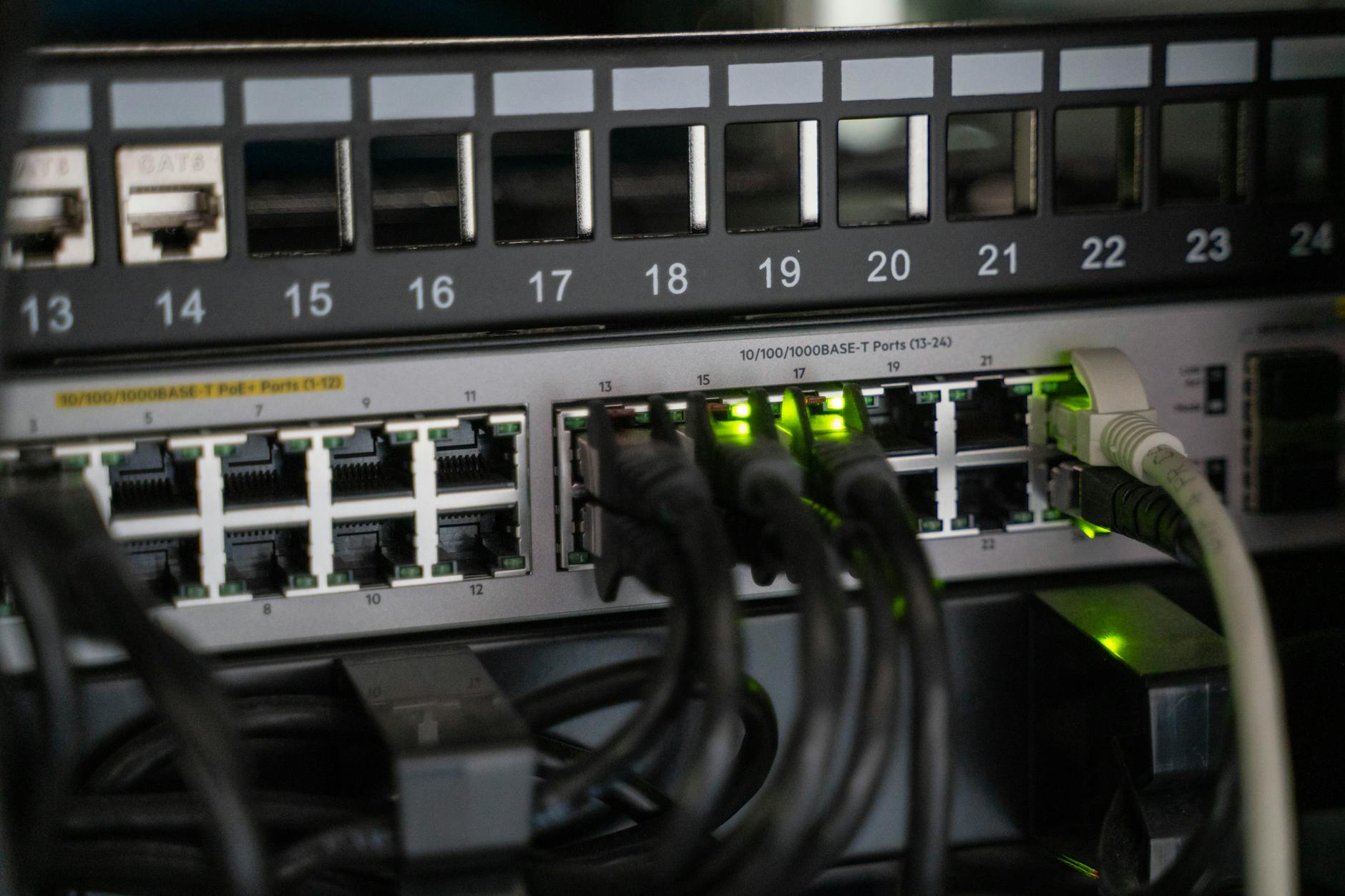
    Photo by Vladimir Srajber on Pexels.com