Tag: Networking

  • Introduction to Useful Wireshark Filters

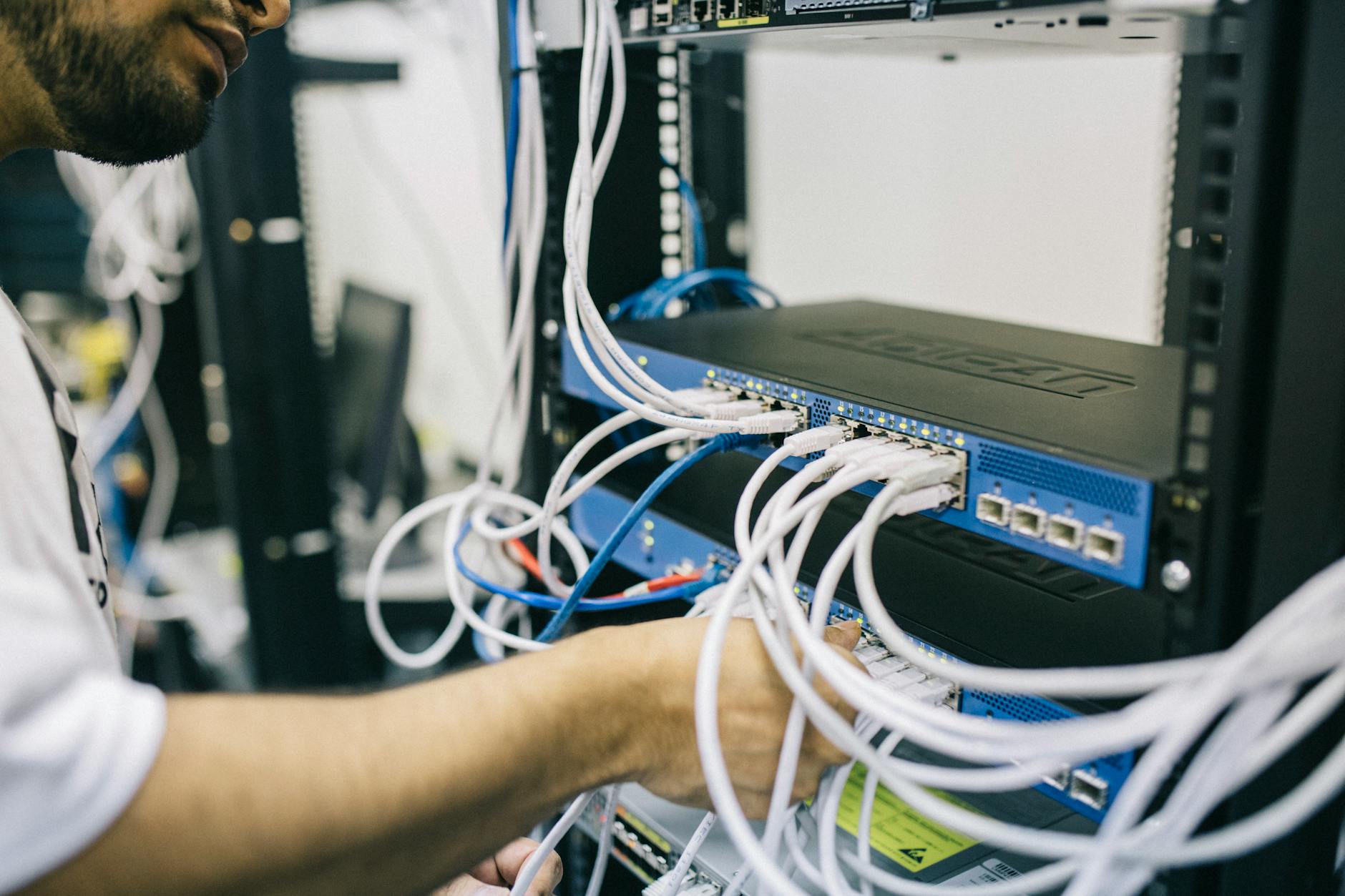
    Photo by Valdemaras D. on Pexels.com

    Wireshark is a powerful network protocol analyzer that helps users capture and analyze network traffic. To make the most out of Wireshark, using the right filters is essential. Filters help narrow down the traffic to specific protocols, IP addresses, or ports, making it easier to analyze and troubleshoot network issues.

    Filter by IP Address: ip.src == x.x.x.x or ip.dst == x.x.x.x to filter by source or destination IP address.

    Filter by Port: tcp.port == 80 or udp.port == 53 to filter by specific TCP or UDP ports.

    Filter by Protocol: http or dns to filter by specific protocols like HTTP or DNS.

    Filter by TCP Flags: tcp.flags == 0x02 to filter by specific TCP flags, such as SYN or ACK.

    Filter by Packet Length: frame.len > 100 or frame.len < 100 to filter by packet length.

    Filter by Conversation: ip.src == x.x.x.x and ip.dst == y.y.y.y to filter by conversations between two specific IP addresses.

    Filter by HTTP Requests: http.request.method == GET or http.request.method == POST to filter by specific HTTP request methods.

    Filter by DNS Requests: dns.qry.type == A or dns.qry.type == AAAA to filter by specific DNS query types.

    Filter by TCP Resets: tcp.flags.reset == 1 to filter by TCP reset packets.

    Filter by Sequence Number: tcp.seq == 12345 to filter by specific TCP sequence numbers.

  • How to check network latency using Wireshark

    To test network latency using Wireshark, follow these steps to effectively capture and analyze packet data:Setting Up Wireshark

    Install Wireshark: Download and install the latest version of Wireshark from the official website.
    Select the Network Interface: Open Wireshark and choose the appropriate network interface to capture packets. This is typically your Ethernet or Wi-Fi connection.

    Capturing Packets
    Start Packet Capture:Click on the “Capture” menu and select “Start” or simply click the shark fin icon.
    Allow Wireshark to run for a sufficient duration to capture relevant traffic.
    Stop Packet Capture:Click on the red square button to stop capturing once you have enough data.

    Analyzing Latency
    Use TCP Stream Graphs:Go to “Statistics” in the menu.
    Select “TCP Stream Graph” and then choose “Round Trip Time” (RTT) graph.
    This graph will display the round-trip time for packets, allowing you to visualize latency over time1.

    Inspect Individual Packets: Click on a specific packet in the capture window.
    In the packet details pane, look for timestamps which indicate when packets were sent and received. You can calculate latency by subtracting these timestamps4.

    Filter for Specific Protocols: Use display filters (e.g., tcp, icmp) to isolate specific types of traffic that may be contributing to latency issues.


    Calculate Latency Using Timestamps: If you have access to both client and server captures, you can compare timestamps from both ends to measure latency more accurately by subtracting the client’s send time from the server’s receive time4.

    Additional Analysis
    Identify Potential Issues: Look for signs of congestion, such as packet loss or retransmissions, which can contribute to increased latency.
    Use other statistics tools within Wireshark, such as “IO Graphs,” to visualize overall network performance.
    By following these steps, you can effectively use Wireshark to measure and analyze network latency, helping you identify bottlenecks and optimize your network performance

  • What is DNS over HTTPS (DoH)

    DNS over HTTPS (DoH) is a protocol that encrypts Domain Name System (DNS) queries and responses between a client (e.g., a web browser or operating system) and a DNS resolver (e.g., Quad9). This encryption protects DNS data from being intercepted, modified, or logged by third-party entities, such as Internet Service Providers (ISPs) or network administrators.

    How does Quad9’s DoH service work?
    Quad9 offers a DoH service that uses the HTTPS protocol to encrypt DNS queries and responses. When you configure your device to use Quad9’s DoH service, your device will send DNS queries to Quad9’s servers over an encrypted HTTPS connection. Quad9’s servers will then respond with the resolved IP addresses, also encrypted.

    How to configure DNS over HTTPS (DoH) using Quad9:
    Android (Android 9 and later):
    Go to Settings > Network & Internet > Advanced > Private DNS.
    Select “Private DNS provider hostname” and enter dns.quad9.net.
    Save the changes.

    iOS (14 and later):
    Note that Apple’s Private Relay feature will override any custom DoH settings. If you want to use Quad9’s DoH, disable Private Relay.
    Configure your device’s DNS settings to use Quad9’s DoH by following these steps:
    Go to Settings > Wi-Fi > [your Wi-Fi network] > DNS.
    Tap “Manual” and enter dns.quad9.net as the DNS server.

    Windows 11:
    Go to Settings > Network & Internet > Ethernet or Wi-Fi > Change adapter options.
    Right-click your active network connection and select “Properties”.
    In the “Internet Protocol Version 4 (TCP/IPv4)” or “Internet Protocol Version 6 (TCP/IPv6)” properties, click “Advanced”.
    In the “DNS” tab, click “Add” and enter dns.quad9.net as the DNS server.

    Other devices and operating systems:
    Consult your device’s documentation or manufacturer’s website for specific instructions on configuring DoH with Quad9.

    Important notes:
    Quad9’s DoH service only blocks malicious domains, not ads or tracking. You may need additional tools to block these types of content.
    If you’re using a VPN, it’s recommended to use the VPN’s built-in DNS service instead of configuring DoH with Quad9.
    Quad9’s DoH service may not work on all networks or devices due to restrictions imposed by network administrators or firewalls.

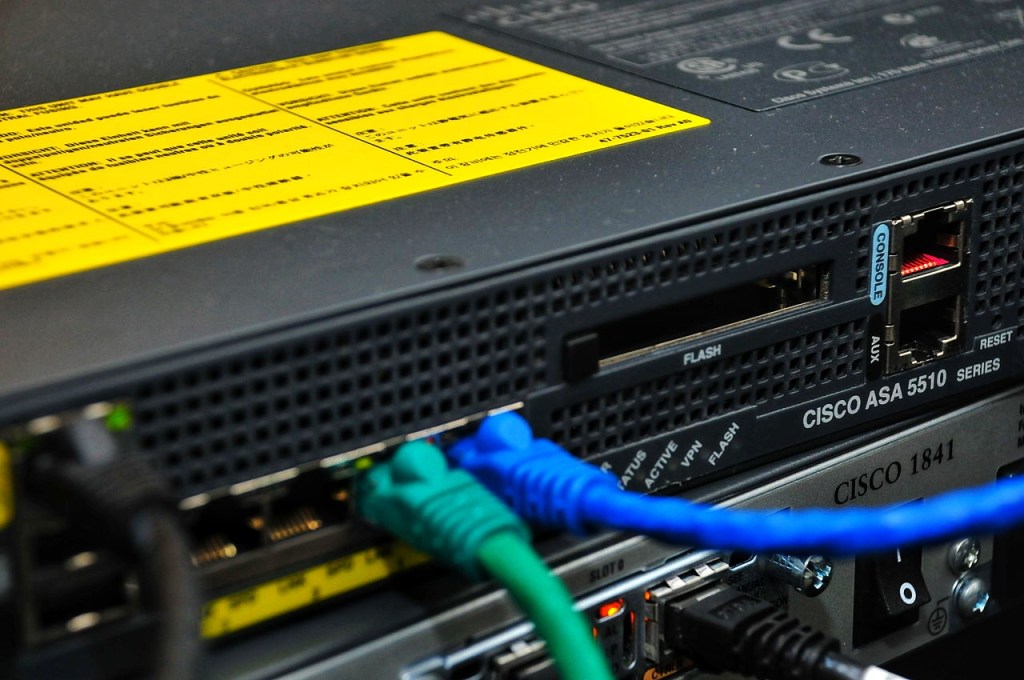
    Photo by Field Engineer on Pexels.com
  • Connecting OSPF Areas without Virtual Links

    To connect two OSPF regular areas without a virtual link, you can use a GRE (Generic Routing Encapsulation) tunnel. Here’s a step-by-step guide:

    Why GRE Tunnel?

    A GRE tunnel allows you to encapsulate OSPF packets within a GRE header, which can be routed through a non-OSPF area. This approach eliminates the need for a virtual link.

    Configuration Steps:

    1. Create a GRE Tunnel:
      • Configure a GRE tunnel between the two routers that connect the two OSPF regular areas.
      • Use the tunnel mode gre ip command to create a GRE tunnel interface.
    2. Configure OSPF on the GRE Tunnel:
      • Configure OSPF on the GRE tunnel interface, specifying the area ID and network type.
      • Use the router ospf command to enable OSPF on the GRE tunnel interface.
    3. Configure OSPF on the Physical Interfaces:
      • Configure OSPF on the physical interfaces that connect to the GRE tunnel, specifying the area ID and network type.
      • Use the router ospf command to enable OSPF on the physical interfaces.

    Example Configuration:

    Suppose we have two routers, R1 and R2, that connect two OSPF regular areas, Area 1 and Area 2.

    R1 Configuration:

    interface Tunnel0 

    tunnel mode gre 

    ip tunnel source FastEthernet0/0 tunnel destination 192.168.2.2 

    ip address 10.1.1.1 255.255.255.0 

    router ospf 1 

    network 10.1.1.0 0.0.0.255 area 1 interface FastEthernet0/0 

    ip address 192.168.1.1 255.255.255.0 router ospf 1 

    network 192.168.1.0 0.0.0.255 area 1

    R2 Configuration:

    interface Tunnel0
    tunnel mode gre ip
    tunnel source FastEthernet0/0
    tunnel destination 192.168.1.1
    ip address 10.2.2.1 255.255.255.0
    router ospf 1
    network 10.2.2.0 0.0.0.255 area 2

    interface FastEthernet0/0
    ip address 192.168.2.2 255.255.255.0
    router ospf 1
    network 192.168.2.0 0.0.0.255 area 2

    By using a GRE tunnel, you can connect two OSPF regular areas without a virtual link. This approach provides a flexible and scalable solution for connecting multiple OSPF areas.

  • Python script to check if VDB databases are updated in Cisco FMC

    To check if VDB databases are updated in Cisco FMC and print the results to an Excel file using Python, you can use the following approach:

    1.Access Cisco FMC through API: Use the Cisco FMC API to retrieve the VDB database information. You can find more details about the API in the Cisco FMC API documentation.

    import requests
    import json

    fmc_feeds_url = “https://10.10.10.10/api/fmc_feeds/access&#8221;
    fmc_headers = {‘content-type’: ‘application/json’}
    fmc_auth = (‘admin’, ‘YourPassword’) # replace ‘YourPassword’ with your actual password

    response = requests.get(fmc_feeds_url, headers=fmc_headers, auth=fmc_auth, verify=False)
    feeds = json.loads(response.text)

    2.Parse the API response: Extract the VDB database information from the API response.

    vdb_databases = [feed for feed in feeds[‘items’] if feed[‘name’].startswith(‘VDB’)]

    3.Create an Excel file and print the results: Use a library like pandas to create an Excel file and print the results.

    import pandas as pd

    df = pd.DataFrame(vdb_databases)
    df.to_excel(‘VDB_databases.xlsx’, index=False)

  • Key Features of Sliver Peak SD-WAN

    Silver Peak, now part of Hewlett Packard Enterprise (HPE) Aruba, offers a software-defined wide-area networking (SD-WAN) solution, EdgeConnect. This comprehensive platform enables enterprises to transform their legacy WAN architectures into a robust, secure, and efficient SD-WAN.

    1. Cloud-Centric Architecture: Designed for a cloud-first world, EdgeConnect simplifies branch office and WAN deployments, empowering remote workforces and enabling cloud-connected distributed enterprises.
    2. Intelligent WAN: The platform uses artificial intelligence (AI) and machine learning (ML) to optimize WAN traffic, ensuring improved application performance, network reliability, and business efficiency.
    3. Security: EdgeConnect integrates advanced security features, including stateful zone-based firewalls, intrusion prevention, and web security gateways, to protect users and applications from web-based threats.
    4. Centralized Management: A single, intuitive interface allows for unified management, monitoring, and troubleshooting of WAN and security services across the entire network.
    5. Interoperability: EdgeConnect supports a range of transport services, including MPLS, LTE, and broadband internet services, allowing enterprises to leverage their existing infrastructure and migrate to SD-WAN at their own pace.

    Benefits

    1. Improved Application Performance: EdgeConnect optimizes WAN traffic to ensure fast and reliable access to cloud-based applications and services.
    2. Enhanced Network Reliability: The platform’s AI-driven architecture detects and mitigates network issues, reducing downtime and improving overall network availability.
    3. Increased Business Agility: With EdgeConnect, enterprises can quickly deploy new services and applications, and respond to changing business needs with greater flexibility.
    4. Simplified Management: Centralized management and monitoring simplify WAN and security administration, reducing operational costs and complexity.
  • SD-WAN vs VPN Comparison

    SD-WAN vs VPN Comparison

    SD-WAN:

    • A software-defined network that optimizes traffic routing over multiple connections (e.g., internet, MPLS, broadband)
    • Provides a centralized platform for managing and monitoring site-to-site connections
    • Offers advanced features like traffic shaping, quality of service (QoS), and security
    • Designed to improve network reliability, scalability, and agility
    • Can be used for site-to-cloud connections, as well as intra-site connectivity

    VPN:

    • A point-to-point encryption solution that creates a secure connection between two endpoints (device-to-network or network-to-network)
    • Provides confidentiality and integrity of data transmitted over the internet
    • Can be used for remote access, site-to-site connectivity, and internet-to-cloud connections
    • Typically uses protocols like IPsec, SSL/TLS, or OpenVPN

    Comparison Highlights:

    • Scalability: SD-WAN is designed to handle large-scale, distributed networks, while VPNs are better suited for smaller, more focused connections.
    • Routing: SD-WAN optimizes traffic routing across multiple connections, whereas VPNs rely on a single network link.
    • Management: SD-WAN provides a centralized management platform, whereas VPNs often require individual configuration and monitoring.
    • Security: Both SD-WAN and VPN offer encryption and security features, but SD-WAN’s advanced capabilities, such as traffic shaping and QoS, provide additional security benefits.
    • Use Cases: SD-WAN is ideal for large-scale, distributed networks, while VPNs are better suited for smaller, more focused connections, such as remote access or site-to-site connectivity.

    In Summary:

    SD-WAN and VPN are both essential technologies for securing and managing network connections. SD-WAN is designed for large-scale, distributed networks, offering advanced features like traffic optimization and centralized management. VPNs, on the other hand, provide point-to-point encryption and are well-suited for smaller, more focused connections. When choosing between SD-WAN and VPN, consider the size and complexity of your network, as well as your specific security and connectivity requirements.

  • How to use Packet Tracer on Cisco ASA

    How to use Packet Tracer on Cisco ASA

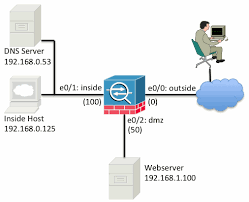
    Packet tracer feature used to verify the security mechanisms as packet moves from one interface to another in a cisco ASA firewall. By this we can troubleshoot why the traffic is not working in the firewall or whether we created the rule correctly or not

    A typical series of security features tested might look like the following:

    • Flow lookup: Checks for existing xlate and conn entries.
    • UN-NAT: Checks for address translation entries.
    • Access list lookup: Checks for any applicable ACL entries.
    • IP options lookup: Checks handling of IP options in the ingress packet.
    • NAT: Checks the Reverse Path Forwarding (RPF) information.
    • NAT: Checks for host connection limits.
    • IP options lookup: Checks handling of IP options in egress packet.
    • Flow creation: Creates new xlate and conn entries, if needed.
    • Route lookup: Checks for a router to the destination address.

    Using Packet Tracer

    • Login to the ASA and go to enable mode:
    • login as: admin
    • dmin@10.1.10.1
    • password: Type help or ‘?’ for a list of available commands.
    • Corp-Hq-Fw01> en Password: Corp-Hq-Fw01#
    • Gather the required information for your packet trace:
      • The interface you wish the traffic to originate from
      • The type of traffic you wish to spoof, with TCP, UDP, ICMP (all types) or RawIP traffic supported.
      • The source port (if applicable) you want the traffic to originate from.
      • The destination port (again, if applicable) you want the traffic to be destined to.

    Now type in the command, syntax is

    packet-tracer input $source-interface $traffic-type $src_address $src_proto $src_proto_options $dest_address
    
    • In this instance let’s test
    • Inside interface address
    • ICMP traffic
    • Destined for google 8s

    Corp-Hq-Fw01# packet-tracer input inside icmp 10.1.10.5 8 0 8.8.8.8
    
    Phase: 1
     Type: ROUTE-LOOKUP
     Subtype: Resolve Egress Interface
     Result: ALLOW
     Config:
     Additional Information:
     found next-hop X.X.X.X using egress ifc OUTSIDE
    
    Phase: 2
     Type: ACCESS-LIST
     Subtype:
     Result: DROP
     Config:
     Implicit Rule
     Additional Information:
    
    Result:
     input-interface: inside
     input-status: up
     input-line-status: up
     output-interface: OUTSIDE
     output-status: up
     output-line-status: up
     Action: drop
     Drop-reason: (acl-drop) Flow is denied by configured rule
    

    The traffic is blocked in the firewall because there is no rule for created for ICMP. Lets do the test again after creating rule to allow ICMP in the firewall

    Corp-Hq-Fw01# packet-tracer input inside icmp 10.1.10.5 8 0 8.8.8.8
    
    Phase: 1
     Type: ROUTE-LOOKUP
     Subtype: Resolve Egress Interface
     Result: ALLOW
     Config:
     Additional Information:
     found next-hop X.X.X.X using egress ifc OUTSIDE
    
    Phase: 2
     Type: NAT
     Subtype:
     Result: ALLOW
     Config:
     object network REDOUBT
     nat (inside,OUTSIDE) static X.X.X.X
     Additional Information:
     Static translate 10.1.10.0/0 to X.X.X.X/0
    
    Phase: 3
     Type: NAT
     Subtype: per-session
     Result: ALLOW
     Config:
     Additional Information:
    
    Phase: 4
     Type: IP-OPTIONS
     Subtype:
     Result: ALLOW
     Config:
     Additional Information:
    
    Phase: 5
     Type: INSPECT
     Subtype: np-inspect
     Result: ALLOW
     Config:
     class-map inspection_default
     match default-inspection-traffic
     policy-map global_policy
     class inspection_default
     inspect icmp
     service-policy global_policy global
     Additional Information:
    
    Phase: 6
     Type: INSPECT
     Subtype: np-inspect
     Result: ALLOW
     Config:
     Additional Information:
    
    Phase: 7
     Type: NAT
     Subtype: rpf-check
     Result: ALLOW
     Config:
     nat (any,OUTSIDE) after-auto source dynamic any interface
     Additional Information:
    
    Phase: 8
     Type: USER-STATISTICS
     Subtype: user-statistics
     Result: ALLOW
     Config:
     Additional Information:
    
    Phase: 9
     Type: NAT
     Subtype: per-session
     Result: ALLOW
     Config:
     Additional Information:
    
    Phase: 10
     Type: IP-OPTIONS
     Subtype:
     Result: ALLOW
     Config:
     Additional Information:
    
    Phase: 11
     Type: USER-STATISTICS
     Subtype: user-statistics
     Result: ALLOW
     Config:
     Additional Information:
    
    Phase: 12
     Type: FLOW-CREATION
     Subtype:
     Result: ALLOW
     Config:
     Additional Information:
     New flow created with id 725694429, packet dispatched to next module
    
    Result:
     input-interface: inside
     input-status: up
     input-line-status: up
     output-interface: OUTSIDE
     output-status: up
     output-line-status: up
     Action: allow

    As you can see above, ping passes through the firewall successfully

    • You can see the initial routing decision(Phase 1),
    • that the traffic hit the outside interface NAT (Phase 2 & 3)
    • and that it passed ICMP inspection (Phase 5)
  • Basic VoIP Configuration in Cisco Packet Tracer 7.2

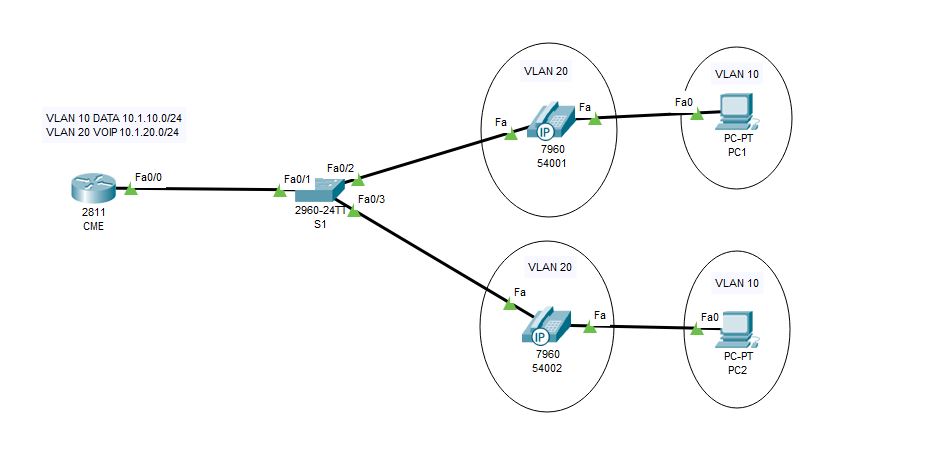
    Here i am going to explain how to setup a small VoIP lab in latest packet tracer.

    Network Topology

    VOIP1.JPG

    Configurations

    1.DHCP & Interface configurations in C2811

    !
    hostname CME
    !
    ip dhcp pool DATA
    network 10.1.10.0 255.255.255.0
    default-router 10.1.10.254
    ip dhcp pool VOIP
    network 10.1.20.0 255.255.255.0
    default-router 10.1.20.254
    option 150 ip 10.1.20.254
    !
    interface FastEthernet0/0
    no ip address
    duplex auto
    speed auto
    !
    interface FastEthernet0/0.10
    encapsulation dot1Q 10
    ip address 10.1.10.254 255.255.255.0
    !
    interface FastEthernet0/0.20
    encapsulation dot1Q 20
    ip address 10.1.20.254 255.255.255.0
    !
    end

    2.CME Telephony configuration in C2811

    CME(config)#telephony-service             #telephony service
    CME(config-telephony)#max-ephones 5 #maximum number of phones
    CME(config-telephony)#max-dn 5        #maximum number of telephony numbers
    CME(config-telephony)#ip source-address 10.1.20.254 port 2000  #source IP address
    CME(config-telephony)#auto assign 4 to 6  #ext numbers to buttons
    CME(config-telephony)#auto assign 1 to 5  #ext numbers to buttons

    3.Phone directory for phones

    CME(config)#ephone-dn 1       #directory entry
    CME(config-ephone-dn)#number 54001                #phone number to this entry
    !
    CME(config)#ephone-dn 2         #directory entry
    CME(config-ephone-dn)#number 54002                #phone number to this entry

    4.Voice VLAN configuration 

    hostname S1
    !
    vlan 10
    name DATA
    vlan 20
    name VOIP

    !

    interface FastEthernet0/1
    switchport mode trunk
    !
    interface FastEthernet0/2
    switchport access vlan 10
    switchport mode access
    switchport voice vlan 20
    spanning-tree portfast
    !
    interface FastEthernet0/3
    switchport access vlan 10
    switchport mode access
    switchport voice vlan 20
    spanning-tree portfast
    !

    Verification

    Try to call from one phone to another 🙂 🙂 If you have any doubt please reach out to me


  • Simple Batch Script for Changing Proxy Options

    When we take our office laptop to home the main headache is changing the  proxy settings to access internet. Download the zip file unzip it into a folder there are two files, one for Turnoff Proxy another for Turn on Proxy.

    Download Link —-> Proxy


    Proxy1

    Enjoy 🙂 🙂