Tag: technology

  • πŸš€ How to Install Docker on Ubuntu Server (Step-by-Step Guide)

    Docker has become an essential tool for developers, system administrators, and DevOps engineers. It allows you to run applications in lightweight containers, making deployments faster, more consistent, and easier to manage.

    In this guide, you’ll learn how to install Docker on an Ubuntu server and get started with your first container.

    🧠 What is Docker?

    Docker is a containerization platform that enables you to package applications along with their dependencies into portable containers. These containers can run consistently across different environments.

    πŸ”§ Step 1: Update Your System

    Before installing Docker, update your system packages:

    sudo apt update && sudo apt upgrade -y

    πŸ”§ Step 2: Install Required Dependencies

    Install packages required to use HTTPS repositories:

    sudo apt install apt-transport-https ca-certificates curl software-properties-common -y

    πŸ” Step 3: Add Docker’s Official GPG Key

    curl -fsSL https://download.docker.com/linux/ubuntu/gpg | sudo gpg --dearmor

    πŸ“¦ Step 4: Add Docker Repository

    echo "deb [arch=$(dpkg --print-architecture) signed-by=/usr/share/keyrings/docker.gpg] https://download.docker.com/linux/ubuntu $(lsb_release -cs) stable" | sudo tee /etc/apt/sources.list.d/docker.list > /dev/null

    βš™οΈ Step 5: Install Docker Engine

    sudo apt update
    sudo apt install docker-ce docker-ce-cli containerd.io -y

    βœ… Step 6: Verify Docker Installation

    Run the following command to test Docker:

    sudo docker run hello-world

    If Docker is installed correctly, you’ll see a confirmation message.

    πŸ”“ Step 7: Run Docker Without sudo (Optional)

    To run Docker commands without using sudo, add your user to the Docker group:

    sudo usermod -aG docker $USER

    Then log out and log back in for the changes to take effect.

    🧩 Step 8: Install Docker Compose

    Docker Compose allows you to define and manage multi-container applications.

    sudo apt install docker-compose -y

    🌐 Step 9: Run Your First Container

    Example: Run Nginx Web Server

    docker run -d -p 8080:80 nginx

    Now open your browser and visit:

    http://<your-server-ip>:8080

    You should see the Nginx welcome page.

    πŸ§ͺ Example: Run a Test Container

    docker run hello-world

    πŸ” Basic Security Tips

    This verifies that Docker is working correctly.

    • Avoid exposing Docker services directly to the internet without proper security controls
    • Keep your system updated regularly
    • Use official images from trusted sources
    • Limit container privileges when possible

    πŸ’‘ Useful Docker Commands

    CommandDescription
    docker psList running containers
    docker ps -aList all containers
    docker imagesList images
    docker stop <id>Stop container
    docker rm <id>Remove container

    🎯 Conclusion

    Docker simplifies application deployment by packaging everything into containers. With just a few commands, you can install Docker, run applications, and manage services efficiently.

    Whether you’re a developer, system administrator, or learner, Docker is a powerful tool worth mastering.

  • Hashing & Data integrity

    Hashing is the process of using a hash function in computing and cryptography that converts data into a fixed-sized string of characters, typically a sequence of letters and numbers.  For example, the operating system on your pc stores passwords as hashes. The operating system uses a hashing function to hash your password and stores it in a database. Whenever you log in, the OS hashes your entered password, compares it with the hash stored in the password database, and logs you in if they match. For added security, the operating system salts the hashes. Salting is the process of adding a random string to the password before hashing it. Hashing is a one-way process. That means you cannot take a hash and recover the original data.

    Hashing is also used for keeping data integrity. Data integrity means that the data has not been altered or corrupted during storage or transmission. Before you send or copy data to a removable medium, the hash value is computed using a hash function. Later, when the data is received, the hash value is recomputed. If the hash values match, the data is intact. If it does not match, the data is altered or corrupted.

    For example, if you are sending video footage as evidence on a flash drive, you can hash it and save the hash value. Once it reaches the target, it can be hashed again and compared with the original hash value to check whether the file has been tampered with. If the hash value differs, the file is evidently corrupted in transit.

    Functions used for hashing.

    There are different functions operating systems use for hashing.

    MD5 (fast, but not secure for cryptographic purposes)

    SHA-256 (secure and widely used)- By defalut , windows uses SHA-256

    SHA-512 (even stronger)

    Hashing is one of the best ways to keep data integrity. It is irreversible, deterministic ( same input always give same hash), and Fast.

  • 🌐 NAT Types & PAT Configuration in Cisco Routers

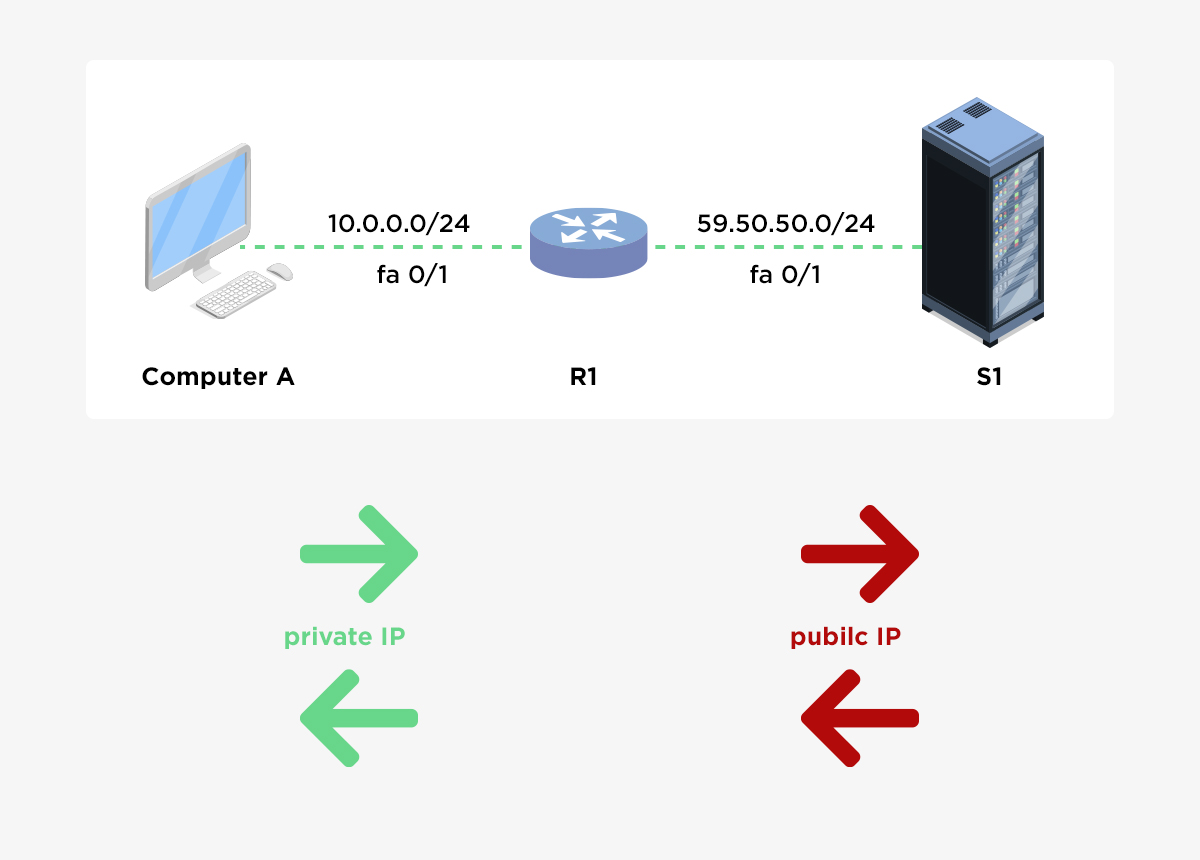
    NAT (Network Address Translation) allows private IP addresses to communicate with public networks like the Internet. PAT (Port Address Translation) is a form of NAT that uses port numbers to map multiple private IPs to a single public IP.

    πŸ” Types of NAT in Cisco


    1️⃣ Static NAT (One-to-One)

    • One private IP ↔ One public IP
    • Used for servers (web, mail, VPN)
    https://media.geeksforgeeks.org/wp-content/uploads/20221015171237/1NATTopology.jpg
    https://www.manageengine.com/network-configuration-manager/images/static-NAT.jpg

    Configuration Example

    interface g0/0
     ip address 203.0.113.2 255.255.255.252
     ip nat outside
    
    interface g0/1
     ip address 192.168.1.1 255.255.255.0
     ip nat inside
    
    ip nat inside source static 192.168.1.10 203.0.113.10


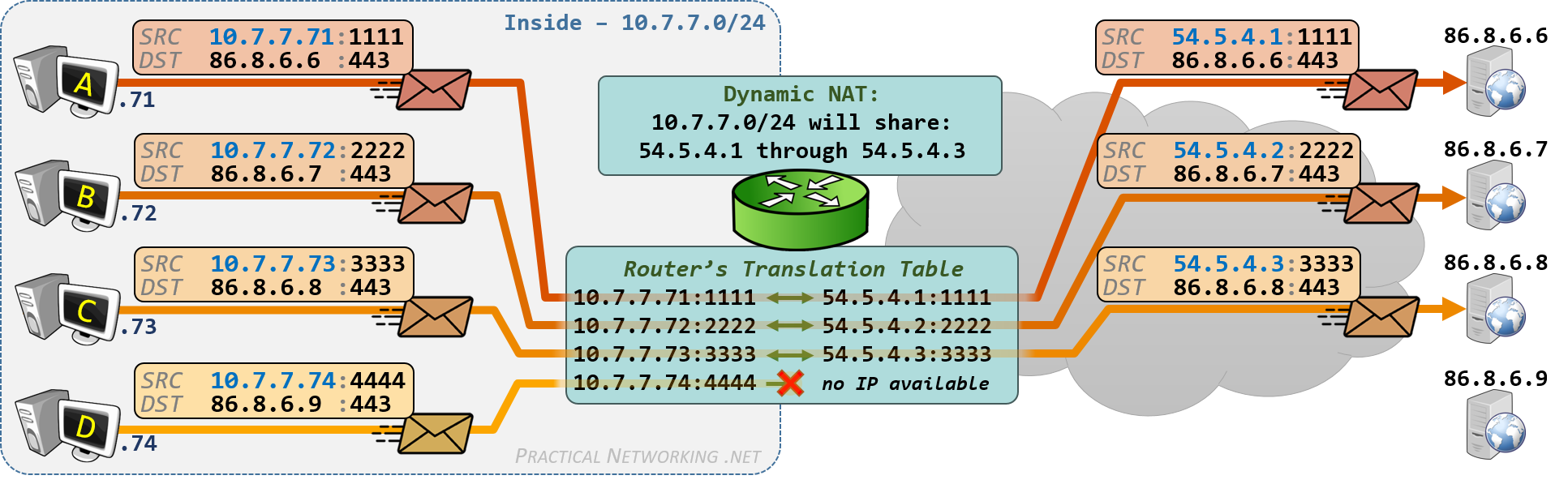
    2️⃣ Dynamic NAT (Many-to-Many)

    • Private IPs mapped to a pool of public IPs
    • No port translation
    https://www.practicalnetworking.net/wp-content/uploads/2017/10/dynamic-nat-outbound.png
    https://media.geeksforgeeks.org/wp-content/uploads/20221015171237/1NATTopology.jpg

    Configuration Example

    access-list 1 permit 192.168.1.0 0.0.0.255
    
    ip nat pool PUBLIC_POOL 203.0.113.10 203.0.113.20 netmask 255.255.255.0
    
    ip nat inside source list 1 pool PUBLIC_POOL


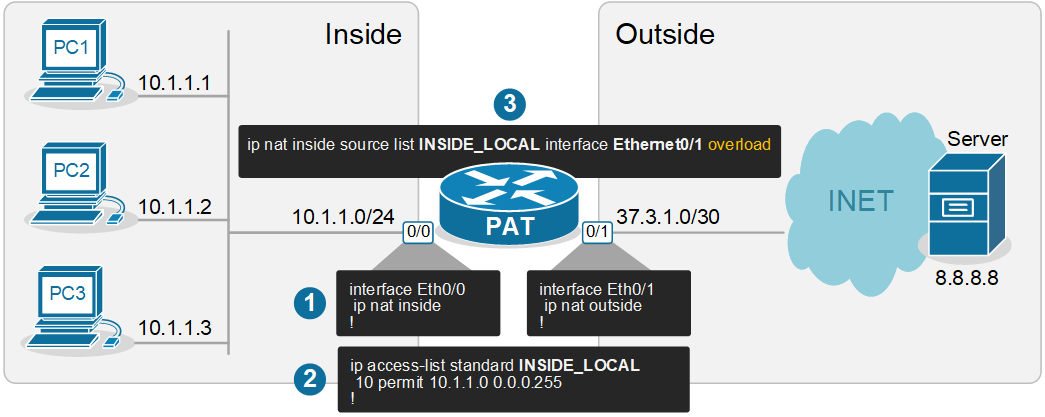
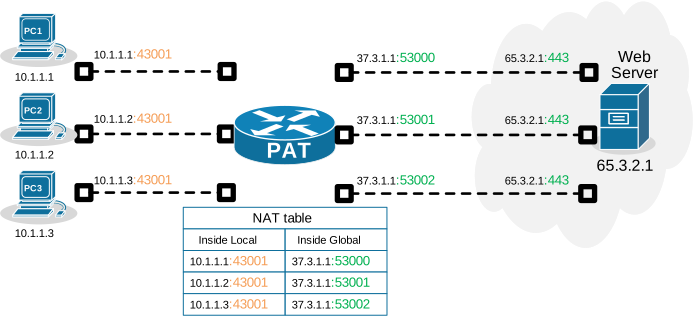
    3️⃣ PAT (NAT Overload) – Many-to-One

    • Multiple private IPs share one public IP
    • Uses TCP/UDP port numbers
    • Most common for Internet access
    https://www.networkacademy.io/sites/default/files/2024-10/nat-overload-pat.png
    https://cdn.networkacademy.io/sites/default/files/2024-10/nat-overload-pat-example.svg

    βš™οΈ PAT Configuration (Most Common)

    πŸ”Ή Using Interface IP (Recommended)

    access-list 1 permit 192.168.1.0 0.0.0.255
    
    ip nat inside source list 1 interface g0/0 overload


    πŸ”Ή Using Public IP Pool

    ip nat pool PAT_POOL 203.0.113.50 203.0.113.50 netmask 255.255.255.0
    
    ip nat inside source list 1 pool PAT_POOL overload


    πŸ”„ Inside vs Outside Interfaces (Mandatory)

    interface g0/0
     ip nat outside
    
    interface g0/1
     ip nat inside


    πŸ“Œ NAT Terms (Quick Reference)

    TermMeaning
    Inside LocalPrivate IP (192.168.x.x)
    Inside GlobalPublic IP assigned by NAT
    Outside LocalPublic IP as seen inside
    Outside GlobalActual Internet IP

    πŸ§ͺ Verification & Troubleshooting

    show ip nat translations
    show ip nat statistics
    clear ip nat translation *
    debug ip nat


    🚦 Real-World Scenario (Home / Lab)

    • LAN: 192.168.1.0/24
    • ISP IP on g0/0
    • Goal: Internet access for all LAN users
    access-list 1 permit 192.168.1.0 0.0.0.255
    ip nat inside source list 1 interface g0/0 overload


    βœ” This single command enables Internet for the entire LAN.


    ⚠️ Common Mistakes

    ❌ Forgetting ip nat inside / outside
    ❌ ACL mismatch (wrong subnet)
    ❌ NAT applied on wrong interface
    ❌ Missing overload keyword for PAT


    🧠 CCNA / CCNP Exam Tips

    • Static NAT β†’ servers
    • Dynamic NAT β†’ limited public IPs
    • PAT (Overload) β†’ Internet access
    • Order matters: Static NAT > Dynamic NAT > PAT
  • Pass the Hash attack

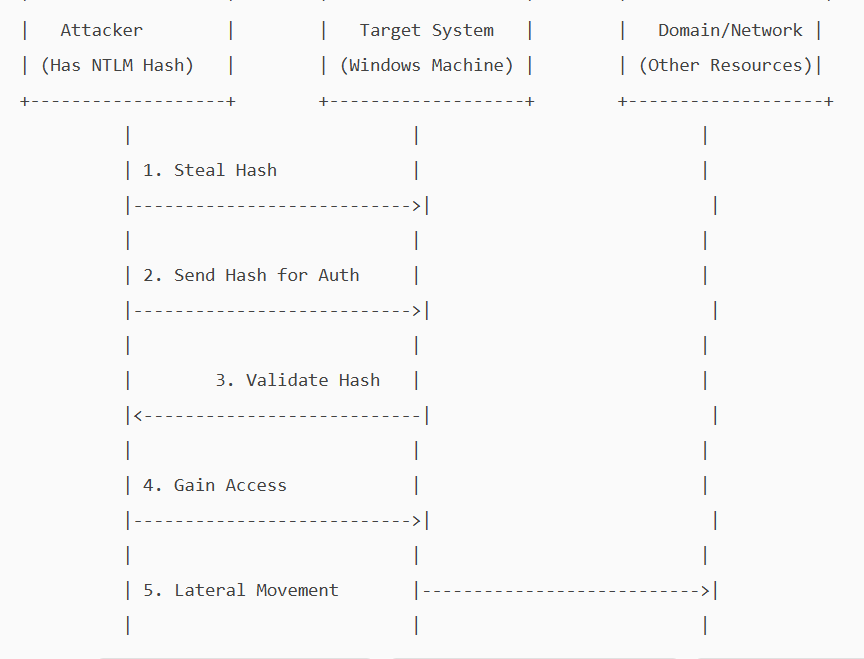
    A pass-the-hash attack is a cybersecurity attack in which a malicious user steals hashed credentials from a compromised system and uses them to log in as the original user.

    Hashing is an essential concept in cybersecurity and computer science. It involves using a mathematical algorithm, a hash function, to convert input data into a hash value. This process is deterministic and one-way, meaning it cannot be reversed to reveal the original data. i.e, It is not possible to get a clear-text password from a password hash.

    On local systems, Windows stores passwords in a hashed, encrypted format in the Security Accounts Manager (SAM) database and caches them in LSASS(Local Security Authority Subsystem Service) memory during logon. If a malicious user obtains a password hash, they can execute a pass-the-hash attack.

    NTLM (NT LAN Manager) is a Windows authentication protocol that uses a challenge-response mechanism. Instead of sending a password over the network, the client proves it knows the password by encrypting a server-issued challenge with the password’s hash (as a DES key)

    The server verifies this response using its stored hash.

    In a Pass-the-hash attack, the attacker exploits a vulnerability in the NTLM protocol to gain unauthorised access. The attacker does not need to know the clear-text password, as NTLM will accept the hash as proof of identity. He will pass the hash he obtained and will be allowed access as a legitimate user.

    . Attackers can steal these hashes through various methods

    1. Memory dumping: They can extract hashes from the LSASS process’s memory using Mimikatz and Procdump.\
    2. Stealing SAM database: If an attacker has access to SAM, they could dump the hash from it.
    3. Malware – key loggers, rootkits can give them access to hashes.
    4. Active directory compromise.
    5. Packet sniffing.

    NTLM is mainly kept for backward compatibility in Windows. Current versions of Windows primarily use Kerberos for domain authentication, but NTLM is still used where a system is not part of a domain.

    Because of its vulnerability, Microsoft recommends disabling NTLM wherever possible.

    Implementing a zero-trust architecture is the most effective way to prevent pass-the-hash attacks. Stick to the following to secure your Pc/network.

    1. Strong authentication and identity verification – implement MFA.
    2. Least privilege and Just-in-Time Access control.
    3. Continuous monitoring and anomaly detection
  • Google updates Chrome β€” fixes around 20 vulnerabilities.

    The latest Chrome version, 142, released by Google on October 28th, includes patches to fix several documented vulnerabilities, some of which are high-severity. The update includes permission to block local network access from public/local websites. Chrome now blocks websites from sending requests to local network devices (like routers, printers, or software running on your machine) unless you explicitly grant permission. When a website tries to access your local network, it will ask you if it can “look for and connect to any device on your local network”. You can allow or deny. If you deny, the websites will not be able to connect to your local network.

    Why do websites need access to local networks?

    Smart home applications like Google Home require access to smart devices in your home, while streaming devices need to interact with smart TVs and speakers. Additionally, printing from websites necessitates communication with printers. However, granting access to your local network poses security risks, as malicious websites can potentially access, track, and exploit your devices.

    1. What is Local Network Access?

    Local Network Access (LNA) allows websites to communicate with devices on your home or office network (e.g., printers, smart TVs, routers). Chrome 142 now asks for permission before granting this access.

    2. Why Does Chrome Ask for Permission?
    • Security: Prevents malicious sites from probing your network or exploiting vulnerable devices.
    • Privacy: Stops websites from fingerprinting your network setup.
    3. When Should You Allow Access?

    Allow only if:

    • You trust the website (official vendor or service you use regularly).
    • You understand why it needs access, such as:
      • Smart home control (e.g., Philips Hue, Google Home).
      • Media streaming (e.g., Plex, Spotify Connect).
      • Enterprise tools (e.g., Box, Teams for printer integration).
      • Local development/testing (e.g., Selenium, TestCafe).
    4. When Should You Block Access?

    Block if:

    • The site is unknown or suspicious.
    • You are not using any local device integration.
    • The request seems unnecessary (e.g., a shopping site asking for local access).
    5. How to Manage Permissions
    • Check Current Settings:
    • Go to chrome://settings/content/localNetworkAccess.
    • Add Trusted Sites:
    • Under Allowed, add domains you trust.
    • Remove Sites:
    • Delete any site you do not recognise.
    6. Tips for Safe Usage
    • Always use HTTPS when granting access.
    • Avoid granting access on public Wi-Fi.
    • Review permissions periodically.

    To brief things , Chrome version 142, addresses over 20 security vulnerabilities, including 7 high-severity issues. Notably, Google awarded over $100,000 in bug bounties for two critical flaws in the V8 JavaScript engine.

    To stay protected and reduce the risk of exploitation:

    Update Chrome to the latest version immediately

    Restart your browser after updating.

  • The Silent Cost: Underutilization of Assets and Tools in Organizations

    In today’s cloud-first world, organizations spend millions on security, compliance, and infrastructure tools β€” yet most use less than 50% of their potential.
    This underutilization isn’t just wasted investment β€” it’s a missed opportunity to optimize, automate, and secure the digital ecosystem.

    🚨 The Reality of Tool Sprawl
    From CSPM, SPM, and Infrastructure Security to BUA , tech stacks are growing faster than adoption.

    Many enterprises:

    • Keep buying new tools instead of optimizing existing ones,
    • Overlook built-in features in Microsoft, AWS, or Azure,
    • Ignore capable open-source alternatives, and
    • Struggle with low tool adoption in operations due to lack of integration or enablement.

    The result? Expensive tools delivering minimal outcomes.


    πŸ” Hidden Potential Across Key Areas

    • CSPM: Used mainly for visibility, while automation, remediation, and multi-cloud correlation stay idle.
    • SPM: Focused on dashboards, rarely integrated with ITSM or DevOps to catch compliance drifts early.
    • Infrastructure Security: Tools like Tufin, Skybox, or Lacework offer strong analytics but are seldom linked to CI/CD or workflow automation.


    🧩 The Open-Source Gap
    Many organizations purchase costly solutions when powerful open-source options like Terrascan,Trivy, Terrascan, Falco, OSQuery, Rsyslog,Prometheus, or OpenVAS already exist.
    These tools offer:

    • Deep configurability,
    • Smooth CI/CD integration, and
    • Strong community support.

    Yet, they’re often ignored or only partially adopted β€” leaving huge value untapped.


    πŸ’‘ Shifting the Mindset

    Instead of expanding toolsets, focus on maximizing existing capabilities:

    • Conduct Tool Utilization Audits.
    • Evaluate open-source before buying new tools.
    • Train teams to use advanced features.
    • Automate posture insights within DevSecOps pipelines.

    The goal isn’t to have more tools β€” it’s to make existing ones work smarter together.


    βš™οΈ The Way Forward
    Before investing in another platform, ask:
    β€œAre we fully using what we already have β€” or paying twice for the same capability?”
    Optimizing assets and leveraging open-source innovation can reduce costs, improve visibility, and strengthen cloud security posture.
    In cybersecurity today, optimization is the new innovation β€” and efficiency is the new defense.


    πŸ’¬ What’s your view?
    Β Have you seen costly tools purchased while open-source alternatives sit idle? How can organizations empower operations teams to bridge this gap?


    #CloudSecurity #CSPM hashtag#SPM #InfraSecurity #DevSecOps #CloudGovernance #OpenSource #Freeware #ToolOptimization #SecurityPosture #Azure hashtag#AWS #CostOptimization #SecurityAutomation


    hashtag#CloudSecurity hashtag#CSPM hashtag#SPM hashtag#InfraSecurity hashtag#DevSecOps hashtag#CloudGovernance hashtag#OpenSource hashtag#Freeware hashtag#ToolOptimization hashtag#SecurityPosture hashtag#Azure hashtag#AWS hashtag#CostOptimization hashtag#SecurityAutomation

  • Wireless Encryption: Ensuring Secure Communication

    Wireless encryption is essential for securing data transmitted over Wi-Fi networks, preventing unauthorized access and eavesdropping. Different encryption protocols have been developed over time, each with varying levels of security.

    1. Types of Wireless Encryption Protocols

    Encryption ProtocolDescriptionSecurity Level
    WEP (Wired Equivalent Privacy)The first encryption standard for Wi-Fi. Uses 64-bit or 128-bit encryption but has major security flaws.Weak (Easily hacked)
    WPA (Wi-Fi Protected Access)Introduced as an improvement over WEP. Uses TKIP (Temporal Key Integrity Protocol) but is still vulnerable.Moderate (Better than WEP, but outdated)
    WPA2 (Wi-Fi Protected Access 2)Uses AES (Advanced Encryption Standard) encryption for strong security. Most commonly used today.Strong
    WPA3 (Wi-Fi Protected Access 3)Latest standard with enhanced security, including Simultaneous Authentication of Equals (SAE) for better password protection.Very Strong

    2. Detailed Overview of Wireless Encryption Methods

    a. WEP (Wired Equivalent Privacy) – Insecure

    • Uses RC4 stream cipher for encryption.
    • Weak static key (40-bit or 104-bit), making it easy to crack.
    • Vulnerable to IV (Initialization Vector) attacks.
    • Deprecated and should not be used.

    b. WPA (Wi-Fi Protected Access) – Transitional Security

    • Introduced TKIP (Temporal Key Integrity Protocol) to improve security.
    • Still based on RC4, making it vulnerable to attacks.
    • No longer recommended for secure networks.

    c. WPA2 (Wi-Fi Protected Access 2) – Strong Security

    • Uses AES (Advanced Encryption Standard) with CCMP (Counter Mode Cipher Block Chaining Message Authentication Code Protocol) for encryption.
    • Supports two modes:
      • WPA2-Personal (PSK) – Uses a shared password.
      • WPA2-Enterprise – Uses 802.1X authentication with a RADIUS server.
    • Still widely used but susceptible to brute-force attacks if weak passwords are used.

    d. WPA3 (Wi-Fi Protected Access 3) – Next-Generation Security

    • Stronger encryption with 192-bit security (for WPA3-Enterprise).
    • Uses Simultaneous Authentication of Equals (SAE) to prevent dictionary attacks.
    • Forward Secrecy ensures past communications remain secure even if a password is compromised.
    • Mandatory encryption for open Wi-Fi networks (OWE – Opportunistic Wireless Encryption).
    • Recommended for future-proof wireless security.

    3. Best Practices for Wireless Encryption

    • Always use WPA2 or WPA3 for the best security.
    • Avoid WEP and WPA, as they are easily compromised.
    • Use strong, complex passwords for WPA2-PSK and WPA3-SAE.
    • Enable WPA2-Enterprise for business networks to use authentication servers.
    • Regularly update firmware on routers to protect against vulnerabilities.
  • Introduction to VTP (VLAN Trunking Protocol) and Configuration

    1. What is VTP?

    VTP (VLAN Trunking Protocol) is a Cisco-proprietary protocol that helps manage VLAN configurations across multiple switches within a network. It allows switches to automatically propagate VLAN changes from a central switch to others, reducing manual configuration and ensuring consistency.

    Key Features of VTP:

    βœ… Simplifies VLAN management – No need to manually configure VLANs on each switch.
    βœ… Ensures VLAN consistency – VLANs are updated across the network.
    βœ… Reduces configuration errors – Prevents mismatches in VLAN settings.


    2. VTP Modes

    VTP operates in three modes:

    ModeDescription
    ServerThe default mode; can create, modify, and delete VLANs. Sends VLAN updates to other switches.
    ClientCannot create or modify VLANs; only receives updates from the server.
    TransparentDoes not participate in VTP; VLANs are managed locally but forwards VTP messages.

    3. Configuring VTP (Step-by-Step)

    Step 1: Configure the VTP Server

    Enter global configuration mode:bashCopyEditconfigure terminal

    Set the VTP domain name (must match on all switches in the domain):vtp domain MyNetwork

    Set the switch to VTP server mode:tvtp mode server

    (Optional) Set a VTP password for security:vtp password Cisco123

    Verify VTP configuration:show vtp status


    Step 2: Configure VTP Clients

    Enter global configuration mode:bashCopyEditconfigure terminal

    Set the same VTP domain name as the server:bashCopyEditvtp domain MyNetwork

    Set the switch to client mode:bashCopyEditvtp mode client

    (Optional) Set the same VTP password as the server:bashCopyEditvtp password Cisco123

    Verify the client is receiving VLANs:bashCopyEditshow vlan brief


    Step 3: Configure a Transparent Switch (Optional)

    Enter global configuration mode:configure terminal

    Set the VTP mode to transparent:vtp mode transparent

    (Optional) Set the VTP domain (even though it doesn’t participate):vtp domain MyNetwork

    Verify transparent mode:show vtp status


    4. Verifying VTP Configuration

    CommandDescription
    show vtp statusDisplays VTP mode, domain, revision number, etc.
    show vtp passwordDisplays the configured VTP password.
    show vlan briefDisplays VLANs received from the VTP server.

    5. Important Notes & Best Practices

    πŸš€ Use VTP version 2 or 3 for better performance and security.
    πŸ”’ Be cautious with VTP mode changes – Adding a new switch with a higher revision number can overwrite VLANs.
    πŸ›‘ Prefer using VTP transparent mode in critical networks to prevent unintended VLAN deletions.

  • What is Power over Ethernet (PoE)?

    Power over Ethernet (PoE) allows network cables to carry both data and electrical power to devices like IP phones, wireless access points, and security cameras, eliminating the need for separate power adapters.

    PoE Standards

    StandardMax Power per PortDevices Supported
    802.3af (PoE)15.4WPhones, small APs
    802.3at (PoE+)30WHigh-power APs, cameras
    802.3bt (PoE++)60-100WLED lights, laptops

    How to Enable PoE on a Cisco Switch

    Most Cisco switches support PoE by default, but you can manually enable or configure it.

    1. Check if the Switch Supports PoE

    Run:

    Switch#show power inline

    If you see available power and usage stats, the switch supports PoE.


    2. Enable PoE on an Interface

    Run:

    Switch#conf t
    interface <interface_id>
    power inline auto
    exit
    • <interface_id> β†’ Example: GigabitEthernet1/0/1
    • auto β†’ Enables PoE when a powered device (PD) is detected.

    To disable PoE on a port:

    Switch#conf t
    interface <interface_id>
    power inline never
    exit

    3. Set Power Limits for Devices

    By default, the switch assigns power dynamically. You can manually set power limits:

    Switch#conf t
    interface <interface_id>
    power inline static max 20000
    exit
    • Max power in milliwatts (mW)
      • 15000 for 15W (PoE)
      • 30000 for 30W (PoE+)
      • 60000 for 60W (PoE++)

    To check power consumption:

    Switch#show power inline interface <interface_id> detail

    4. Troubleshoot PoE Issues

    If a device is not powering up:

    • Check PoE status:bashCopyEditshow power inline interface <interface_id>
    • Reset PoE on the port:bashCopyEditconf t interface <interface_id> power inline never power inline auto exit
    • If the port is err-disabled, recover it:bashCopyEditconf t interface <interface_id> shutdown no shutdown exit
    • If power is exhausted, check:bashCopyEditshow power inline

    Summary

    TaskCommand
    Enable PoEpower inline auto
    Disable PoEpower inline never
    Set power limitpower inline static max <mW>
    Check PoE statusshow power inline
    Check port power useshow power inline interface <interface_id> detail
  • Cisco SD-WAN Templates

    Cisco SD-WAN uses device and feature templates to manage configurations efficiently across multiple devices. Here’s a breakdown of how these templates work:

    • Device Templates: These are specific to a device model, such as vEdge routers, and are used to configure the complete operational setup of a device. A device template consists of one or more feature templates. Device templates can be customized for different locations or roles within a network.
    • Feature Templates: These templates define configurations for specific software features on Cisco SD-WAN devices. They can be applied across multiple device types and are used to configure parameters like system settings, interfaces, routing protocols, and security settings. Feature templates can be mandatory or optional, and some have default configurations that can be overridden.
    • Parameter Scope: Parameters in feature templates can have different scopes:
      • Device Specific: Values are unique to each device and are entered when attaching a device template to a specific device. Examples include system IP address, hostname, and GPS location.
      • Global: Values apply to all devices using the template, such as DNS server settings or interface MTUs.
    • CSV Files: Device-specific settings can be managed using CSV files. Each row in the CSV file corresponds to a device, with columns for parameters like device ID, IP address, and hostname. These files are uploaded when attaching a device template to a device.
    • Template Creation: Templates can be created from feature templates or via the CLI. Mandatory feature templates and some optional ones have default configurations. Custom templates can be created to tailor configurations to specific needs.
    • Configuration Management: Templates help in managing configurations across multiple devices, reducing human error and scaling issues. They support features like zero-touch provisioning (ZTP) and automatic rollback, ensuring efficient and error-free deployment.

    These templates streamline the configuration process, making it easier to manage and scale Cisco SD-WAN networks.