Author: renjithbs

  • 🚀 How to Install Docker on Ubuntu Server (Step-by-Step Guide)

    Docker has become an essential tool for developers, system administrators, and DevOps engineers. It allows you to run applications in lightweight containers, making deployments faster, more consistent, and easier to manage.

    In this guide, you’ll learn how to install Docker on an Ubuntu server and get started with your first container.

    🧠 What is Docker?

    Docker is a containerization platform that enables you to package applications along with their dependencies into portable containers. These containers can run consistently across different environments.

    🔧 Step 1: Update Your System

    Before installing Docker, update your system packages:

    sudo apt update && sudo apt upgrade -y

    🔧 Step 2: Install Required Dependencies

    Install packages required to use HTTPS repositories:

    sudo apt install apt-transport-https ca-certificates curl software-properties-common -y

    🔐 Step 3: Add Docker’s Official GPG Key

    curl -fsSL https://download.docker.com/linux/ubuntu/gpg | sudo gpg --dearmor

    📦 Step 4: Add Docker Repository

    echo "deb [arch=$(dpkg --print-architecture) signed-by=/usr/share/keyrings/docker.gpg] https://download.docker.com/linux/ubuntu $(lsb_release -cs) stable" | sudo tee /etc/apt/sources.list.d/docker.list > /dev/null

    ⚙️ Step 5: Install Docker Engine

    sudo apt update
    sudo apt install docker-ce docker-ce-cli containerd.io -y

    ✅ Step 6: Verify Docker Installation

    Run the following command to test Docker:

    sudo docker run hello-world

    If Docker is installed correctly, you’ll see a confirmation message.

    🔓 Step 7: Run Docker Without sudo (Optional)

    To run Docker commands without using sudo, add your user to the Docker group:

    sudo usermod -aG docker $USER

    Then log out and log back in for the changes to take effect.

    🧩 Step 8: Install Docker Compose

    Docker Compose allows you to define and manage multi-container applications.

    sudo apt install docker-compose -y

    🌐 Step 9: Run Your First Container

    Example: Run Nginx Web Server

    docker run -d -p 8080:80 nginx

    Now open your browser and visit:

    http://<your-server-ip>:8080

    You should see the Nginx welcome page.

    🧪 Example: Run a Test Container

    docker run hello-world

    🔐 Basic Security Tips

    This verifies that Docker is working correctly.

    • Avoid exposing Docker services directly to the internet without proper security controls
    • Keep your system updated regularly
    • Use official images from trusted sources
    • Limit container privileges when possible

    💡 Useful Docker Commands

    CommandDescription
    docker psList running containers
    docker ps -aList all containers
    docker imagesList images
    docker stop <id>Stop container
    docker rm <id>Remove container

    🎯 Conclusion

    Docker simplifies application deployment by packaging everything into containers. With just a few commands, you can install Docker, run applications, and manage services efficiently.

    Whether you’re a developer, system administrator, or learner, Docker is a powerful tool worth mastering.

  • Microsoft Releases Emergency OOB Update to Fix Outlook Freezes

    If your Outlook has been randomly freezing lately—especially while opening emails, switching folders, or simply trying to work through your inbox—you’re not alone. Microsoft has officially acknowledged the issue and has now released an emergency out-of-band (OOB) update to address the problem.
    This unexpected patch is aimed at restoring stability for users who were affected by frequent Outlook hangs and unresponsive behavior, which has been disrupting daily work for many individuals and organizations.
    What Happened? Outlook Started Freezing for Many Users
    Over the past few days, several Outlook users reported that the app would:
    Freeze unexpectedly during normal usage
    Become unresponsive when opening or replying to emails
    Hang while switching between mail folders or calendars
    Require a force close and restart to continue working
    For businesses relying on Outlook for communication, even a few minutes of downtime can quickly turn into lost productivity.
    Microsoft Responds With an Out-of-Band (OOB) Update
    Instead of waiting for the next regular Patch Tuesday release, Microsoft pushed an OOB update, which is typically reserved for urgent issues that need immediate fixing.
    OOB updates are different from normal updates because they are:
    ✅ Released outside the regular update schedule
    ✅ Focused on critical stability or security problems
    ✅ Intended to quickly stop widespread disruption
    This move highlights how serious and widespread the Outlook freezing issue had become.
    Who Is Affected?
    While Microsoft hasn’t always listed every impacted setup in simple terms, these Outlook freezing issues are commonly seen in environments such as:
    Microsoft 365 Apps for enterprise users
    Systems running recent Office/Outlook builds
    Corporate networks where Outlook is heavily used all day
    If your Outlook suddenly started freezing after a recent Office update, this emergency patch is likely meant for you.
    What You Should Do Now
    If Outlook is still freezing on your system, here’s the recommended approach:
    Check for updates immediately
    Open any Office app (Word/Excel/Outlook)
    Go to File → Account → Update Options → Update Now
    Install the emergency OOB patch
    This should apply automatically once updates are pulled in
    Restart Outlook and your PC
    A restart often completes pending update changes
    For IT admins managing multiple systems, it’s a good idea to roll this update out quickly across affected devices to prevent repeated complaints and downtime.
    Why This Matters
    Outlook is one of the most critical apps in the Microsoft ecosystem. When it becomes unstable, it doesn’t just slow down one person—it can impact entire teams.
    By releasing an emergency OOB update, Microsoft is clearly prioritizing:
    Productivity and stability
    Reduced crashes and freezes
    A smoother experience for enterprise users
    Final Thoughts
    Software updates occasionally introduce unexpected bugs, but what matters is how quickly the issue gets fixed. In this case, Microsoft acted fast with an out-of-band update to bring Outlook back to normal.
    If you’ve been dealing with Outlook freezing issues, updating right away could save you a lot of frustration—and a lot of wasted time.

  • 🔐 SSH Configuration with RADIUS Authentication (Cisco)

    🧩 Topology

    • Cisco Router / Switch → RADIUS Server (Windows NPS / FreeRADIUS / ISE)
    • Management subnet: 192.168.10.0/24
    • RADIUS Server IP: 192.168.10.50
    • Shared secret: Radius@123

    1️⃣ Basic Device & SSH Setup (Mandatory)

    hostname R1
    ip domain-name lab.local
    
    crypto key generate rsa modulus 2048
    ip ssh version 2
    ip ssh time-out 60
    ip ssh authentication-retries 3


    2️⃣ Create Local Fallback User (IMPORTANT)

    Used when RADIUS server is unreachable.

    username localadmin privilege 15 secret L0cal@123


    3️⃣ Enable AAA

    aaa new-model


    4️⃣ Configure RADIUS Server

    🔹 IOS / IOS-XE (Classic Method)

    radius server RAD1
     address ipv4 192.168.10.50 auth-port 1812 acct-port 1813
     key Radius@123


    (Older IOS alternative)

    radius-server host 192.168.10.50 key Radius@123


    5️⃣ Create AAA Method Lists (Best Practice)

    aaa authentication login SSH_AUTH group radius local
    aaa authorization exec SSH_AUTH group radius local
    aaa accounting exec default start-stop group radius


    Explanation:

    • Authenticate via RADIUS
    • Fallback to local
    • Authorize privilege level
    • Log sessions

    6️⃣ Apply AAA to VTY Lines (SSH Only)

    line vty 0 4
     transport input ssh
     login authentication SSH_AUTH
     authorization exec SSH_AUTH
     exec-timeout 10 0


    ✔ SSH only
    ✔ No Telnet
    ✔ Timeout protection


    7️⃣ Restrict SSH Access with ACL (Highly Recommended)

    ip access-list standard MGMT-ACL
     permit 192.168.10.0 0.0.0.255
     deny any log
    
    line vty 0 4
     access-class MGMT-ACL in


    8️⃣ Privilege Level from RADIUS (Critical for Admin Access)

    On RADIUS Server

    Return attribute:

    Cisco-AVPair = shell:priv-lvl=15


    ✔ Gives full admin access
    ✔ Without this, user gets privilege 1


    9️⃣ Verification & Troubleshooting

    🔍 Check AAA & RADIUS

    show aaa servers
    show radius statistics
    show run | section aaa


    🔐 Check SSH

    show ip ssh
    show users


    🧪 Debug (Use Carefully)

    debug aaa authentication
    debug radius authentication


    Disable after testing:

    undebug all


    🔁 Authentication Flow (Important Concept)

    SSH Login
       ↓
    AAA Method List
       ↓
    RADIUS Server
       ↓
    Privilege from RADIUS
       ↓
    Fallback to Local (if RADIUS fails)


    ⚠️ Common Mistakes

    ❌ Forgot local fallback user
    ❌ RADIUS secret mismatch
    ❌ No privilege attribute → user stuck at level 1
    ❌ Telnet still enabled
    ❌ ACL blocking RADIUS traffic


    🧠 CCNA / CCNP / Interview Tips

    • Why AAA > local authentication
    • Difference between Authentication vs Authorization
    • Why fallback local user is mandatory
    • SSH + RADIUS vs TACACS+
    • What happens if RADIUS server is down?

    ✅ Minimal Working Config (Quick Paste)

    aaa new-model
    username localadmin privilege 15 secret L0cal@123
    
    radius server RAD1
     address ipv4 192.168.10.50 auth-port 1812 acct-port 1813
     key Radius@123
    
    aaa authentication login SSH_AUTH group radius local
    aaa authorization exec SSH_AUTH group radius local
    
    ip domain-name lab.local
    crypto key generate rsa modulus 2048
    ip ssh version 2
    
    line vty 0 4
     transport input ssh
     login authentication SSH_AUTH
     authorization exec SSH_AUTH
    
  • ✔ Cisco Switch Hardening Template (IOS / IOS-XE)

    Goal: Secure L2 attacks, management access, and user ports


    🔐 1. Identity & Management Security

    hostname SW1
    service password-encryption
    enable secret Sw@12345
    
    username admin privilege 15 secret Adm1n@123
    
    ip domain-name lab.local
    crypto key generate rsa modulus 2048
    ip ssh version 2


    🔑 2. Secure VTY Access

    line vty 0 4
     transport input ssh
     login local
     exec-timeout 10 0


    🎯 3. Management VLAN & ACL

    interface vlan 10
     ip address 192.168.10.2 255.255.255.0
     no shutdown
    
    ip access-list standard MGMT-ACL
     permit 192.168.10.0 0.0.0.255
     deny any log
    
    line vty 0 4
     access-class MGMT-ACL in


    🚫 4. Disable Unused Services

    no ip http server
    no ip http secure-server
    no service pad
    no cdp run


    🔌 5. Shut Down Unused Ports

    interface range g1/0/10 - 48
     shutdown
     description UNUSED


    🔐 6. Port Security (Access Ports)

    interface g1/0/5
     switchport mode access
     switchport port-security
     switchport port-security maximum 1
     switchport port-security violation restrict
     switchport port-security mac-address sticky


    🛡 7. Layer-2 Attack Protection

    ip dhcp snooping
    ip dhcp snooping vlan 10
    
    ip arp inspection vlan 10
    
    spanning-tree portfast default
    spanning-tree bpduguard default


    🧾 8. Logging & NTP

    logging buffered 64000
    logging host 192.168.10.50
    
    ntp server 192.168.10.1


    📊 9. SNMPv3 Only

    snmp-server group SECURE v3 priv
    snmp-server user snmpadmin SECURE v3 auth sha Auth@123 priv aes 256 Priv@123
    

    ✅ Final Deployment Checklist

    ✔ Port security
    ✔ DHCP Snooping + DAI
    ✔ BPDU Guard
    ✔ Unused ports shutdown
    ✔ Secure management VLAN

  • ✔ Cisco Router Hardening Template (IOS / IOS-XE)

    Goal: Secure management, control plane, routing, and services


    🔐 1. Identity, Passwords & AAA

    hostname R1
    service password-encryption
    security passwords min-length 10
    
    enable secret Str0ngEnable@123
    
    username admin privilege 15 secret Adm1n@123
    aaa new-model
    aaa authentication login default local
    aaa authorization exec default local


    🔑 2. Secure Management Access (SSH only)

    ip domain-name lab.local
    crypto key generate rsa modulus 2048
    ip ssh version 2
    ip ssh time-out 60
    ip ssh authentication-retries 3
    
    line con 0
     exec-timeout 10 0
     logging synchronous
    
    line vty 0 4
     transport input ssh
     login local
     exec-timeout 10 0


    🎯 3. Restrict Management Access (VTY ACL)

    ip access-list standard MGMT-ACL
     permit 192.168.10.0 0.0.0.255
     deny any log
    
    line vty 0 4
     access-class MGMT-ACL in


    🚫 4. Disable Insecure & Unused Services

    no ip http server
    no ip http secure-server
    no service pad
    no ip source-route
    no ip bootp server
    no cdp run


    🧠 5. Control Plane Protection (CoPP – Basic)

    class-map match-any MGMT-TRAFFIC
     match protocol ssh
     match protocol snmp
     match protocol ntp
    
    policy-map CONTROL-PLANE-POLICY
     class MGMT-TRAFFIC
      police 64000 conform-action transmit exceed-action drop
    
    control-plane
     service-policy input CONTROL-PLANE-POLICY


    📡 6. Interface Hardening

    interface range g0/2 - 4
     shutdown
     description UNUSED
    
    interface g0/0
     no ip redirects
     no ip proxy-arp


    🧾 7. Logging & Time Sync

    logging buffered 64000
    logging host 192.168.10.50
    logging trap warnings
    
    ntp authenticate
    ntp authentication-key 1 md5 NTPkey
    ntp trusted-key 1
    ntp server 192.168.10.1 key 1


    📊 8. SNMP (Secure Only)

    snmp-server group SECURE v3 priv
    snmp-server user snmpadmin SECURE v3 auth sha Auth@123 priv aes 256 Priv@123


    💾 9. Configuration Protection

    archive
     path flash:config-backup
     write-memory


    🔥 10. (Optional) Disable Password Recovery

    no service password-recovery


    ⚠️ Enable only if physical access is controlled

    ✅ Final Deployment Checklist

    ✔ SSH v2 only
    ✔ CoPP enabled
    ✔ ACL-restricted VTY
    ✔ SNMPv3
    ✔ Logging + NTP

  • 🔐 Cisco Device Hardening & Security Best Practices

    (Routers, Switches, IOS / IOS-XE / NX-OS – CCNA / CCNP / Real-World)

    Device hardening reduces the attack surface and protects your Cisco infrastructure from unauthorized access, misconfiguration, and exploits.


    1️⃣ Secure Device Access (Management Plane)

    🔹 Use Strong Authentication (AAA)

    • Prefer AAA with TACACS+ / RADIUS
    • Fallback to local user if AAA fails
    aaa new-model
    aaa authentication login default group tacacs+ local
    aaa authorization exec default group tacacs+ local


    🔹 Use Local User Accounts (Minimum)

    username admin privilege 15 secret Str0ngP@ssw0rd


    ❌ Avoid:

    enable password cisco


    ✔ Use:

    enable secret En@bleS3cret


    🔹 Secure VTY Access (SSH Only)

    ip domain-name lab.local
    crypto key generate rsa modulus 2048
    ip ssh version 2
    
    line vty 0 4
     transport input ssh
     login local
     exec-timeout 10 0


    ❌ Disable Telnet


    2️⃣ Management Access Control (ACLs)

    Allow only trusted IPs to access the device.

    ip access-list standard MGMT-ACL
     permit 192.168.10.0 0.0.0.255
    
    line vty 0 4
     access-class MGMT-ACL in


    3️⃣ Disable Unused & Insecure Services

    no ip http server
    no ip http secure-server
    no service pad
    no ip source-route
    no ip bootp server


    ✔ Keep device minimal


    4️⃣ Password & Session Security

    service password-encryption
    security passwords min-length 10
    
    line con 0
     exec-timeout 10 0
    
    line vty 0 4
     exec-timeout 10 0


    5️⃣ SNMP Hardening

    ❌ Avoid SNMP v1/v2c (community strings)

    ✔ Use SNMPv3

    snmp-server group SECURE v3 priv
    snmp-server user snmpadmin SECURE v3 auth sha AuthP@ss priv aes 256 PrivP@ss


    6️⃣ Control Plane Protection (CoPP)

    Protect CPU from attacks like DoS, scanning, routing floods

    class-map match-any MGMT-TRAFFIC
     match protocol ssh
     match protocol snmp
    
    policy-map CONTROL-PLANE-POLICY
     class MGMT-TRAFFIC
      police 64000
    
    control-plane
     service-policy input CONTROL-PLANE-POLICY


    7️⃣ Interface Hardening

    🔹 Shut Unused Interfaces

    interface range g0/2 - 4
     shutdown


    🔹 Disable CDP on Untrusted Interfaces

    no cdp enable


    🔹 Enable Port Security (Switch)

    interface g1/0/5
     switchport mode access
     switchport port-security
     switchport port-security maximum 1
     switchport port-security violation restrict
     switchport port-security mac-address sticky


    8️⃣ Layer-2 Security (Switches)

    ip dhcp snooping
    ip dhcp snooping vlan 10
    
    ip arp inspection vlan 10
    spanning-tree portfast default
    spanning-tree bpduguard default


    9️⃣ Routing Protocol Security

    🔹 OSPF Authentication

    interface g0/1
     ip ospf authentication message-digest
     ip ospf message-digest-key 1 md5 OSPFkey


    🔹 BGP Security

    • Use TTL security
    • Use MD5 authentication
    • Prefix filtering

    🔟 Logging, Time & Monitoring

    🔹 Enable Logging

    logging buffered 64000
    logging host 192.168.10.50


    🔹 Use NTP with Authentication

    ntp authenticate
    ntp authentication-key 1 md5 NTPkey
    ntp trusted-key 1
    ntp server 192.168.10.1 key 1


    1️⃣1️⃣ IOS & Configuration Protection

    🔹 Secure Configuration Files

    service config
    archive
     path flash:backup
     write-memory


    🔹 Disable Password Recovery (Physical Security)

    no service password-recovery


    ⚠️ Use carefully (lab vs production)


    1️⃣2️⃣ Firmware & Patch Management

    ✔ Keep IOS updated
    ✔ Remove unused images
    ✔ Verify image integrity (MD5/SHA)

    verify /md5 flash:image.bin


    1️⃣3️⃣ Best Practice Summary Checklist

    ✅ SSH v2 only
    ✅ AAA + TACACS+/RADIUS
    ✅ Strong passwords & secrets
    ✅ ACL-restricted management
    ✅ SNMPv3 only
    ✅ Disable unused services
    ✅ Interface & L2 security
    ✅ Logging + NTP
    ✅ Regular backups


    🧠 CCNA / CCNP / Interview Focus

    • Difference between Control Plane / Data Plane / Management Plane
    • Why CoPP is important
    • SSH vs Telnet risks
    • SNMPv3 vs v2c
  • 🌐 NAT Types & PAT Configuration in Cisco Routers

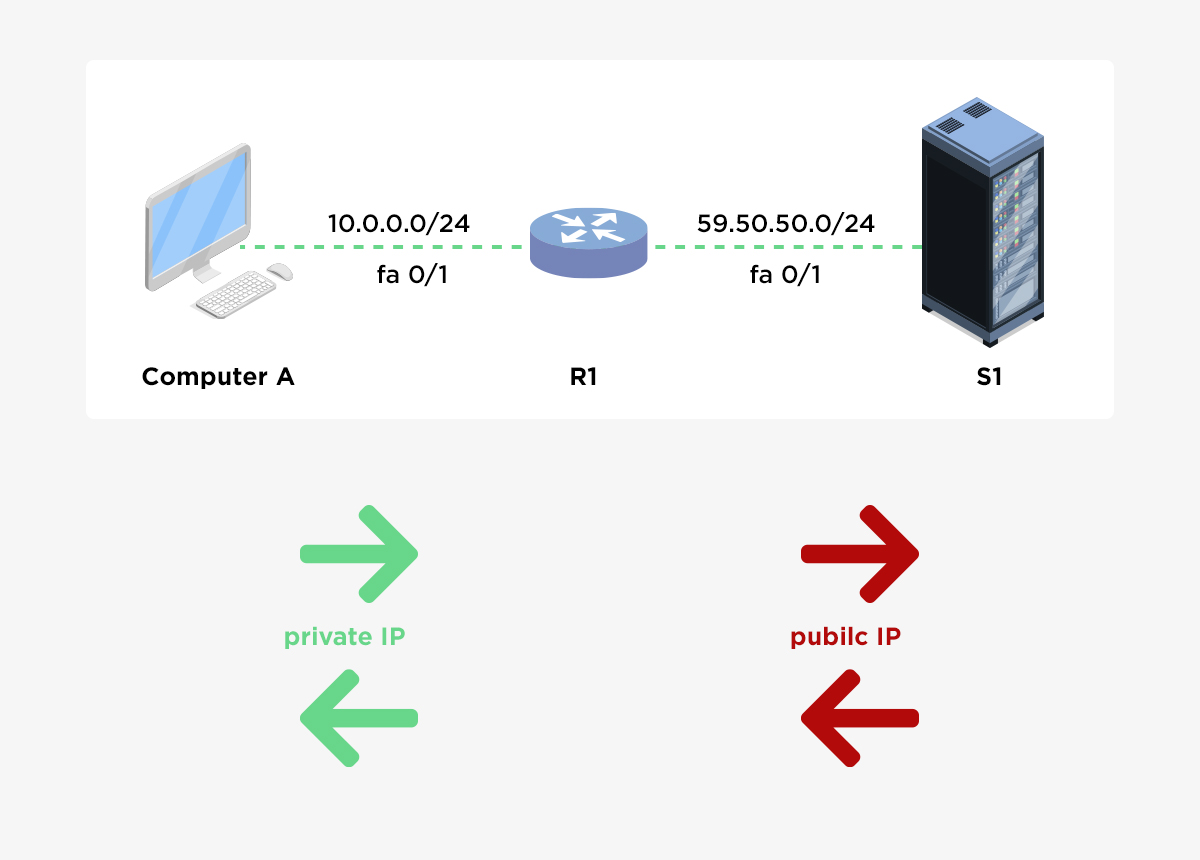
    NAT (Network Address Translation) allows private IP addresses to communicate with public networks like the Internet. PAT (Port Address Translation) is a form of NAT that uses port numbers to map multiple private IPs to a single public IP.

    🔁 Types of NAT in Cisco


    1️⃣ Static NAT (One-to-One)

    • One private IP ↔ One public IP
    • Used for servers (web, mail, VPN)
    https://media.geeksforgeeks.org/wp-content/uploads/20221015171237/1NATTopology.jpg
    https://www.manageengine.com/network-configuration-manager/images/static-NAT.jpg

    Configuration Example

    interface g0/0
     ip address 203.0.113.2 255.255.255.252
     ip nat outside
    
    interface g0/1
     ip address 192.168.1.1 255.255.255.0
     ip nat inside
    
    ip nat inside source static 192.168.1.10 203.0.113.10


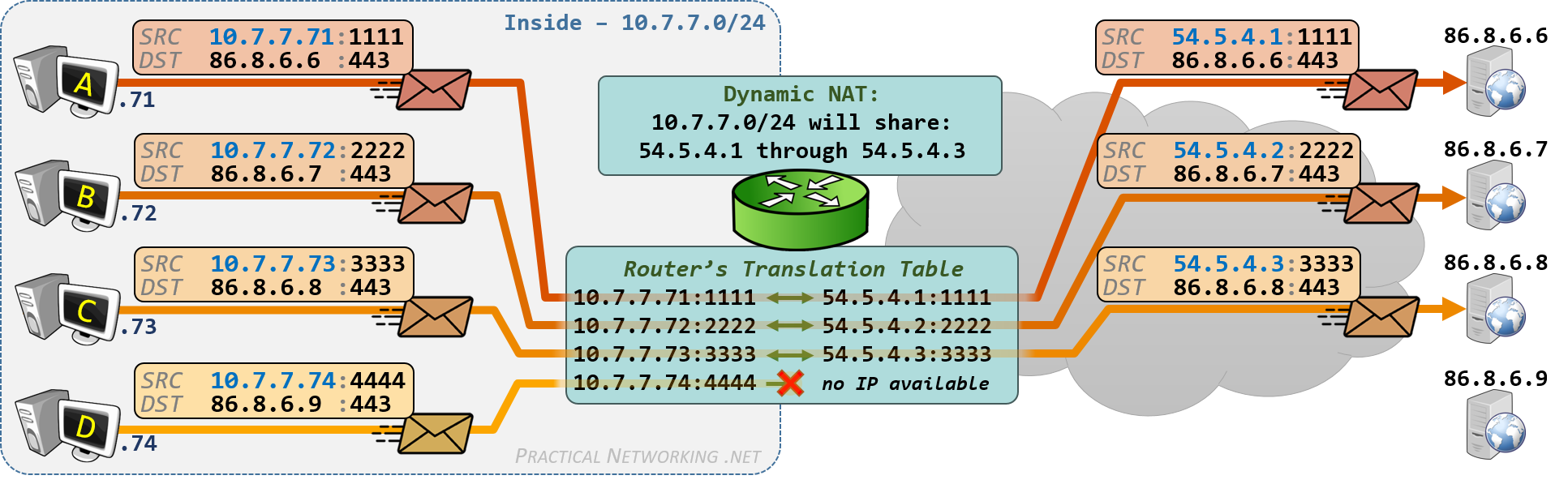
    2️⃣ Dynamic NAT (Many-to-Many)

    • Private IPs mapped to a pool of public IPs
    • No port translation
    https://www.practicalnetworking.net/wp-content/uploads/2017/10/dynamic-nat-outbound.png
    https://media.geeksforgeeks.org/wp-content/uploads/20221015171237/1NATTopology.jpg

    Configuration Example

    access-list 1 permit 192.168.1.0 0.0.0.255
    
    ip nat pool PUBLIC_POOL 203.0.113.10 203.0.113.20 netmask 255.255.255.0
    
    ip nat inside source list 1 pool PUBLIC_POOL


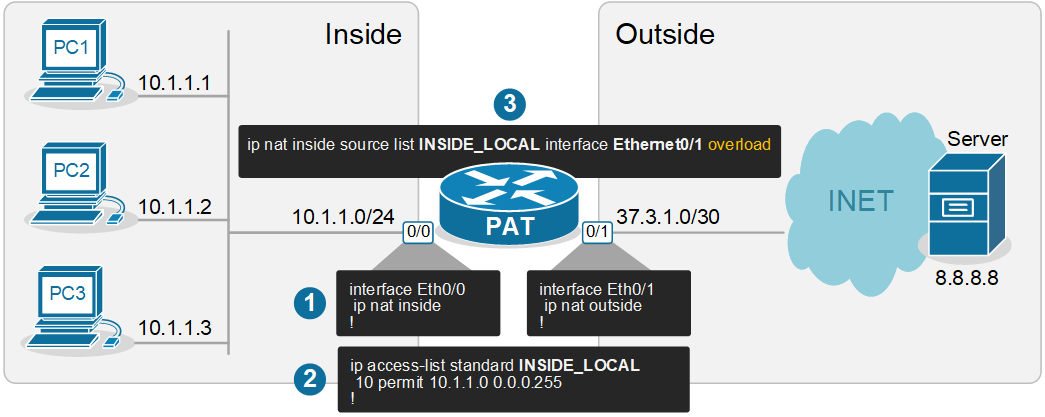
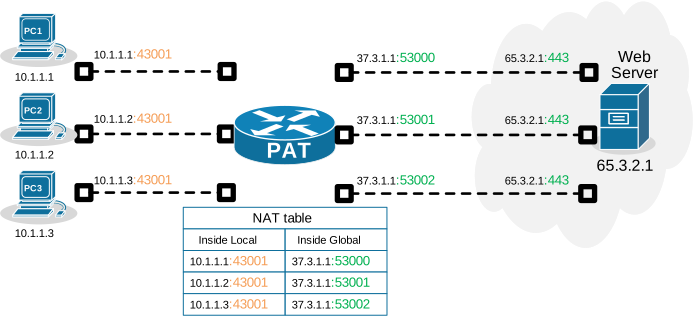
    3️⃣ PAT (NAT Overload) – Many-to-One

    • Multiple private IPs share one public IP
    • Uses TCP/UDP port numbers
    • Most common for Internet access
    https://www.networkacademy.io/sites/default/files/2024-10/nat-overload-pat.png
    https://cdn.networkacademy.io/sites/default/files/2024-10/nat-overload-pat-example.svg

    ⚙️ PAT Configuration (Most Common)

    🔹 Using Interface IP (Recommended)

    access-list 1 permit 192.168.1.0 0.0.0.255
    
    ip nat inside source list 1 interface g0/0 overload


    🔹 Using Public IP Pool

    ip nat pool PAT_POOL 203.0.113.50 203.0.113.50 netmask 255.255.255.0
    
    ip nat inside source list 1 pool PAT_POOL overload


    🔄 Inside vs Outside Interfaces (Mandatory)

    interface g0/0
     ip nat outside
    
    interface g0/1
     ip nat inside


    📌 NAT Terms (Quick Reference)

    TermMeaning
    Inside LocalPrivate IP (192.168.x.x)
    Inside GlobalPublic IP assigned by NAT
    Outside LocalPublic IP as seen inside
    Outside GlobalActual Internet IP

    🧪 Verification & Troubleshooting

    show ip nat translations
    show ip nat statistics
    clear ip nat translation *
    debug ip nat


    🚦 Real-World Scenario (Home / Lab)

    • LAN: 192.168.1.0/24
    • ISP IP on g0/0
    • Goal: Internet access for all LAN users
    access-list 1 permit 192.168.1.0 0.0.0.255
    ip nat inside source list 1 interface g0/0 overload


    ✔ This single command enables Internet for the entire LAN.


    ⚠️ Common Mistakes

    ❌ Forgetting ip nat inside / outside
    ❌ ACL mismatch (wrong subnet)
    ❌ NAT applied on wrong interface
    ❌ Missing overload keyword for PAT


    🧠 CCNA / CCNP Exam Tips

    • Static NAT → servers
    • Dynamic NAT → limited public IPs
    • PAT (Overload) → Internet access
    • Order matters: Static NAT > Dynamic NAT > PAT
  • 🔐 What is an ACL?

    An ACL is an ordered list of rules (statements) that a router checks top to bottom to decide whether to permit or deny traffic.

    👉 Implicit deny exists at the end of every ACL (anything not matched is denied).


    🧩 Types of Cisco ACLs

    1️⃣ Standard ACL

    • Filters only by source IP address
    • Numbered: 1–99, 1300–1999
    • Usually placed near the destination

    Example

    access-list 10 permit 192.168.1.0 0.0.0.255
    access-list 10 deny any


    Apply to interface

    interface g0/0
     ip access-group 10 in


    2️⃣ Extended ACL

    • Filters by:
      • Source IP
      • Destination IP
      • Protocol (TCP/UDP/ICMP)
      • Port numbers
    • Numbered: 100–199, 2000–2699
    • Placed near the source

    Example

    access-list 101 permit tcp 192.168.1.0 0.0.0.255 any eq 80
    access-list 101 deny ip any any


    Apply

    interface g0/1
     ip access-group 101 out


    3️⃣ Named ACL

    • More readable and editable
    • Can be standard or extended

    Extended Named ACL Example

    ip access-list extended WEB-FILTER
     permit tcp 192.168.10.0 0.0.0.255 any eq 443
     deny ip any any


    Apply

    interface g0/0
     ip access-group WEB-FILTER in


    🎯 Wildcard Mask Basics

    Wildcard mask is the inverse of subnet mask:

    Subnet MaskWildcard
    255.255.255.00.0.0.255
    255.255.255.2550.0.0.0

    Examples

    • host 192.168.1.10 → same as 192.168.1.10 0.0.0.0
    • any → same as 0.0.0.0 255.255.255.255

    🔁 Inbound vs Outbound

    • Inbound (in): Traffic checked before routing
    • Outbound (out): Traffic checked after routing
    ip access-group 101 in
    ip access-group 101 out


    ⚠️ Important Rules to Remember

    ✔ ACLs are processed top-down
    ✔ First match wins
    ✔ One ACL per interface, per direction, per protocol
    ✔ Always add explicit permit if needed (else implicit deny blocks traffic)


    🛠 Useful Show Commands

    show access-lists
    show ip access-lists
    show run | section access-list
    show ip interface g0/0


    🔍 Common Use Cases

    • Block specific IPs or subnets
    • Allow only HTTP/HTTPS traffic
    • Restrict management access (SSH/Telnet)
    • Basic firewalling on routers
  • How to install OpenDaylight (ODL) on a Proxmox environment.

    🌐 What is OpenDaylight (ODL)?

    OpenDaylight (ODL) is a modular, open-source Software-Defined Networking (SDN) controller developed under the Linux Foundation.
    It acts as the central brain of a software-defined network.

    Think of ODL as a network operating system that controls switches/routers from one place using programmable APIs.


    🧠 What ODL Does

    ODL sits centrally and communicates with network devices through southbound protocols like:

    • NETCONF
    • OpenFlow
    • BGP-LS
    • PCEP
    • RESTCONF
    • gNMI

    Using these, ODL can:

    • Read device configuration
    • Push new configuration
    • Collect topology information
    • Automate network behavior
    • Build SDN applications on top

    Why ODL Is Popular

    • 100% open source
    • Supports multi-vendor hardware (Cisco, Juniper, Arista, Nokia, etc.)
    • Deep support for NETCONF/YANG (used in modern Cisco IOS-XE)
    • Full automation capabilities (northbound REST APIs)
    • Strong community and carrier-grade framework

    Used by:

    • Cisco (old Cisco OSC was based on ODL)
    • Red Hat
    • Brocade
    • Ericsson
    • AT&T

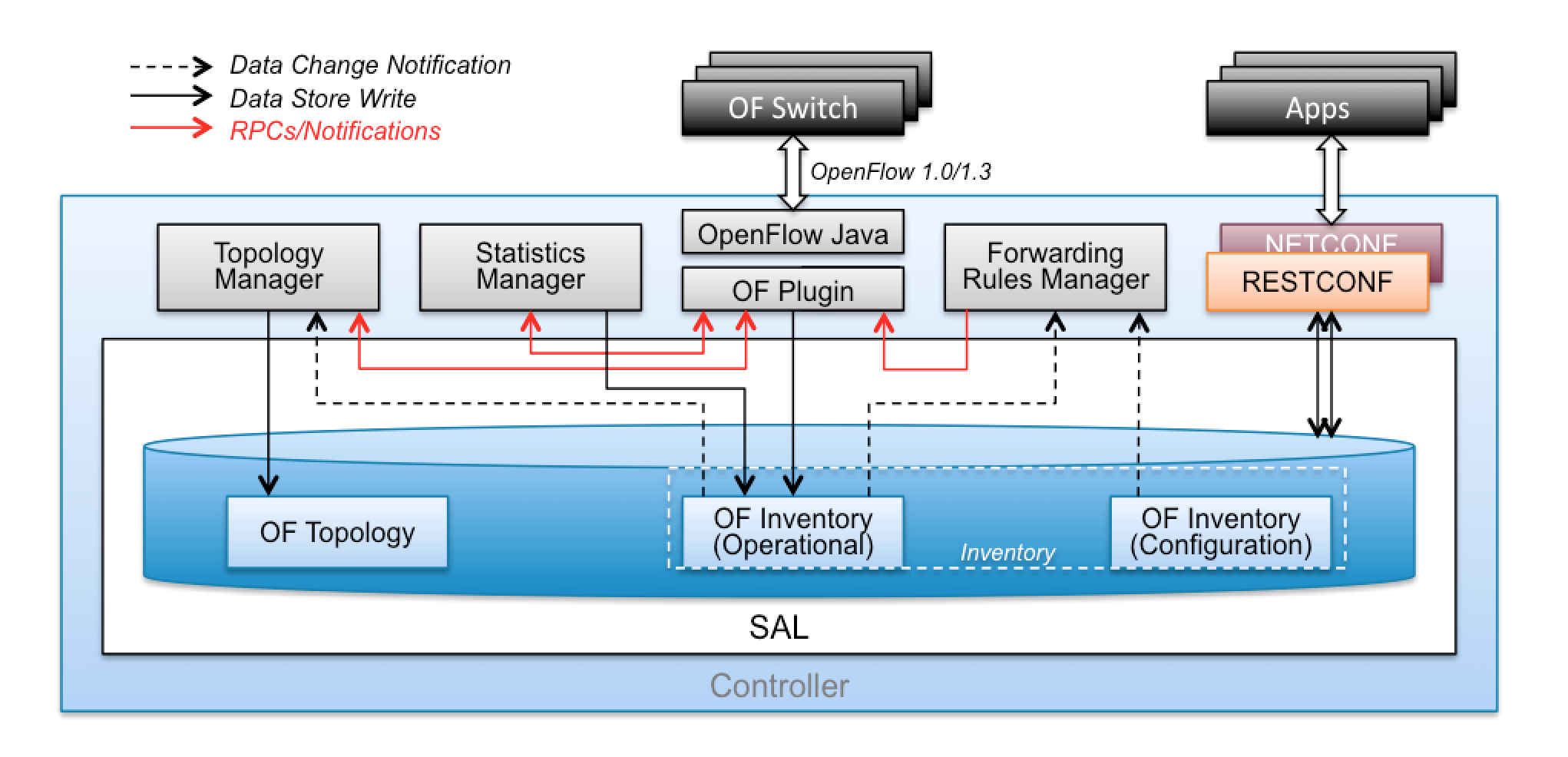
    🏗️ ODL Architecture (Simple Explanation)

    https://docs.opendaylight.org/projects/openflowplugin/en/latest/_images/plugin_arch.png
    https://www.researchgate.net/publication/317057083/figure/fig2/AS%3A496926631763968%401495487949326/The-simplified-architectural-framework-of-OpenDaylight-13.png
    • Applications
      Custom or prebuilt apps that run on top of ODL (traffic engineering, path computation, network monitoring).
    • Northbound APIs
      RESTCONF/REST APIs used by automation tools (Python, Ansible, SDN apps).
    • Controller Platform (MD-SAL)
      The Model-Driven Service Abstraction Layer.
      This is the “brain” that stores models, state, topology, and configuration.
    • Southbound Plugins
      Protocols used to talk to network devices:
      • OpenFlow
      • NETCONF
      • OVSDB
      • BGP-LS
      • PCEP

    🔧 What You Can Do With ODL

    ✔ Build full SDN topologies

    Example: OpenFlow-based switching labs.

    ✔ Automate Cisco devices using NETCONF/YANG

    ODL can act like an automation engine:

    • Push configs
    • Track device state
    • Collect data models

    ✔ Visualize network topology

    ODL automatically discovers and displays network nodes and links.

    ✔ Traffic engineering (TE) and segment routing

    Using BGP-LS and PCEP.

    ✔ Build your own SDN applications

    Example:

    • Auto-VLAN provisioning
    • Auto-QoS
    • Path optimization
    • ACL automation

    Here is the simplest and cleanest way to install OpenDaylight (ODL) on a Proxmox environment.
    You can install ODL inside a VM (Ubuntu/Debian is recommended).
    I’ll give you step-by-step commands, VM configuration, and post-installation access steps.


    1. Create a VM on Proxmox

    Use the following recommended specs:

    Recommended VM Specs

    • OS: Ubuntu Server 20.04 / 22.04 (ODL works best on 20.04)
    • CPU: 2 vCPUs
    • RAM: 4–6 GB
    • Disk: 20–30 GB
    • Network: 1 Ethernet interface (bridged or VLAN)

    OpenDaylight is Java-heavy, so do not assign < 4 GB RAM.


    🔧 2. Update the OS

    SSH into the VM / Console:

    sudo apt update && sudo apt upgrade -y


    ⚙️ 3. Install Java (ODL requires Java 11)

    sudo apt install openjdk-11-jdk -y


    Check version:

    java -version


    📦 4. Download OpenDaylight

    Download the latest stable version (Phosphorus, Sodium, or Aluminium—any works).

    cd /opt
    sudo wget https://nexus.opendaylight.org/content/groups/public/org/opendaylight/integration/distribution-karaf/0.14.4/distribution-karaf-0.14.4.tar.gz


    (Replace version if newer available.)


    📁 5. Extract the ODL package

    sudo tar -xvzf distribution-karaf-*.tar.gz
    sudo mv distribution-karaf-* opendaylight
    cd opendaylight


    ▶️ 6. Start OpenDaylight

    Run ODL:

    sudo ./bin/karaf


    This launches the Karaf console (ODL CLI).


    🧩 7. Install required ODL features

    Inside the Karaf console, install main modules:

    For OpenFlow:

    feature:install odl-restconf odl-l2switch-switch odl-openflow-plugin-all


    For NETCONF/YANG:

    feature:install odl-restconf odl-netconf-all odl-mdsal-all


    For BGP-LS / PCEP:

    feature:install odl-bgpcep-bgp odl-bgpcep-pcep


    🌐 8. Access Web UI (DLUX)

    Enable DLUX:

    feature:install odl-dlux-all


    Open your browser:

    http://<VM-IP>:8181/index.html#/login


    Default credentials:

    username: admin
    password: admin


    🔄 9. Run ODL as a service (recommended)

    Exit Karaf (Ctrl + D)

    Create a systemd service:

    sudo nano /etc/systemd/system/opendaylight.service


    Paste:

    [Unit]
    Description=OpenDaylight SDN Controller
    After=network.target
    
    [Service]
    User=root
    ExecStart=/opt/opendaylight/bin/karaf
    Restart=on-abort
    
    [Install]
    WantedBy=multi-user.target


    Enable + start:

    sudo systemctl daemon-reload
    sudo systemctl enable opendaylight
    sudo systemctl start opendaylight
    sudo systemctl status opendaylight


    🎉 ODL is now running on Proxmox!


    📌 Bonus: Integrate ODL with Cisco Devices

    If using NETCONF:

    feature:install odl-restconf odl-netconf-all


    Then add your Cisco device:

    PUT http://<ODL-IP>:8181/restconf/config/network-topology:network-topology/topology/topology-netconf/node/<device-name>


    If using OpenFlow, make sure the switch points to ODL:

    openflow controller x.x.x.x port 6633 vrf <name>
    
  • How Your PC Communicates with Google: Step-by-Step Network Journey

    When your PC communicates with Google’s server (e.g., http://www.google.com), there’s a sequence of events happening from your local network to Google’s global infrastructure.


    🧩 Step-by-Step Communication Flow

    1️⃣ You type “http://www.google.com” in your browser

    Your browser doesn’t know where Google is yet—it only has a domain name.


    2️⃣ DNS Resolution (Finding the IP Address)

    • Your PC asks the DNS resolver (usually your ISP’s DNS or a public one like 8.8.8.8) to find the IP address of http://www.google.com.
    • The resolver checks:
      1. Local DNS cache (in your PC or router)
      2. If not found, it queries the root DNS servers
      3. Then .com TLD servers
      4. Finally Google’s authoritative DNS servers
    • You get back an IP address, e.g. 142.250.193.68

    🔸 Now your PC knows where to send packets — Google’s IP.


    3️⃣ ARP (Address Resolution Protocol)

    Before sending packets out, your PC needs to know the MAC address of the next hop (usually your router).

    • Your PC sends an ARP Request: “Who has the gateway IP (e.g., 192.168.1.1)?”
    • The router replies with its MAC address.
    • Now your PC can send the packet to the router.

    4️⃣ TCP Connection Establishment (3-Way Handshake)

    Your PC establishes a TCP connection with Google’s server (port 443 for HTTPS):

    1. SYN → Client → Server (request to start session)
    2. SYN-ACK ← Server → Client (acknowledge and agree)
    3. ACK → Client → Server (final confirmation)

    ✅ Connection established.


    5️⃣ TLS/SSL Handshake (Secure Encryption)

    Since Google uses HTTPS, a TLS handshake occurs:

    • Browser and server agree on encryption methods.
    • Server sends its SSL certificate (issued by a trusted Certificate Authority).
    • Browser verifies authenticity.
    • A secure session key is generated.

    🔒 Now communication is encrypted end-to-end.


    6️⃣ HTTP Request and Response

    • Browser sends:
      GET / HTTP/1.1
      Host: www.google.com
    • Google server processes it and responds with:
      HTTP/1.1 200 OK
      (plus HTML, CSS, JavaScript, etc.)

    The web page starts loading.


    7️⃣ Data Flow Path

    • Your data packet flows through multiple layers:
      1. PC → Router (LAN)
      2. Router → ISP (WAN)
      3. ISP → Internet Backbone
      4. Internet → Google Data Center

    Google uses CDNs (Content Delivery Networks) — your request is usually served from the nearest Google edge server, not necessarily the US.


    8️⃣ Response Rendered

    Your browser receives the HTML and starts rendering the Google homepage with logo, search box, etc.


    🌐 Simplified OSI Model Mapping

    OSI LayerExample in this process
    7 – ApplicationHTTP / HTTPS
    6 – PresentationSSL/TLS encryption
    5 – SessionTCP connection management
    4 – TransportTCP (Port 443)
    3 – NetworkIP addressing and routing
    2 – Data LinkEthernet / Wi-Fi (MAC addresses)
    1 – PhysicalCables, Wi-Fi signals, etc.