Blog

  • 🧠 What is Software-Defined Networking (SDN)?

    Software-Defined Networking (SDN) is a modern approach to network design and management that separates the control plane from the data plane.
    This means the intelligence (decision-making) of the network is centralized in a software-based controller, while the hardware devices (switches/routers) just forward packets based on those instructions.


    ⚙️ Traditional Networking vs SDN

    FeatureTraditional NetworkingSoftware-Defined Networking
    Control PlaneDistributed across all devices (each switch/router runs its own control logic)Centralized in an SDN controller
    Data PlaneLocated on each deviceStill on devices but managed by controller
    ConfigurationManual (CLI per device)Automated (via controller and APIs)
    ScalabilityHarder to scaleEasily scalable and programmable
    FlexibilityStatic and hardware-dependentDynamic and software-driven

    🧩 Key Components of SDN

    1. Application Plane
      • Contains SDN applications (like network monitoring, security policies, load balancing).
      • Communicates with the controller through northbound APIs (often REST APIs).
    2. Control Plane
      • The SDN Controller (e.g., OpenDaylight, ONOS, Cisco APIC, VMware NSX Manager).
      • Makes centralized decisions on routing, access control, and network policies.
    3. Data Plane
      • Network devices (switches, routers) that forward packets based on rules received from the controller.
      • Communicates with the controller through southbound APIs (e.g., OpenFlow, NETCONF).

    🔄 How SDN Works (Simplified Flow)

    1. The controller maintains a complete view of the network.
    2. Applications request specific network behaviors (e.g., “prioritize VoIP traffic”).
    3. The controller translates these policies into forwarding rules.
    4. Switches/routers in the data plane execute those rules.

    🌐 Benefits of SDN

    • Centralized Management: Single point of control for the entire network.
    • Automation: Reduces manual configuration and human error.
    • Programmability: Network behavior can be modified via software or APIs.
    • Agility: Quickly adapt to new business or security needs.
    • Cost Efficiency: Can use commodity hardware instead of proprietary devices.

    🧱 Common SDN Protocols and Technologies

    • OpenFlow: The first and most popular southbound API for communication between controller and switches.
    • NETCONF/YANG: Used for configuration and monitoring.
    • VXLAN: Commonly used for SDN-based network virtualization.
    • REST APIs: For communication between applications and the controller.

    🏢 Popular SDN Implementations

    • Cisco ACI (Application Centric Infrastructure)
    • VMware NSX
    • OpenDaylight
    • ONOS (Open Network Operating System)
    • Juniper Contrail

    📈 Use Cases

    • Data Center Automation
    • Network Virtualization (SDN + NFV)
    • Dynamic Traffic Engineering
    • Cloud Networking
    • Security & Policy Enforcement
  • ✅Basic Cisco Switch Vlan and interface Configuration

    Basic VLAN and interface configuration on a Cisco switch involves creating VLANs, assigning ports, and managing trunk/access modes. The fundamental commands and workflow are outlined below.

    Create a VLAN

    To create VLANs (e.g., VLAN 10 and VLAN 20):

    Switch> enable
    Switch# configure terminal
    Switch(config)# vlan 10
    Switch(config-vlan)# exit
    Switch(config)# vlan 20
    Switch(config-vlan)# exit

    This creates VLANs 10 and 20 if they do not already exist.

    Assign Name to VLAN (Optional)

    To name a VLAN:

    Switch(config)# vlan 10
    Switch(config-vlan)# name Sales
    Switch(config-vlan)# exit

    Naming helps with identification, especially in large environments.

    Assign Switch Ports to VLAN

    To assign a port to VLAN 10:

    Switch(config)# interface fastethernet 0/1
    Switch(config-if)# switchport mode access
    Switch(config-if)# switchport access vlan 10
    Switch(config-if)# exit

    To assign another port to VLAN 20:

    Switch(config)# interface fastethernet 0/2
    Switch(config-if)# switchport mode access
    Switch(config-if)# switchport access vlan 20
    Switch(config-if)# exit

    Assigning ports assigns their traffic to the selected VLAN.

    Assign Multiple Ports (Interface Range)

    To assign several interfaces at once:

    Switch(config)# interface range fastethernet 0/3 - 0/8
    Switch(config-if-range)# switchport mode access
    Switch(config-if-range)# switchport access vlan 10
    Switch(config-if-range)# exit

    This saves time on large switches.

    Configure Trunk Ports

    For inter-switch links (carry multiple VLANs):

    Switch(config)# interface gigabitEthernet 0/1
    Switch(config-if)# switchport mode trunk
    Switch(config-if)# exit

    Trunk ports are required for connecting switches together and passing multiple VLANs.

    Common Show Commands

    • Check VLANs:
    Switch# show vlan
    • Check interface status:
    Switch# show interfaces status
    • Check port VLAN assignment:
    Switch# show running-config

    These commands help verify configuration and troubleshoot issues.

    This basic command set prepares a Cisco switch for segmented, secure communication in most enterprise or learning lab environments

  • ✅Basic Cisco Switch Configuration

    basic Cisco switch configuration involves initial setup tasks like setting the hostname, securing access, configuring management IP, and saving the configuration. Here are the main steps and key commands for a standard, unconfigured Cisco switch.

    Basic Configuration Steps

    Connect to the Switch

    • Connect via console cable using a terminal emulator (like PuTTY) with settings: 9600 baud, 8 data bits, no parity, 1 stop bit.

    Enter Privileged EXEC Mode

    Switch> enable
    • Moves from user mode to privileged (admin) mode.

    Enter Global Configuration Mode

    Switch# config t
    • Allows access to configuration commands.

    Set Hostname

    Switch(config)# hostname SWITCH_NAME
    • Changes the device’s name for identification.

    Set Management IP Address

    Switch(config)# interface vlan 1
    Switch(config-if)# ip address 192.168.1.2 255.255.255.0
    Switch(config-if)# no shutdown
    Switch(config-if)# exit
    Switch(config)# ip default-gateway 192.168.1.1
    • Assigns an IP for access via Telnet/SSH and sets the gateway for remote management.

    Set Console and Enable Passwords

    Switch(config)# line con 0
    Switch(config-line)# password YOUR_PASS
    Switch(config-line)# login
    Switch(config-line)# exit

    Switch(config)# enable secret ENABLE_PASS
    • Adds security for console and privileged access.

    Configure Banner Message (Optional)

    Switch(config)# banner motd #Unauthorized access prohibited#
    • Displays a warning on login.

    Save Configuration

    Switch# copy running-config startup-config
    • Writes the config to memory, so it persists after reboot.

    Key Points

    • Use the show run command to verify current configuration.
    • Always save your configuration after any change.
    • You can further configure VLANs, trunk/access ports, and add remote management (SSH/Telnet) as needed.
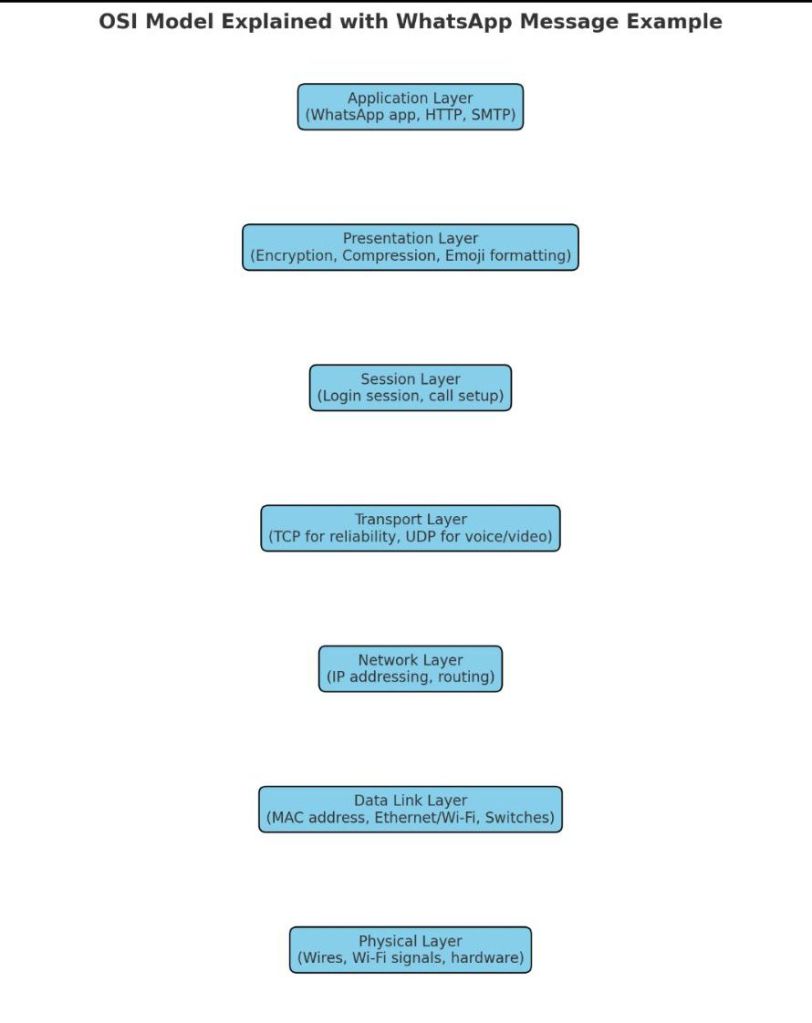
  • ✅ OSI Model with each layer explained using the example of sending a WhatsApp message 📩.

    Let’s walk through a real-world example:

    👉 You send a WhatsApp text message to your friend.


    📩 Step-by-Step Flow Through OSI Layers

    At Your Side (Sender)

    1. Application Layer (Layer 7)
      • You type “Hi!” in WhatsApp.
      • WhatsApp app uses HTTP/HTTPS + its own messaging protocols.
    2. Presentation Layer (Layer 6)
      • Message is encrypted (end-to-end encryption).
      • Emojis, fonts, and formats are standardized.
    3. Session Layer (Layer 5)
      • A secure session is established between your phone and WhatsApp servers.
      • Maintains your login session.
    4. Transport Layer (Layer 4)
      • WhatsApp decides TCP (for reliability) for text OR UDP (for voice/video).
      • Message is divided into segments, with sequence numbers.
    5. Network Layer (Layer 3)
      • Adds your IP address (source) and your friend’s IP (destination).
      • Routers decide the best path to the server or receiver.
    6. Data Link Layer (Layer 2)
      • Adds MAC addresses (your phone → Wi-Fi router → ISP device).
      • Creates frames for local delivery.
    7. Physical Layer (Layer 1)
      • Message is converted into electrical signals or Wi-Fi radio waves.
      • Sent over fiber/copper/wireless.

    Across the Network

    • The message travels through routers, switches, ISP networks, undersea cables, or satellites.
    • At each stop, layers 1–3 (Physical, Data Link, Network) ensure correct forwarding.

    At Your Friend’s Side (Receiver)

    • The process is reversed:
      • Signals → Frames → Packets → Segments → Sessions → Decryption → WhatsApp app shows “Hi!”

    In short:

    • Upper layers (7–5): Handle the meaning of your message.
    • Middle (4): Handles reliability.
    • Lower (3–1): Handle delivery.

  • ✅ OSI Reference Model

    The OSI Reference Model (Open Systems Interconnection Model) is a conceptual framework used to understand and describe how different networking protocols and systems communicate with each other.

    It breaks down the complex process of data communication into 7 distinct layers, each with specific functions.


    🔹 7 Layers of the OSI Model (Top to Bottom)

    7. Application Layer

    • What it does: Provides services directly to the user and applications.
    • Examples: Web browsers, email clients, file transfer, remote login.
    • Protocols: HTTP, HTTPS, FTP, SMTP, POP3, DNS.

    6. Presentation Layer

    • What it does: Ensures data is in a readable format for the application layer. Handles encryption, compression, translation.
    • Examples: Data formatting, SSL/TLS encryption, JPEG, GIF, MP3.

    5. Session Layer

    • What it does: Establishes, manages, and terminates sessions (connections) between applications.
    • Examples: Remote Procedure Calls (RPC), NetBIOS, managing login sessions.

    4. Transport Layer

    • What it does: Provides reliable or unreliable delivery of data between devices. Ensures proper sequencing and error checking.
    • Protocols:
      • TCP (Transmission Control Protocol – reliable, connection-oriented)
      • UDP (User Datagram Protocol – faster, connectionless)

    3. Network Layer

    • What it does: Handles logical addressing, routing, and path determination.
    • Examples: Routers operate here.
    • Protocols: IP (IPv4, IPv6), ICMP, OSPF, RIP, BGP.

    2. Data Link Layer

    • What it does: Provides node-to-node communication, error detection, and framing. Uses MAC addresses.
    • Examples: Switches, Ethernet, PPP, ARP.
    • Sub-layers:
      • LLC (Logical Link Control)
      • MAC (Media Access Control)

    1. Physical Layer

    • What it does: Deals with raw bits transmission over physical media (cables, wireless signals). Defines hardware specs.
    • Examples: Hubs, repeaters, cables, fiber optics, Wi-Fi signals.

    🔹 Easy Way to Remember (Mnemonic)

    All People Seem To Need Data Processing
    (Application, Presentation, Session, Transport, Network, Data Link, Physical)


    ✅ In summary:

    • Upper layers (7–5): Application-related
    • Middle (4): End-to-end communication (Transport)
    • Lower layers (3–1): Data delivery through network

  • ✅ What is an IP Address?

    An IP Address (Internet Protocol Address) is a unique logical address assigned to each device in a network so that it can be identified and communicate with other devices.

    👉 Think of it like the phone number of a device on a network.
    Without it, devices cannot send/receive data properly.


    ✅ Types of IP Addresses

    1. IPv4 (Internet Protocol version 4)
    2. IPv6 (Internet Protocol version 6) – newer, because IPv4 addresses are running out.

    ✅ IPv4 (Internet Protocol version 4)

    • Most widely used IP version today.
    • 32-bit address (4 bytes).
    • Written as 4 decimal numbers separated by dots.
    • Each number ranges from 0–255.
    • Example: 192.168.1.10 10.0.0.5 172.16.254.1

    🔹 IPv4 Address Classes

    IPv4 is divided into classes (for different network sizes):

    ClassRange (First Octet)ExampleUsage
    A1 – 12610.0.0.1Very large networks
    B128 – 191172.16.0.1Medium networks
    C192 – 223192.168.1.1Small networks
    D224 – 239224.0.0.1Multicast
    E240 – 255240.0.0.1Experimental

    ✅ Types of IPv4 Addresses

    1. Public IP – Unique, used on the internet.
    2. Private IP – Used inside local networks (not routable on internet).
      • Ranges:
        • 10.0.0.0 – 10.255.255.255
        • 172.16.0.0 – 172.31.255.255
        • 192.168.0.0 – 192.168.255.255
    3. Loopback Address127.0.0.1 → Used to test your own machine.

    ✅ Difference Between IPv4 & IPv6 (Quick View)

    FeatureIPv4IPv6
    Address Size32-bit128-bit
    Example192.168.1.12001:0db8:85a3::8a2e:0370:7334
    Total Addresses~4.3 billionAlmost unlimited
    UsageStill most commonGrowing adoption

    👉 In short:

    • IP Address = Unique logical address of a device.
    • IPv4 = 32-bit address, written in dotted decimal, still the most widely used.
  • ✅ What is a Protocol?

    A protocol in computer networking is a set of rules and standards that define how two or more devices communicate with each other over a network.

    Think of it like a language:

    • If two people don’t speak the same language, they can’t understand each other.
    • Similarly, without protocols, computers can’t exchange data properly.

    ✅ Key Functions of Protocols

    • Data Formatting → How data is structured for transmission.
    • Addressing → Identifying source & destination (IP, MAC).
    • Error Checking → Ensures data is not corrupted.
    • Flow Control → Prevents fast sender from overwhelming slow receiver.
    • Security → Encrypting or authenticating communication.

    ✅ Common Types of Protocols

    🔹 Network Communication Protocols

    • TCP (Transmission Control Protocol) – Reliable, connection-oriented.
    • UDP (User Datagram Protocol) – Fast, no guaranteed delivery (used in streaming, gaming).
    • IP (Internet Protocol) – Provides addressing and routing.

    🔹 Web & Application Protocols

    • HTTP/HTTPS – Web browsing.
    • FTP/SFTP – File transfer.
    • SMTP, POP3, IMAP – Email.

    🔹 Security Protocols

    • SSL/TLS – Secure web communication.
    • IPSec – Secure VPN communication.
    • SSH – Secure remote login.

    🔹 LAN Protocols

    • Ethernet – Wired LAN communication.
    • Wi-Fi (IEEE 802.11) – Wireless LAN communication.
    • ARP (Address Resolution Protocol) – Maps IP ↔ MAC.

    ✅ Example

    When you open a website:

    1. DNS finds the website’s IP address.
    2. TCP/IP handles connection and data delivery.
    3. HTTP/HTTPS transfers the webpage.
    4. Ethernet/Wi-Fi carries data physically.

    👉 In short:
    Protocols = rules of communication for networks, just like grammar rules in a language.

  • ✅ What is a MAC Address?

    A MAC Address (Media Access Control Address) is a unique hardware identifier given to every network interface card (NIC), whether it’s wired (Ethernet) or wireless (Wi-Fi).

    Think of it like a permanent serial number for your network card, used at the data link layer (Layer 2) of the OSI model.


    ✅ Format of a MAC Address

    • 48-bit address (6 pairs of hexadecimal numbers).
    • Written as: 00:1A:2B:3C:4D:5E (colon separated) 00-1A-2B-3C-4D-5E (hyphen separated)
    • First 3 pairs → identify the manufacturer (called OUI – Organizationally Unique Identifier).
    • Last 3 pairs → uniquely assigned to the device.

    ✅ Example

    D4:6D:6D:A2:34:BC
    
    
    • D4:6D:6D → Vendor (e.g., Intel, Cisco, etc.)
    • A2:34:BC → Unique device ID.

    ✅ Uses of MAC Address

    1. Device Identification – Every networked device has a unique MAC.
    2. LAN Communication – Switches use MAC addresses to forward data within a local network.
    3. Filtering & Security – Wi-Fi routers can allow/block devices using MAC filtering.
    4. Troubleshooting – Network admins track devices using their MAC.
    5. ARP (Address Resolution Protocol) – Maps IP address → MAC address to deliver packets.

    👉 In simple terms:

    • IP Address = Logical address (can change, given by network).
    • MAC Address = Permanent hardware address (burned into NIC).
  • ✅Minimum Requirements of a Network

    1. At least Two Devices
      • Computers, servers, laptops, printers, or even smartphones.
      • Example: Two PCs connected together form the smallest network.
    2. Network Interface Card (NIC)
      • Each device needs a network adapter (wired Ethernet port or Wi-Fi card) to connect to the network.
    3. Transmission Medium (Communication Channel)
      • Can be wired (Ethernet cables, fiber optic) or wireless (Wi-Fi, Bluetooth, infrared).
    4. Networking Device (Optional but Common)
      • Switch/Hub – to connect multiple devices in LAN.
      • Router – to connect LAN to the Internet or other networks.
    5. Network Protocols
      • Common “language” computers use to communicate.
      • Most common: TCP/IP (Transmission Control Protocol/Internet Protocol).
    6. IP Addressing
      • Every device must have a unique IP address to identify itself on the network.
    7. Operating System / Network Software
      • To manage network communication.
      • Example: Windows, Linux, macOS, or specialized network OS.

    👉 In short:
    A minimum network = 2 devices + NICs + connection medium + protocol (TCP/IP).
    For bigger networks, you add switches, routers, servers, firewalls, etc.

  • ✅What is a Computer Network?

    A computer network is a collection of two or more computers (or devices like printers, servers, switches, routers) that are connected together to share resources (files, applications, printers), communicate, or access the internet.

    Example: Your home Wi-Fi is a small computer network.


    ✅ Types of Networks

    Networks are classified mainly by size/area covered:

    1. LAN (Local Area Network)
      • Covers small area (office, home, school).
      • High speed, low cost.
      • Example: Office network with 10 PCs and a printer.
    2. WAN (Wide Area Network)
      • Covers large geographical area (countries, worldwide).
      • Internet is the largest WAN.
      • Example: Bank ATMs connected nationwide.
    3. MAN (Metropolitan Area Network)
      • Covers a city or large campus.
      • Example: Cable TV network, city-wide Wi-Fi.
    4. PAN (Personal Area Network)
      • Very small range, usually within a few meters.
      • Example: Bluetooth between phone and headphones.

    👉 Other categories: CAN (Campus Area Network), SAN (Storage Area Network), VPN (Virtual Private Network).


    ✅ Uses of Networks

    • Resource Sharing – printers, files, applications.
    • Communication – email, chat, video calls.
    • Centralized Data Management – store & secure data in servers.
    • Scalability – add users without much cost.
    • Internet Access Sharing – one internet line for many users.

    ✅ Domain vs Workgroup

    🔹 Workgroup

    • Peer-to-peer network (no central control).
    • Each computer manages its own settings and logins.
    • Good for small networks (≤10 PCs) like home or small office.
    • Example: You can share files between two laptops at home using a workgroup.

    🔹 Domain

    • Client–Server model (centralized control).
    • Managed by a server (Domain Controller – DC).
    • Centralized authentication (same username/password works on all PCs).
    • Good for large organizations (hundreds of computers).
    • Example: In an office, you log into your PC using your company credentials (Windows Active Directory domain).

    👉 In short:

    • Workgroup = Simple, decentralized, for small networks.
    • Domain = Centralized, secure, scalable, for enterprise.