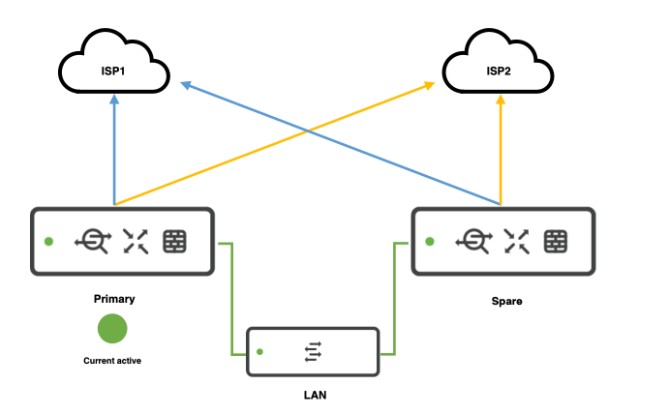
Meraki MX67 supports Warm Spare / High Availability (HA) in Active–Passive mode.
You need two MX67 appliances (same model) and Advanced Security license for each (or a single shared license if you have Meraki’s per-network licensing).
The HA works by monitoring uplinks and LAN, and failing over automatically if the primary fails.
🛠 How to configure HA in Meraki MX67
✅ 1. Physical setup
Place both MX67 units on the same LAN segment.
Connect:
Each MX to the Internet (same or different uplinks).
The LAN ports of both MXs to the same switch or switches.
Connect the dedicated HA/Spare port (Port 4 on MX67) from the primary to the secondary (this is the Heartbeat connection).
Tip: Make sure the heartbeat cable is direct or via switch but must be in the same VLAN/subnet.
✅ 2. Configure in Meraki Dashboard
Go to:Security & SD-WAN > Monitor > Appliance status
Add the secondary MX:
Go to Security & SD-WAN > Configure > Addressing & VLANs.
Enable Warm Spare.
Enter the serial number of the secondary MX in the Warm Spare field.
Dashboard automatically creates:
Shared Virtual IP (VIP) for WAN.
Shared Virtual IP for LAN.
⚠ Both MXs must be in the same network in the Meraki Dashboard.
✅ 3. WAN configuration
If you have multiple WAN uplinks, configure WAN1 and WAN2 on both MXs identically.
Ensure the ISP allows the use of a Virtual IP (VIP).
✅ 4. LAN configuration
LAN interfaces should be identical.
Enable Use MX uplink IPs or configure Virtual IPs:
WAN VIP: shared IP that moves between MXs.
MX uplink IPs: individual IPs on each MX.
📊 Failover
Heartbeat checks happen over the dedicated HA port.
Failover typically occurs in seconds (about 30 seconds or less).
✅ Verify HA status
In Dashboard: Security & SD-WAN > Appliance status → Warm Spare status shows which is active.
You can simulate failover by disconnecting the primary MX uplink.
🔒 Important notes:
Meraki MX HA is Active-Passive; no Active-Active.
Both MXs must be the same model and firmware.
Heartbeat connection is essential for proper failover detection.
To check the High Availability (HA) status in an Aruba Mobility Controller, you can use the CLI (Command Line Interface) or the Web UI. Here’s how you can do it:
🔧 Using CLI (SSH or Console):
Login to the controller via SSH or console.
Run the following command:
show ha
This will display the HA configuration and status including:
Role (Active/Standby)
HA state (UP/DOWN)
Synchronization status
Heartbeat info
Peer IP and state
💡 Additional Useful CLI Commands:
Command Description show ha Shows general HA status show ha group-membership Shows the group membership of controllers in HA setup show switchinfo Shows controller role (master, standby, etc.) show redundancy Displays detailed HA redundancy state show log system 50 Check system logs for HA-related events
🌐 Using Web UI:
Log in to the Aruba Controller Web UI.
Go to Configuration > Redundancy or Dashboard > System > Redundancy (depending on firmware).
You’ll see the controller role, peer info, and synchronization status.
📝 Tips:
Active controller handles client traffic.
Standby controller takes over if the active one fails.
Ensure both controllers are synchronized and licenses are shared if using license pooling.
In modern cloud engineering, Infrastructure as Code (IaC) is more than a best practice—it’s a necessity. But what happens when your AWS infrastructure already exists, created manually through the console or scripts, long before Terraform entered the picture?
This blog post walks through a hybrid solution: using Python and Boto3 to detect and import existing AWS Security Groups into Terraform, then converting them into reproducible, editable .tf files. It’s fast, scalable, and minimizes human error.
🚩 Problem Statement
Many teams start their cloud journey without IaC. As the environment grows, managing resources manually becomes error-prone and unscalable. Transitioning to Terraform becomes inevitable—but re-creating everything manually in .tf files is:
Time-consuming
Risky
Hard to validate
💡 Solution:
Use Python to automate the Terraform import process and dynamically generate configuration files per AWS Security Group.
⚙️ Tech Stack
Tool
Role
Terraform
Infrastructure provisioning
Python (Boto3)
AWS resource discovery
AWS CLI / IAM Role
Credentials & API access
Shell Commands
Automating imports
🔄 Workflow Overview
Discover all Security Groups in a region
Create Terraform directories per group
Write provider.tf and main.tf
Run terraform import to sync state
Output the state into HCL format via terraform show
Format and validate using terraform fmt
📜 Python Script Breakdown
Here’s the key automation script: securitygroupimporter.py
import boto3 import os
region = "us-west-1" client = boto3.client('ec2', region_name=region)
for group in client.describe_security_groups()['SecurityGroups']: dir_name = group['GroupId'] os.system("mkdir " + dir_name)
with open(os.path.join(dir_name, "provider.tf"), "w") as file: file.write(f"""provider "aws" {{ region = "{region}" }}""")
with open(os.path.join(dir_name, "main.tf"), "w") as file: file.write(f"""resource "aws_security_group" "imported_sg_tf" {{ name = "{group['GroupName']}" description = "{group['Description']}" vpc_id = "{group['VpcId']}" }}""")
This makes it easy to commit, audit, and manage each security group individually.
📦 Terraform Usage
Once the .tf files are created:
cd sg-0a1b2c3d4e5f67890
terraform plan
terraform apply
You can now modify the SG rules as code and re-apply them safely!
📈 Benefits of This Approach
✅ No Manual Rewrites: Automates tedious .tf file generation ✅ Version Control: All SGs under Git with Terraform ✅ Audit-Friendly: Clear, editable .tf source ✅ Repeatable: Works in any region with any account ✅ Safe Migration: No downtime or resource recreation
💡 Possible Enhancements
Here’s how we can take this further:
✳️ Add user prompts for selective SG import
🔍 Extract individual ingress/egress rules instead of full state dump
📦 Refactor into reusable Terraform modules
📊 Add CloudWatch alerts for drift detection
⚙️ Integrate into CI/CD pipeline
🌐 Real-World Use Case
Imagine you’re handed an AWS account with 100+ resources but no existing Terraform config. This script gives you a jumpstart, extracting current state and turning it into a fully manageable codebase — all without starting from scratch.
🔐 Security Considerations
Use IAM roles with read-only EC2 access
Validate the Terraform plan before applying changes
Consider sanitizing or encrypting sensitive outputs if saved
📸 Architecture Diagram
This tool can be a part of a larger provisioning pipeline (e.g., VPCs, EC2, Load Balancers, etc.).
Each SG is imported and converted into Terraform-ready format in its own folder. You can version it, tweak rules, and manage it from here on out like any other .tf module.
🧩 Final Thoughts
Cloud infrastructure is not always born as code — but it should evolve that way. With this approach, we take a real-world AWS environment and transform it into Terraform IaC with minimal friction.
This saves hours of repetitive work and brings undocumented infrastructure under the umbrella of security, compliance, and automation.
🤝 Let’s Connect
If you found this useful or have ideas to improve it, let’s talk! I’d love to collaborate with other DevOps engineers and cloud enthusiasts.
To configure dual internet connections using BGP on a Cisco router for redundancy and failover, follow these key steps and considerations:
Basic BGP Configuration
Establish BGP Sessions with Both ISPs Configure BGP neighbors using the ISPs’ AS numbers and your assigned ASN. For example: router bgp 65001 neighbor 203.0.113.1 remote-as ISP1_ASN neighbor 198.51.100.1 remote-as ISP2_ASN address-family ipv4 network 192.0.2.0 mask 255.255.255.0 # Advertise your public subnet exit-address-family
Replace ISP1_ASN and ISP2_ASN with the respective ISP AS numbers
Advertise Networks Use the network command to announce your public IP ranges to both ISPs. Ensure both ISPs accept the advertised prefixes
Traffic Control and Path Selection
Outbound Traffic
Local Preference: Prioritize one ISP for outbound traffic by setting a higher local preference (default is 100):
route-map PREFER_ISP1 permit 10
set local-preference 200
!
router bgp 65001
neighbor 203.0.113.1 route-map PREFER_ISP1 in
This makes ISP1 the preferred path
Inbound Traffic
AS Path Prepending: Lengthen the AS path for the backup ISP to make the primary ISP more attractive:
route-map PREPEND_ISP2 out
set as-path prepend 65001 65001 65001
!
router bgp 65001
neighbor 198.51.100.1 route-map PREPEND_ISP2 out
This reduces the likelihood of inbound traffic using ISP2 unless ISP1 fails
Failover Mechanisms
BGP Conditional Advertisement Advertise routes to the backup ISP only if the primary ISP’s BGP session fails:
ip prefix-list ISP1_ROUTES seq 5 permit 203.0.113.0/24
!
route-map CHECK_ISP1 permit 10
match ip address prefix-list ISP1_ROUTES
!
route-map ADVERTISE_ONLY_IF_ISP1_DOWNpermit 10
set ip address prefix-listYOUR_PUBLIC_SUBNET
This ensures ISP2 receives your prefix only when ISP1 is unavailable
Fast External Fall over Enable rapid detection of link failures:
router bgp 65001
bgp fast-external-fallover
This terminates BGP sessions immediately if the physical interface goes down3.
Additional Considerations
NAT Configuration: If using NAT, ensure the firewall or router translates internal addresses to the public IPs provided by the primary ISP. Verify the secondary ISP allows routing the primary’s IP range35.
Default Routes: Receive default routes from both ISPs using neighbor <IP> default-originate or configure static defaults with floating AD values for backup25.
Route Filtering: Use prefix-lists or route-maps to filter unwanted routes from ISPs to prevent becoming a transit AS5.
Verification Commands
Check BGP neighbor status: show ip bgp summary
Verify advertised/received routes: show ip bgp neighbors <IP> advertised-routes show ip bgp neighbors <IP> routes
Monitor path selection: show ip bgp
By combining these techniques, you achieve redundancy, control traffic flow, and automate failover. Always coordinate with ISPs to ensure they accept your BGP policies
In Cisco Meraki, templates are configurations that can be applied across multiple networks, especially useful in large-scale deployments to ensure consistency.
A switch template allows you to configure:
VLANs
Port settings
STP settings
QoS policies
Link aggregation
Access policies (802.1X)
Voice VLANs
PoE settings
🖥️ 2. Creating a Switch Template (via GUI)
Login to the Meraki Dashboard
Go to: Organization > Configuration templates
Click “Create a new template”
Name your template (e.g., Branch-Switch-Template)
Click Create
Click on the template name → Switch tab
Configure:
VLANs under Switch settings > Routing and DHCP
Per-port settings via Switch ports
QoS, STP, etc. under Switch settings
Bind networks to this template under: Organization > Configuration templates > Template > Bind networks
⚙️ 3. Modifying a Switch Template (via GUI)
Go to: Organization > Configuration templates > [Your Template]
The Meraki API allows you to automate and manage your Meraki network programmatically. It is a RESTful API that provides access to Meraki dashboard data and configurations.
1. Enable Meraki API
Before using the API, you must enable it in the Meraki Dashboard:
 The Lazy Networker